
External Meeting Control & Command Patterns
Drive a live bot from your own server: speak audio into the call, post chat messages, change the bot’s picture and cut playback off mid-sentence, all over one WebSocket. Works on Zoom, Google Meet and Microsoft Teams, with the per-platform differences listed below.
Platform support
Send both message and msg in sendmsg so one payload works everywhere. The rest of the capability matrix is on Meeting Platforms Supported.
Overview
When you create a bot with the socket_connection_url configuration, MeetStream opens a WebSocket connection from the bot to your server. You send JSON commands over this connection to control what the bot does inside the meeting.
Enabling the Control Channel
Include socket_connection_url in your Create Bot API request:
The websocket_url is a WebSocket endpoint you host. MeetStream connects to it as a client.
Connection Lifecycle
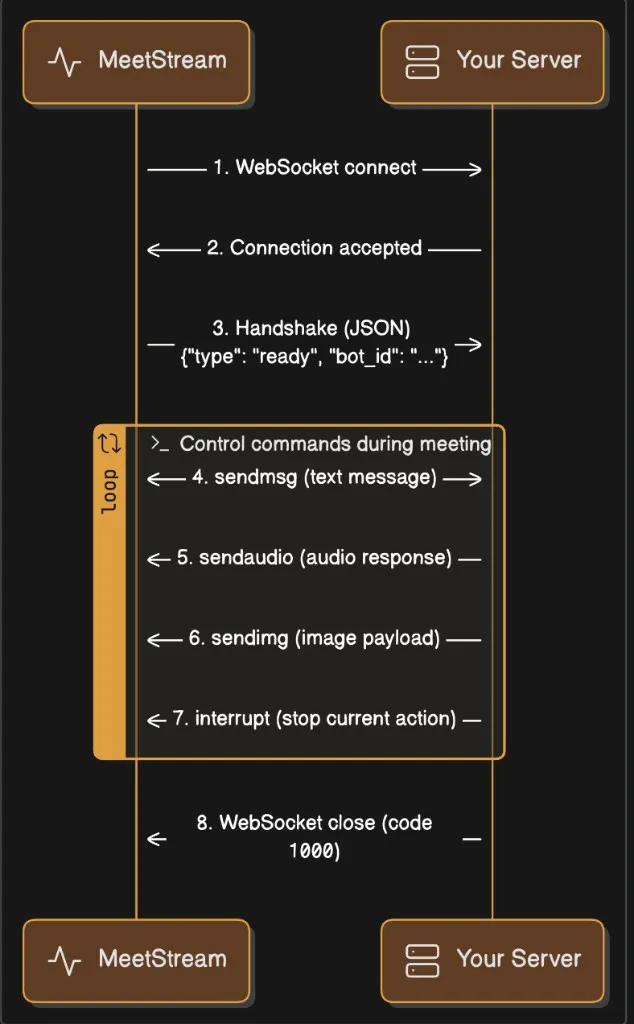
1. Bot connects to your WebSocket endpoint
The bot opens the connection when it joins the meeting, so have your server listening before you create the bot.
2. Bot sends a JSON text handshake
After you receive this, the bot is ready to accept commands.
3. You send JSON commands
Commands are JSON text WebSocket frames. The bot executes them in the meeting. On Google Meet the bot also acknowledges sendaudio, sendmsg and interrupt on the same socket, for example {"command": "sendmsg", "bot_id": "...", "status": "sent"} (status is sent, failed or cleared).
4. Connection closes when the bot leaves
The WebSocket closes with a normal 1000 close code when the bot exits.
Timeline
Command Reference
All commands share this structure:
sendaudio: play audio in the meeting
Plays audio through the bot’s virtual microphone so all meeting participants hear it. Use this for text-to-speech output, pre-recorded audio prompts, or any audio your application generates.
Audio Encoding Requirements
The audiochunk field must be a base64-encoded string of raw PCM16 signed little-endian audio bytes. No WAV headers and no MP3: raw samples only.
Encoding audio: Python
Encoding audio: JavaScript / Node.js
Sending a WAV file: Python
Chunked Audio Streaming
For long audio (TTS streams, file playback), send audio in chunks rather than one large command. A good chunk size is 0.5 to 2 seconds:
Binary audio frames
Instead of base64 JSON you can send raw PCM in a binary WebSocket frame. The header carries the sample rate, so this is the way to send non-48 kHz audio to a Google Meet bot:
When the bot cannot speak
- Zoom: the bot has to be able to unmute itself. If the host has muted the bot and it cannot unmute, audio is dropped. Audio sent before the bot’s microphone is ready is also dropped.
- All platforms: audio sent while the bot is still joining or waiting in the lobby is not heard by anyone. Start speaking after
bot.inmeeting.
sendmsg: send a chat message
Posts a text message in the meeting’s chat panel, visible to all participants.
Why both
messageandmsg? Zoom and Teams bots readmsg; Google Meet bots readmessage(ormsg). Always include both with the same value.
Every sendmsg posts a new chat message visible to everyone in the meeting. Chat must be enabled in the meeting for the bot to post; see chat and visuals for platform notes.
Example: Python
Example: JavaScript
sendchat is not a control-channel command
Earlier versions of this page described a sendchat command with role and is_final for streaming tokens into chat. The bot does not act on sendchat over this WebSocket on any platform. Use sendmsg instead, and send only final text: every chat command posts a new message, so streaming partial tokens would flood the meeting chat.
interrupt: stop audio playback
Immediately stops any audio currently playing through the bot’s speaker and clears the audio playback queue. Use this for barge-in (when a human starts speaking while the bot is talking) or to cancel a response.
Platform behavior
resume_audio: allow audio again after an interrupt
resume_id is any string you choose. On Zoom the bot answers with {"command": "resume_audio_ack", "bot_id": "...", "resume_id": "turn-42", "success": true, "error": ""}; success: false with error: "zoom_self_unmute_failed" means the bot could not unmute itself. Google Meet ignores resume_audio, so it is safe to always send it.
Example: barge-in pattern (works on every platform)
sendimg: set the bot’s video frame (base64)
Sets the bot’s camera feed to an image. Zoom and Teams only; on Google Meet use the send_image REST endpoint instead.
Example: Python
sendimg_url: set the bot’s video frame (URL)
Same as sendimg but provides a URL instead of inline base64. The bot downloads the image and sets it as its video frame. Zoom and Teams only; on Google Meet use send_image.
Full Server Examples
Python Server (FastAPI)
A complete server that accepts both the audio and control channels, logs audio, and sends a welcome message.
Run:
Node.js Server (ws)
Using Both Channels Together
When you enable both live_audio_required and socket_connection_url, the bot opens two independent WebSocket connections to your server. The audio channel’s frame format differs by platform (see real-time audio streaming); the decoders above handle all three. A typical Create Bot request:
Pattern: receive audio, process, respond
Pattern: barge-in detection
Command Summary
Audio specs: quick reference
Related
- Real-time audio streaming: incoming audio frame formats
- In-meeting chat and visuals: the REST versions of chat and image commands
- Pause and resume recording
- Zoom, Google Meet, Microsoft Teams platform guides