
Microsoft Teams Signed-In Bots
Send your Teams bot in as a signed-in Microsoft 365 account, so it can join meetings that block anonymous guests and get past lobbies that only let organizations in.
By default, a MeetStream Teams bot joins as a guest: it opens the pre-join screen, types its bot_name and asks to be let in. That fails when the organizer’s organization has turned anonymous join off, because Teams shows a sign-in wall. A signed-in bot signs in to a Microsoft 365 bot account first and joins as that account.
You register each bot account with MeetStream once. Every bot you create against its domain then signs in automatically. You never send the password with a bot request, and you can rotate or remove it at any time.
Endpoint: POST /api/v1/bots/create_bot
Auth: Authorization: Token <your MeetStream API key>
Before you start
A Microsoft 365 tenant and bot accounts
Use a dedicated tenant for bot accounts, not your production one. Bot accounts must sign in with only an email and password, which means turning off multi-factor authentication (MFA) for them. With security defaults that setting applies to the whole tenant, which you should never do for real employees. One dedicated tenant can hold all of your MeetStream bot accounts; you don’t need one per end customer.
- Subscribe to a paid Microsoft 365 plan that includes Microsoft Teams, such as Microsoft 365 Business Basic or higher (not a “no Teams” edition). We test with Business Basic and above; Teams Essentials is untested. Avoid a trial-only tenant: Teams blocks external access with trial-only tenants by default, so other organizations would treat your bots as anonymous (Microsoft Learn).
- Create one standard user per bot in the Microsoft 365 admin center under Users > Active users > Add a user (Microsoft Learn):
- Set the display name (and later a profile picture). This is the name meeting participants see.
- Clear “Require this user to change their password when they first sign in”, which is selected by default. Otherwise the bot’s first sign-in hits a password change screen and fails.
- Assign a license that includes Teams.
- Don’t assign any admin role.
- Keep passwords from expiring. Microsoft 365 defaults to passwords that never expire. Check Settings > Org Settings > Security and Privacy > Password expiration policy > Set passwords to never expire (recommended) (Microsoft Learn).
- Sign in once yourself at
https://teams.microsoft.comwith each bot account in a private browser window. Confirm it reaches Teams with no extra prompts. - Note each account’s email address and password. You register them with MeetStream in Register your tenant domain and bot accounts.
Only Microsoft 365 (work or school) Teams is supported. Personal Teams accounts and teams.live.com meetings can’t be used with signed-in bots.
Make sure Microsoft never asks the bot for more than a password
MeetStream signs in with the email and password only. If Microsoft shows any extra step, the join fails:
Turn these prompts off for the bot accounts in the Microsoft Entra admin center:
Tenant uses security defaults
Tenant uses Conditional Access
Security defaults can only be on or off for the whole tenant; you can’t exclude single users. In a dedicated bot tenant, turn them off (Microsoft Learn):
- Sign in to the Microsoft Entra admin center as at least a Conditional Access Administrator.
- Go to Entra ID > Overview > Properties.
- Select Manage security defaults.
- Set Security defaults to Disabled (not recommended) and select Save.
If self-service password reset is on, keep the bot accounts out of it so Microsoft doesn’t ask them to register security info at sign-in: in the Entra admin center go to Entra ID > Password reset > Properties and set Self service password reset enabled to None, or to Selected with a group that doesn’t include the bot accounts (Microsoft Learn).
Check that the meetings will let the bot in
A signed-in bot joins with its own organization’s identity. If that organization isn’t the organizer’s, Teams treats the bot as an external participant only when both organizations allow each other in external access (Teams admin center Users > External access; Microsoft’s default is Allow all external domains). If they don’t, Teams treats the bot as anonymous and it hits the same wall as a guest bot. Which bots skip the lobby depends on the meeting’s Who can bypass the lobby option: see the lobby matrix on the Teams platform page.
How it works
Setup is done once: register your tenant domain, then add each bot account. After that, create_bot only needs the domain.
Register your tenant domain and bot accounts
The tenant domain is the part after the @ in your bot accounts’ email addresses, for example acmebots.onmicrosoft.com for bot1@acmebots.onmicrosoft.com. Every account you add must use exactly that domain. Use lowercase for the domain and the email addresses.
In the dashboard
Open Teams Bots
In the MeetStream dashboard, go to Integrations and select the Teams Bots tab, then click Add domain.
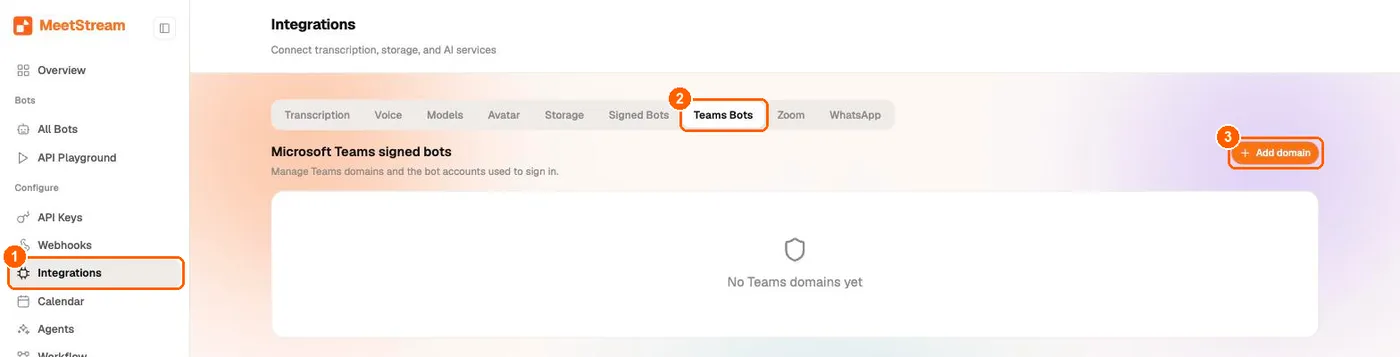
Add your tenant domain
In the Add Teams domain dialog:
- Tenant domain: your bot accounts’ email domain, in lowercase.
- Display name (optional): a label for you, such as “Acme Teams bots”.
- Login mode: choose Always sign in. It is the only mode that signs bots in today; with Sign in if required, bots join as guests.
- Click Add domain.
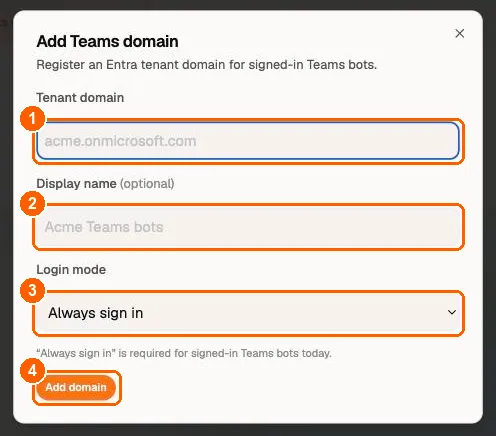
Add each bot account
Click the domain in the list, then + Add login. In the Add Teams login dialog, enter the Bot email and Password, keep Active and available for new bots checked, and click Add login.
Credentials are write-only: the password is never displayed again, in the dashboard or the API. The account is usable immediately.
With the API
Register the domain:
POST /api/v1/teams-login-domains
Returns 201 with domain, name, login_mode and created_at. login_mode accepts always (the default) and if_required, but only always signs bots in today: a bot on an if_required domain joins as an anonymous guest, with no error.
Add a bot account:
POST /api/v1/teams-logins
Returns 201 with the account’s login_id, email, is_active and lease_status. The password is write-only: no response ever returns it, including GET.
Manage domains and accounts
A new password takes effect on the account’s next sign-in; a bot already in a meeting is not affected. Rotating the password also reactivates an account that was switched off after a failed sign-in. Errors from these endpoints have the shape {"error": "..."}.
Create a signed-in bot
POST /api/v1/bots/create_bot
login_mode is not a request field; it comes from the domain. Sending teams.login_mode returns 400.
Everything else on create_bot (recording, transcription, webhooks, automatic leave) works as for any other bot. See the Create Bot Payload Reference and the Teams platform guide for Teams-specific behavior.
How MeetStream picks and holds an account
- One bot per account. An account is reserved for one bot at a time and released when that bot finishes. If a release is ever missed, the reservation expires after 13 hours.
- Least recently used first. Without
sign_in_email, MeetStream picks the active, free account that was used longest ago, which spreads sign-ins across your accounts. - When the reservation happens. For an immediate bot, when you call
create_bot, so a full pool fails the request right away. For a scheduled bot (join_at), about two minutes beforejoin_at, not when you schedule it. Make sure an account is free at that time. - No fallback to guest. If sign-in fails, the bot stops with an error instead of joining anonymously.
- Nothing is left behind. When the bot leaves, the account is released and the signed-in browser session is wiped.
Sign-in errors
A failed sign-in ends the bot with status Error (webhook bot.stopped, bot_event: "bot.failed"). For failures before the bot reaches the meeting, the message starts with Error: Teams sign-in failed:. The reason is in bot_details.ErrorReason from GET /api/v1/bots/{bot_id}/detail, and in the account’s Last session (last_login_error).
Wrong passwords are never retried. One wrong attempt per bot keeps Microsoft from locking the account for your whole pool. After TeamsLoginBadCredentials or TeamsLoginAccountDisabled, MeetStream marks the account inactive (is_active: false, Inactive in the dashboard), so new bots skip it until you fix it.
Troubleshooting
create_bot errors return {"message": "..."}.
Related
- Microsoft Teams platform guide: links, lobby, statuses, auto-leave and media on Teams
- Bot status and error code reference
- Create Bot Payload Reference
- Webhooks and events
- Create your First Bot for guest joins to meetings that don’t require sign-in