
Skip to navigation

Per-Participant Video Streams: Separate Video for Every Participant

View as Markdown

Get one video file per participant webcam and per screen share, instead of (or as well as) a single composite recording of the meeting.

Supported platforms: Zoom, Google Meet, Microsoft Teams.


Platform support

ZoomGoogle MeetMicrosoft Teams
Per-participant videoYes. Also set video_required: true; without it no video is capturedYesYes
Streams captured at onceUp to 16 webcamsUp to 16 streams, screen shares includedUp to 6 streams, including at most 1 screen share
Webcam quality180p, 15 fpsUp to what Meet sends the botUp to 1280x720, 15 fps
Screen shareCaptured as its own fileCaptured as its own file; counts toward the 16One share at a time, counts toward the 6. A new share takes the slot of the most recently added webcam
Camera offBlack tile with the participant’s name (after about 3 s without frames)Black tile with the participant’s nameBlack tile with the participant’s name

When more cameras are on than the platform limit, the extra cameras are not recorded until a slot frees up. Plan around the limit on Teams in particular: in a meeting with more than six cameras on, some participants will not have a video file.

See the capability matrix for the rest of what each platform supports.

Per-participant video is opt-in and off by default. A bot never records one file per participant unless you set video_separate_streams: true yourself, because it multiplies processing and storage by the number of participants. Leave it unset for ordinary recording.


1) What you need

  1. A MeetStream API key (see Create your first bot).
  2. A meeting link (Zoom, Google Meet or Microsoft Teams).
  3. video_separate_streams: true in your Create Bot request. On Zoom, also video_required: true.

2) Create a bot with per-participant video

Use the Create Bot endpoint.

Minimal example

curl -X POST "https://api.meetstream.ai/api/v1/bots/create_bot" \
-H "Authorization: Token <YOUR_API_KEY>" \
-H "Content-Type: application/json" \
-d '{
"meeting_link": "<YOUR_MEETING_LINK>",
"bot_name": "RecorderBot",
"video_required": true,
"video_separate_streams": true
}'

Sending video_required: true works on every platform and is required on Zoom.

To try it without code, open API Playground in the dashboard and go to the Streams step:
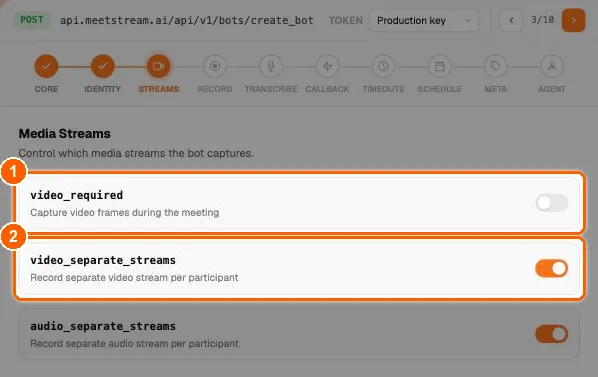
API Playground bot builder on the Streams step with the video_required and video_separate_streams toggles highlighted
API Playground, Streams step: turn on (1) video_required, needed on Zoom, and (2) video_separate_streams.

Full example with transcription

{
"meeting_link": "https://meet.google.com/abc-defg-hij",
"bot_name": "RecorderBot",
"video_required": true,
"video_separate_streams": true,
"recording_config": {
"video_layout": "speaker_view",
"transcript": {
"provider": {
"deepgram": {
"model": "nova-3",
"language": "en"
}
}
}
},
"automatic_leave": {
"everyone_left_timeout": 60
}
}

The composite recording here uses video_layout: "speaker_view" so the single MP4 follows whoever is talking, which is what you want for review and clipping. The per-participant WebM files are unaffected by the layout.

Parameter reference

ParameterTypeDefaultDescription
video_separate_streamsbooleanfalseEnable per-participant video capture. Opt-in: nothing turns this on for you
video_requiredbooleantrueEnable composite screen recording (single MP4). The API records video when this field is omitted, so send false explicitly for an audio-only bot. Can be used alongside video_separate_streams
recording_config.video_layoutstringgrid_viewLayout of the composite MP4: speaker_view follows the active speaker, grid_view is a mosaic of everyone. Send speaker_view explicitly when video is on. Ignored when video_required is false

Tip: You can also pass video_separate_streams inside recording_config:

"recording_config": {
"video_separate_streams": true
}

The top-level parameter takes precedence if both are set.


3) What happens during the meeting

Once the bot is admitted, it automatically:

  • Captures each participant’s webcam as a separate stream.
  • Captures each screen share as a separate stream.
  • Keeps each file on the meeting’s timeline, so files line up with the mixed audio and with each other.

No per-participant configuration is needed. If you pause recording, every per-participant file shows black video for the paused stretch.


4) Retrieve per-participant video streams

After the bot leaves and video processing finishes (the video.processed webhook), call:

curl -X GET "https://api.meetstream.ai/api/v1/bots/<BOT_ID>/get_recording_streams" \
-H "Authorization: Token <YOUR_API_KEY>"

Response when processing is complete (200)

The response is an array. Each item is one recorded webcam or screen-share stream:

[
{
"id": "f923cd21-da86-4d77-b37b-0707d37751c8-user_456-0",
"created_at": "2026-09-20T17:02:11.482Z",
"participant": {
"id": 48213377,
"name": "Jane Smith",
"is_host": true,
"platform": "desktop",
"extra_data": {
"google_meet": { "static_participant_id": "spaces/AbCdEf/devices/185" }
}
},
"start_timestamp": { "absolute": "2026-09-20T17:02:11.482Z", "relative": 12.4 },
"duration": 1325.5,
"download_url": "https://...",
"type": "webcam"
},
{
"id": "f923cd21-da86-4d77-b37b-0707d37751c8-source_101-0",
"created_at": "2026-09-20T17:10:40.006Z",
"participant": {
"id": 48213377,
"name": "Jane Smith",
"is_host": true,
"platform": "desktop",
"extra_data": {
"google_meet": { "static_participant_id": "spaces/AbCdEf/devices/185" }
}
},
"start_timestamp": { "absolute": "2026-09-20T17:10:40.006Z", "relative": 520.9 },
"duration": 60.0,
"download_url": "https://...",
"type": "screenshare"
}
]
FieldMeaning
typewebcam or screenshare
participant.nameDisplay name in the meeting
participant.is_hostWhether the participant was the host
participant.platformdesktop, or mobile_app when the camera was portrait
participant.extra_dataKeyed by zoom, google_meet or microsoft_teams. static_participant_id is the platform’s participant ID, the same ID used by participants and speaker timeline
participant.idA number derived from the participant ID, stable within the meeting
start_timestamp.relativeSeconds from the start of the meeting recording
durationLength of this file in seconds
download_urlLink to the file. Valid for 1 hour

Other responses

StatusBodyMeaning
202{"video_status": "processing", "stage": "...", "message": "..."}Video is still being processed. Poll again in 10 to 30 seconds, or wait for video.processed
200[]video_separate_streams was off, the bot recorded no video, or no camera or share was on
404{"message": "No video processing has been initiated for this bot."}The bot never got far enough to record video (for example, it was not admitted)
403{"message": "...", "access_mode": "write_only"}Your custom storage is write-only, so MeetStream cannot read the files back. Read them from your bucket
500{"video_status": "failed", ...}Processing failed. Check the bot in the dashboard and contact support

5) Download the video files

curl -o "jane-webcam.mp4" "<download_url from the response>"

Links expire after 1 hour. Call get_recording_streams again for fresh links.

PropertyValue
ContainerMP4
Frame rate15 fps
AudioNone (video-only files)

Audio is separate: use per-participant audio or the mixed recording from retrieve recordings.


6) Understanding the files

  • A participant can have more than one item, for example a webcam file and a screen-share file, or one file per screen-share session.
  • Turning a camera off and on does not start a new file: the off stretch is filled with a black tile showing the participant’s name, so the file stays on the meeting timeline.
  • Use start_timestamp.relative and duration to place each file on the meeting timeline, and participant.extra_data to match it with per-participant audio.

7) Using both composite and per-participant video

{
"meeting_link": "<MEETING_LINK>",
"video_required": true,
"video_separate_streams": true,
"recording_config": {
"video_layout": "speaker_view"
}
}

video_layout applies only to the composite MP4. Speaker view is the recommended setting because it follows the active speaker; switch to grid_view if you specifically want a mosaic of everyone.

This produces:

  • A composite MP4 of the meeting (layout grid_view or speaker_view, built after the call from the per-participant streams). Retrieve it with Get Bot Video.
  • Per-participant MP4 files. Retrieve them with Get Recording Streams.

Pick the composite layout with recording_config.video_layout, or on the Playground’s Record step:
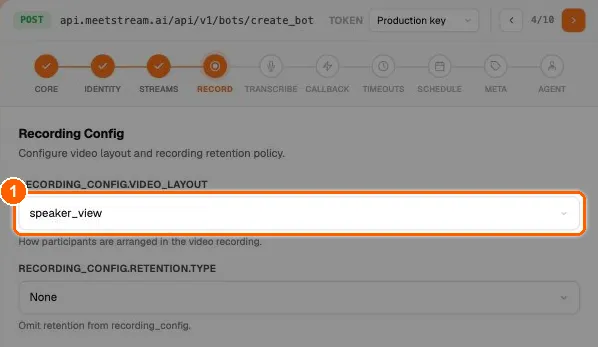
API Playground bot builder on the Record step with the recording_config.video_layout dropdown highlighted
API Playground, Record step: (1) recording_config.video_layout chooses grid_view or speaker_view for the composite.

8) Webhook notifications

Subscribe to video.processed (and video.failed) in webhooks and events, then call get_recording_streams. Polling until you get a 200 with items works too.


9) Troubleshooting

  • Empty array [] after the meeting?

    • Check that video_separate_streams: true was set, and on Zoom that video_required: true was set as well.
    • Participants who never turned their camera on and never shared their screen do not produce files.
  • A participant’s video is missing?

    • The platform limit was reached: 6 streams on Teams (including 1 screen share), 16 on Zoom and Google Meet. Extra cameras are not recorded until a slot frees up.
    • The bot only records after it is admitted. Anything before admission is not captured. See bot status and error codes if the bot was never admitted.
  • Getting 202 with video_status: "processing"?

    • Processing takes a short time after the bot leaves. Poll again after 10 to 30 seconds.
  • The download link returns 403 Forbidden?

    • The link has expired (1-hour lifetime). Call get_recording_streams again.
  • The video file has no audio?