
Google Calendar Integration
Connect a Google Calendar once and MeetStream schedules a bot for your upcoming Google Meet, Zoom and Microsoft Teams meetings, then keeps those bots in sync as events move or get cancelled.
You bring your own OAuth app. MeetStream connects to Google Calendar with an OAuth client that you create in your own Google Cloud project (the dashboard calls this “BYOK”). You stay in control of the consent screen, the scopes and the credentials, and you can revoke access from Google at any time.
Before you start
- A MeetStream API key that is active. Every calendar feature runs under your API key. Without one, the dashboard’s Calendar page shows “No active API key found. Create one on the API Keys page.” See Dashboard Setup.
- Access to a Google Cloud project where you can enable APIs and create OAuth clients.
- Pick how you will connect:
- Dashboard (recommended). MeetStream runs the Google consent screen for you and stores the resulting refresh token. You only paste a Client ID and Client Secret.
- API. You run the consent flow yourself, obtain a refresh token, and send all three values to
POST /api/v1/calendar/create_calendar. See Connect with the API instead.
Step 1: Create the Google OAuth app
These steps use the Google Cloud console. Menu names below match Google’s current documentation for the Google Auth platform and OAuth client creation.
Enable the Google Calendar API
In the Google Cloud console, select (or create) the project you want to use. Go to Menu > APIs & Services > Library, search for Google Calendar API, open it and click Enable.
Configure the consent screen (Branding and Audience)
Go to Menu > Google Auth platform > Branding and fill in the app information: App name (your users see it on the consent screen) and User support email. Then choose the Audience:
Add a Contact information email address, accept the Google API Services: User Data Policy, and create the configuration.
Add the calendar scopes (Data Access)
Go to Google Auth platform > Data Access, click Add or Remove Scopes, and add the four scopes MeetStream requests. They are read-only: MeetStream never writes to your Google Calendar.
Create the OAuth client (Web application)
Go to Google Auth platform > Clients > Create Client. Set Application type to Web application and give it a name (for example “MeetStream Calendar”).
Under Authorized redirect URIs, click Add URI and enter the redirect URI for the way you will connect:
You can add both. Click Create, then copy the Client ID and Client secret.
The dashboard redirect URI must match exactly: https://, no trailing slash, all lowercase. A mismatch makes Google stop the flow with a redirect_uri_mismatch error before you ever reach MeetStream.
Add test users or publish the app
If you chose External, the app starts in Testing:
- Add every Google account you plan to connect under Google Auth platform > Audience > Test users > Add users.
- Google issues refresh tokens that expire after 7 days for External apps in Testing that request calendar scopes (Google OAuth 2.0 docs). When that happens, the calendar stops syncing until you reconnect.
- For production use, click Publish app on the Audience page. The calendar scopes are sensitive scopes, so Google may ask you to complete app verification first.
Internal apps are not affected by the 7-day Testing limit.
Step 2: Connect Google Calendar in the dashboard
Open Calendar and start a connection
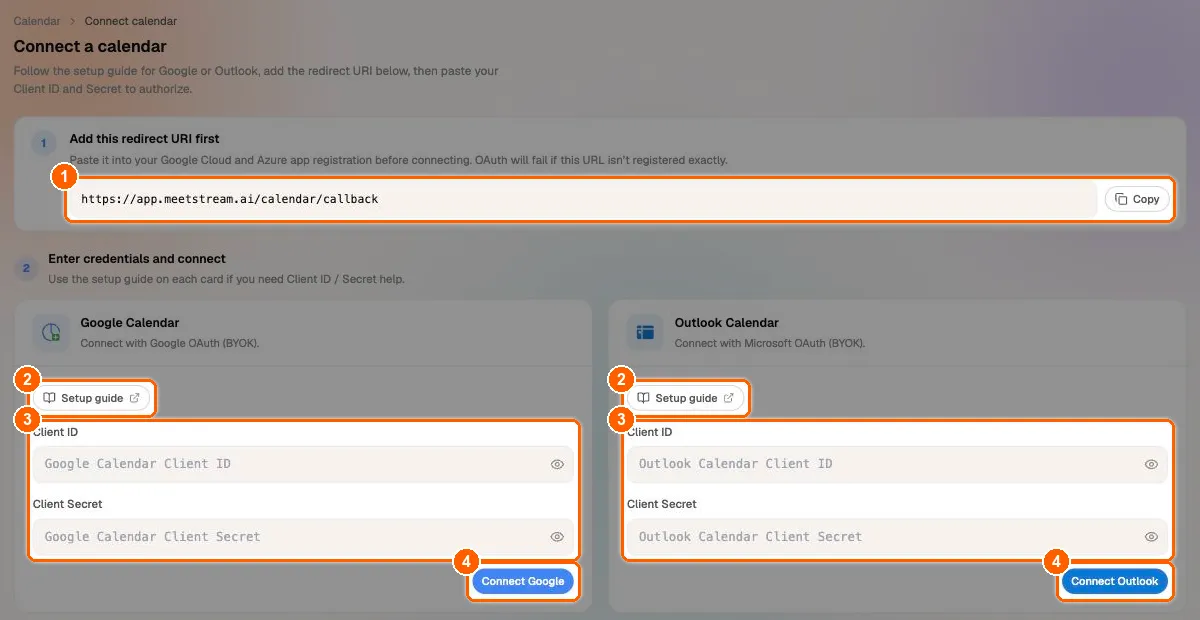
In the dashboard sidebar, under Configure, click Calendar (1). With no calendars connected yet, the page shows Connect a calendar. Click + Connect calendar (2).
Already have a calendar connected? Use + Connect another account on the Calendars page instead.
Copy the redirect URI
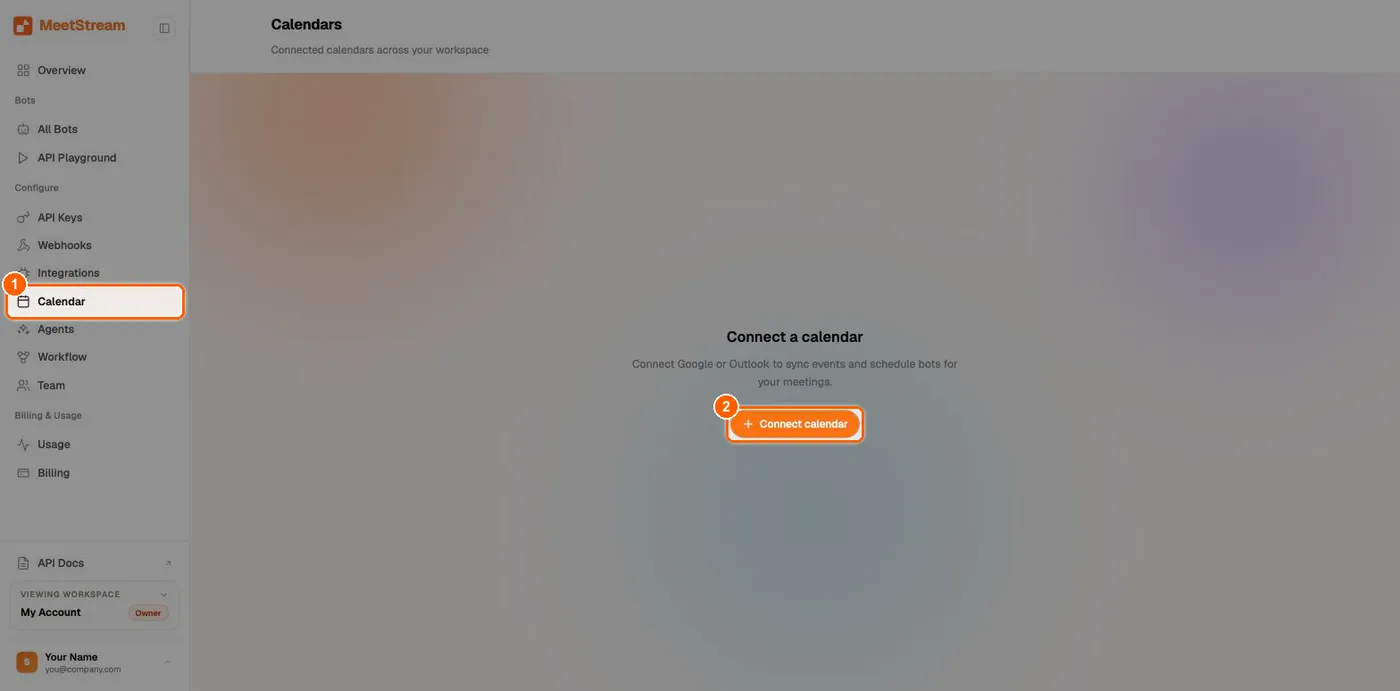
Step 1 on the page, Add this redirect URI first, shows the exact value to register in Google Cloud (1). Click Copy (2) and make sure the same value is in your OAuth client’s Authorized redirect URIs.

Paste your Client ID and Client Secret
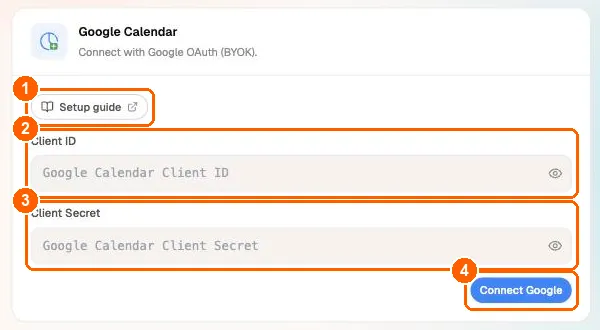
On the Google Calendar card (“Connect with Google OAuth (BYOK).”), paste the Client ID (2) and Client Secret (3) from Google Cloud. Setup guide (1) links back to this page. Click Connect Google (4).
Approve access on Google's consent screen
You are redirected to Google. Sign in with the account whose calendar you want to connect and approve the requested read-only access. Google sends you back to MeetStream, which shows “Connecting your Google Calendar…” and then Google Calendar connected with a View calendars button.
Google shows redirect_uri_mismatch
The redirect URI registered on your OAuth client does not match https://app.meetstream.ai/calendar/callback exactly. Copy it again from the dashboard, paste it under Authorized redirect URIs, save, wait a minute and retry.
The dashboard says "Client ID and Client Secret are required."
Both fields on the card must be filled in before you click Connect Google.
The dashboard says "Missing OAuth session data. Start connect again from Calendar settings."
The Client ID and Secret are held in your browser tab while you visit Google. If you finished the Google step in a different tab or browser, or the tab was reloaded in between, start again from Calendar > + Connect calendar in the same tab.
The dashboard says "No authorization code received."
You cancelled or denied the Google consent screen, or Google returned an error. Retry and approve access. For External apps in Testing, make sure the account is listed under Test users.
The calendar stopped syncing about a week after connecting
Your OAuth app is External and still in Testing, so Google expired the refresh token after 7 days. Publish the app (or use an Internal app), then reconnect the account.
Step 3: Turn on auto-join
On the Calendars page, the Auto-schedule bots card has a switch. When it is on, “MeetStream automatically schedules a bot for new meetings that have a join link.”
- Click Default bot settings to set the bot name, image URL, join message, audio and video, and automatic leave timeouts used for calendar bots.
- These defaults are saved in your browser and sent to MeetStream when you switch Auto-schedule bots on. After you change them, switch auto-join off and on again so the new defaults apply.
- Click a connected account to see its events. Sync events pulls the latest from Google, and Schedule bots lets you schedule individual events by hand.
Prefer the API? Turn auto-join on with POST /api/v1/calendar/auto-schedule/enable (see Enable auto-join with the API).
How auto-join works
Which links count as meeting links
MeetStream looks for a link in this order: the event’s Google Meet link (hangoutLink), a video entry in the conference data, URLs in the location, then meeting-platform URLs in the description.
If an event has no recognized meeting link but its location contains some other URL (or its description links to a conferencing service MeetStream does not support), that URL can still be saved as the event’s link, and auto-join will try to send a bot to it. The bot then fails with an invalid meeting link error. Keep such URLs out of events on calendars that use auto-join, or unschedule those events.
Platform guides: Zoom, Google Meet, Microsoft Teams. To follow each bot’s progress, subscribe to webhooks; for every status and error, see the status and error code reference.
Transcripts for calendar bots. A transcription provider inside a calendar bot configuration is not applied when the bot is dispatched today. To get a transcript, run post-call transcription once the bot has finished: call POST /api/v1/bots/{bot_id}/transcribe after you receive audio.processed or bot.done. For live transcription or a provider applied at join time, create the bot yourself with create_bot and join_at (see Scheduling Bots).
Connect with the API instead
Use this path when you want to run the Google consent flow in your own product, for example to connect your end users’ calendars.
Get a refresh token with the local helper
This small Node.js helper runs the Google consent flow on your machine and prints the refresh token. Register http://localhost:3000/api/google/oauth-callback as an Authorized redirect URI on your OAuth client first.
- Create a
.envfile:
- Install dependencies:
- Save this as
server.js:
- Run
node server.js, openhttp://localhost:3000, sign in with the Google account to connect, and approve access. Copy the refresh token from the page.
Google returns a refresh token only on the first consent or after you revoke access. If none is returned, remove the app at myaccount.google.com/permissions and run the flow again.
Connect the account
MeetStream validates the credentials with Google, reads the account’s email (this becomes the connection’s account_id), fetches its calendars, stores the credentials encrypted, and subscribes to change notifications for the calendars the account owns or can edit. Each call connects one Google account; call it again with another account’s refresh token to add more.
Example response (trimmed):
Reconnecting the same account without replace returns 409:
Calendar API reference
All endpoints use Authorization: Token <YOUR_API_KEY> and the base URL https://api.meetstream.ai. The same endpoints serve Google and Outlook connections; add ?provider=google&account_id=<email> to scope a call to one connected account.
List calendars
Returns the calendars of every connected account, read live from the provider. Each entry carries provider and account_id.
Sync and list events
Each result includes meeting_url, meeting_platform (GMeet, Zoom or Teams) and a bots array with any bots scheduled for the event:
GET /api/v1/calendar/get_events returns events already synced to MeetStream without calling the provider, which is faster when you do not need the latest changes.
Schedule a bot for one event
bot_config takes the same bot fields as create_bot (the meeting link comes from the event). Calendar bots default to audio on and video off.
Response (trimmed):
scheduled_time is when the bot is dispatched (about 2 minutes before the start). Scheduling the same event twice returns 409 with "error": "A bot is already scheduled for this event", the existing bot_id, and a hint to use PATCH instead. If your account has no active API key, the call returns 400 with “No API key found. Please ensure your account has an active API key.”
Unschedule an event
For recurring events, pass {"cancel_all_occurrences": true} to cancel the whole series, optionally with "from_date" to cancel only occurrences from that date forward.
Manage scheduled bots
Enable auto-join with the API
If you omit default_bot_config, calendar bots use the name “MeetStream Calendar Bot” with audio on and video off. POST /api/v1/calendar/auto-schedule/disable turns auto-join off, and GET /api/v1/calendar/auto-schedule/settings returns auto_schedule_enabled and the stored default_bot_config. The rules in How auto-join works apply.
Disconnect an account
This removes the connection, stops change notifications for it and cancels its scheduled bots. Synced events are deleted too; add ?purge_events=false to keep them. GET /api/v1/calendar/connections lists every connected account. The older DELETE /api/v1/calendar/disconnect works when only one account is connected; with several, it returns 400 (“Multiple calendar connections present; refusing to disconnect all without explicit account_id”) unless you pass provider and account_id.
FAQ
Which calendar providers are supported?
Google Calendar and Microsoft Outlook (Microsoft 365 and Outlook.com). See Outlook Calendar Setup. You can connect several accounts, from either provider, to the same MeetStream account.
Do I need a Google Workspace account?
No. Personal Google accounts and Google Workspace accounts both work. An Internal OAuth app only works for accounts in your own Workspace organization; use External to connect other accounts.
Why did a bot join a meeting I declined?
Auto-join does not look at RSVP status today. Every event with a meeting link in the next 24 hours gets a bot. Use per-event scheduling if you need to skip declined or external meetings.
How early does the bot join?
The bot is dispatched about 2 minutes before the event’s start time. scheduled_join_time on the bot is the start time itself.
What happens if I reschedule or cancel a meeting in Google Calendar?
Google notifies MeetStream. A moved event moves its bot’s join time; a deleted or cancelled event cancels its bot (Cancelled).
Can I schedule bots for events without a meeting link?
No. Events need a recognized Google Meet, Zoom or Microsoft Teams link. Events without one are shown in the dashboard but cannot be scheduled.
Can different meetings use different bot settings?
Yes. Auto-join uses your default bot settings for every meeting. To use different settings for one event, schedule it yourself with POST /api/v1/calendar/schedule/{event_id} and its own bot_config before auto-join picks it up, or update the scheduled bot with PATCH.
How is my calendar data protected?
OAuth credentials are stored encrypted and are never returned by the API. MeetStream requests read-only calendar scopes and never stores your Google password. You can revoke access at any time from your Google account or by disconnecting in MeetStream.
For webhook handling, see Webhooks and Events. To create a bot without a calendar, see Create your first bot.