
Google Meet Lobby & Admission Troubleshooting
Use this page when a Google Meet bot is waiting, times out, gets denied or never appears. For how Meet bots join in general, see Google Meet Bots.
Google Meet decides who gets in. MeetStream asks to join, waits for waiting_room_timeout, and reports exactly what happened, but it cannot override the meeting’s access settings or the organizer’s Google Workspace policies.
Step 1: Check what the bot reported
Open the bot in the dashboard (All Bots, then the bot) or call Get Bot Details and read Status and ErrorReason.
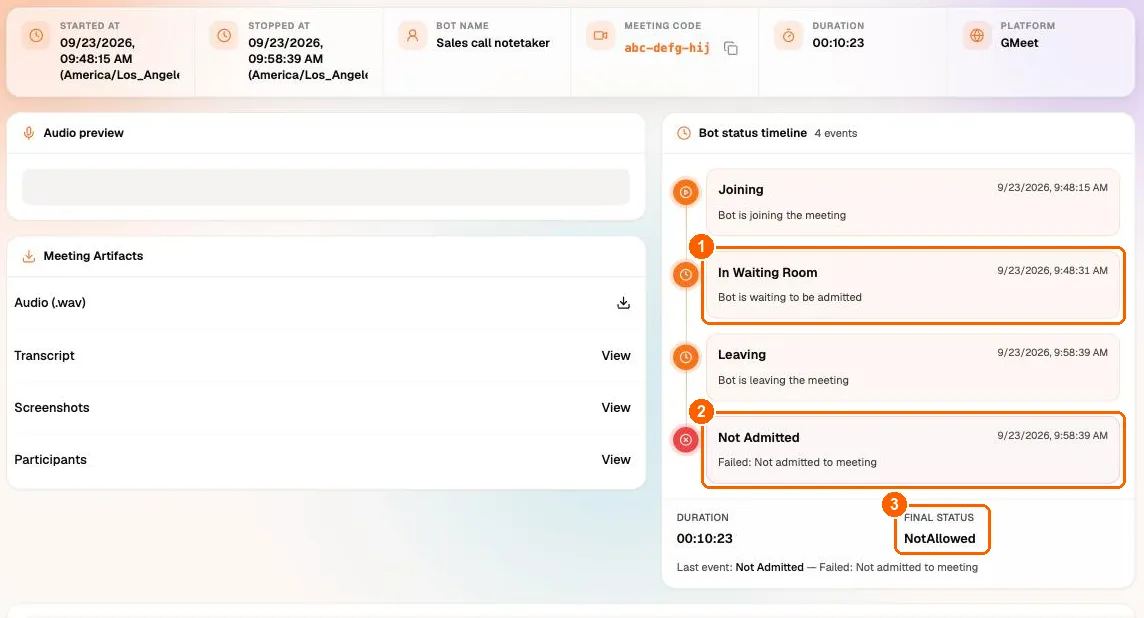
Every status, reason and message is listed in the Bot status and error code reference.
Step 2: Match the symptom
How Google Meet admission works
Meeting access types
The host sets these in Host controls > Meeting access during the call, or in the Calendar event under Video call options > Host controls (Google’s description):
In Trusted and Restricted meetings, the host can turn off “Anyone with the meeting link can ask to join” (Trusted) or “Anyone can ask to join, including people who dial in” (Restricted). Then people who aren’t allowed in directly can’t knock at all, and Google automatically denies anonymous users and note-taking bots.
Who can admit
- Host management on: the host and co-hosts admit people. Other attendees often can’t see requests at all.
- Host management off: people from the organizer’s organization who are in the call can usually respond to requests too.
- Waiting room on: everyone, invited or not, waits until a host clicks Bring in or Bring everyone in, or the host has turned on Bring in automatically (Google’s Waiting room help).
What the bot does while it waits
- It sends
bot.in_waiting_roomas soon as it clicks Ask to join (or Join now), so the event can be very brief when no approval is needed. - It waits up to
automatic_leave.waiting_room_timeoutseconds: 60 to 600 on Google Meet, default 600. For scheduled bots the wait counts from the scheduled start time. - On timeout it clicks Leave, which withdraws the request, then reports
LeavingandNotAllowedwith the messageFailed: Not admitted to meeting.
More checks
Is it the meeting or MeetStream? Run an isolation test
- Open meet.new while signed in. You created the meeting, so you are its host.
- Send a MeetStream bot to it.
- Confirm you see the request and can admit the bot.
- Go back to the affected meeting and check whether you have Host controls there.
If the test works but the real meeting does not, compare the affected event’s organizer, co-hosts, invited guests and Meeting access settings.
How do I find the real organizer of a meeting?
Open the event in Google Calendar and look at its organizer. It can differ from the person running the call: an assistant, a shared calendar, a service account or a scheduling tool may have created it.
With the Google Calendar API, read the event’s organizer field:
If the organizer won’t attend, make an attendee a co-host in the Calendar event, create the event from a calendar of someone who will attend, or use a signed-in bot on the invite.
How do I add co-hosts before the meeting?
In Google Calendar, edit the event, turn on Host management in the Meet options, and add co-hosts. During a meeting, a host can open the participant’s menu in the People panel and choose Grant host controls (Google: add co-hosts).
Why did the bot give up before the host arrived?
waiting_room_timeout is capped at 600 seconds on Google Meet. If hosts often arrive more than 10 minutes late, schedule the bot closer to when the host joins, or use a signed-in bot on the invite so no admission is needed.
Can MeetStream hide the bot tile for everyone?
No. Each person chooses their own layout in Google Meet, and neither MeetStream nor the host can hide a participant for everyone.
What happens when the host selects 'End call for everyone'?
Meet removes everyone, including the bot. The bot reports status Stopped and normal post-call processing runs. Don’t assume every departure came from your own call to Remove Bot: check bot_event and ErrorReason.
Signed-in bots for reliable admission
A guest bot always depends on someone admitting it unless the meeting is Open. For production workflows where nobody may be there to approve it:
- Complete the Google Signed-In Bots setup.
- Add the bot account’s email to the Google Calendar event.
- Create the bot with
google_meet.login_required: trueand pin that account withsign_in_email(keepstrict_email: true). - Leave the Calendar Waiting room off for these meetings, or turn on Bring in automatically.
- Handle
bot.denied,bot.notallowedandbot.failedin your webhook handler as admission outcomes.
Each signed-in login can carry up to 30 bots at the same time. A signed-in bot shows its Google account’s name and photo instead of bot_name, and if its sign-in fails it stops with GoogleSignInFailed rather than joining as a guest.
Webhooks for admission outcomes
All terminal webhooks carry event: bot.stopped; read bot_event for the cause. On Google Meet:
bot.recording_permission_allowed and bot.recording_permission_denied are Zoom only; Meet bots go straight from bot.inmeeting to bot.recording. Full payloads: Webhooks and Events.