
Outlook Calendar Integration
Connect an Outlook calendar once and MeetStream schedules a bot for your upcoming Microsoft Teams, Zoom and Google Meet meetings, then keeps those bots in sync as events move or get cancelled.
You bring your own OAuth app. MeetStream connects to Outlook with an app registration that you create in your own Microsoft Entra tenant (the dashboard calls this “BYOK”). You control the permissions and the client secret, and you can revoke access at any time.
Before you start
- A MeetStream API key that is active. Every calendar feature runs under your API key. Without one, the dashboard’s Calendar page shows “No active API key found. Create one on the API Keys page.” See Dashboard Setup.
- A Microsoft Entra account that can register applications (at least the Application Developer role, per Microsoft Learn).
- Pick how you will connect:
- Dashboard (recommended). MeetStream runs the Microsoft sign-in and consent for you and stores the resulting refresh token. You only paste a Client ID and Client Secret.
- API. You run the consent flow yourself, obtain a refresh token, and send it to
POST /api/v1/calendar/create_outlook_calendar. See Connect with the API instead.
Step 1: Register the app in Microsoft Entra
Menu names below match Microsoft’s current documentation for the Microsoft Entra admin center.
Create the app registration
Sign in to the Microsoft Entra admin center. Browse to Entra ID > App registrations and select New registration. Enter a Name (for example “MeetStream Calendar”).
Under Supported account types, choose a multitenant option:
Do not pick Single tenant only if you connect through the dashboard. The dashboard signs in through Microsoft’s shared common endpoint, which Microsoft rejects for single-tenant apps with error AADSTS50194 (“isn’t configured as a multitenant application”). If you need a single-tenant app, use the API path with your tenant ID.
Under Redirect URI (optional), select the Web platform and enter https://app.meetstream.ai/calendar/callback. Select Register.
On the app’s Overview page, copy the Application (client) ID. This is your Client ID.
Check the redirect URI
If you skipped the redirect URI, or connect with the local helper in this guide, open Manage > Authentication, select Add Redirect URI, choose Web, and add the URI for the way you connect. Select Configure.
A missing or different value makes Microsoft stop sign-in with AADSTS50011 (the reply address does not match).
Create a client secret
Open Certificates & secrets > Client secrets > New client secret. Add a description, pick an expiration (Microsoft allows up to 24 months), and select Add. Copy the secret’s Value right away (not the Secret ID). Microsoft never displays it again. This is your Client Secret.
Put the expiry date in your calendar: when the secret expires, MeetStream can no longer refresh access and the calendar stops syncing until you reconnect with a new secret.
Add Microsoft Graph delegated permissions
Open API permissions > Add a permission > Microsoft Graph > Delegated permissions and add the permissions the MeetStream dashboard requests. Select Add permissions.
None of these require admin consent by default, so users can approve them on the consent screen. Because of Calendars.ReadWrite, the consent screen describes the access as full calendar access. If your organization blocks user consent, an administrator can select Grant admin consent for (your tenant) on the same page.
Step 2: Connect Outlook Calendar in the dashboard
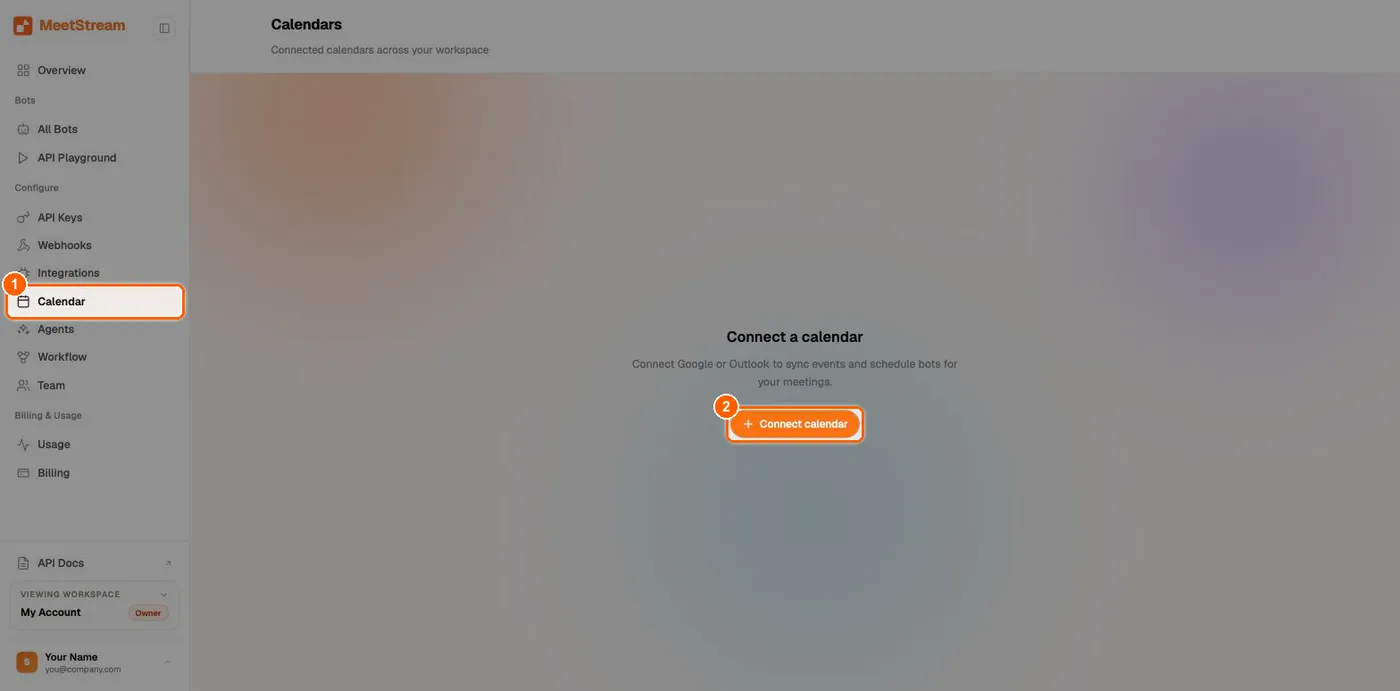
Open Calendar and start a connection
In the dashboard sidebar, under Configure, click Calendar (1), then + Connect calendar (2). If a calendar is already connected, use + Connect another account on the Calendars page instead.
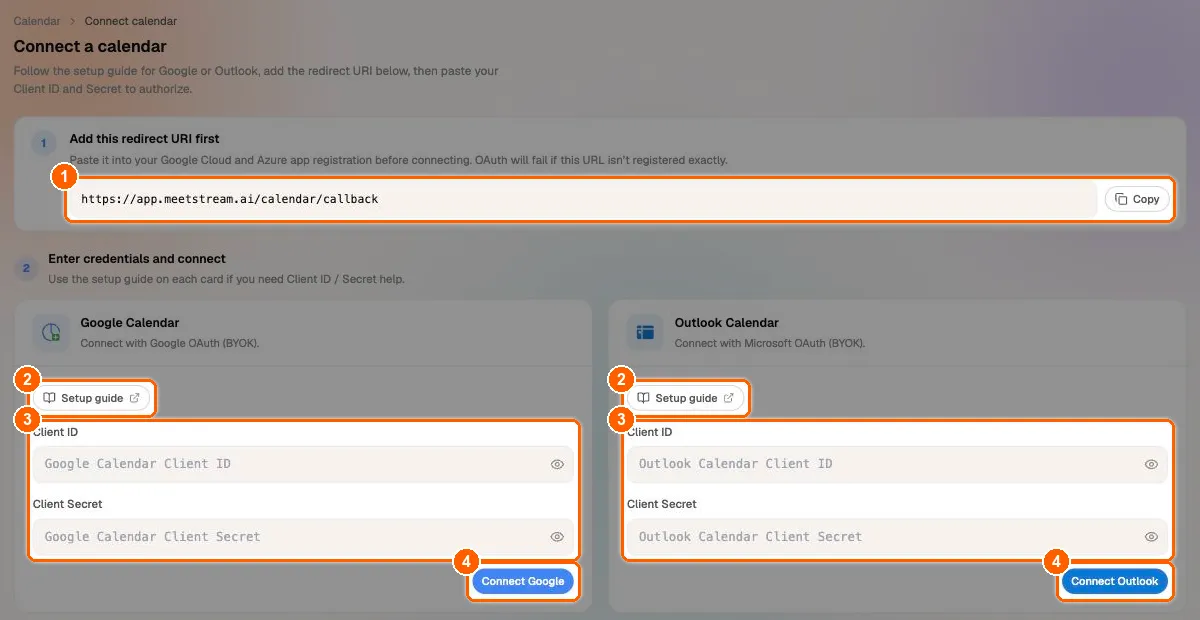
Copy the redirect URI
Under Add this redirect URI first, click Copy and confirm the same value is registered as a Web redirect URI on your app. The page reminds you: “OAuth will fail if this URL isn’t registered exactly.”

Paste your Client ID and Client Secret
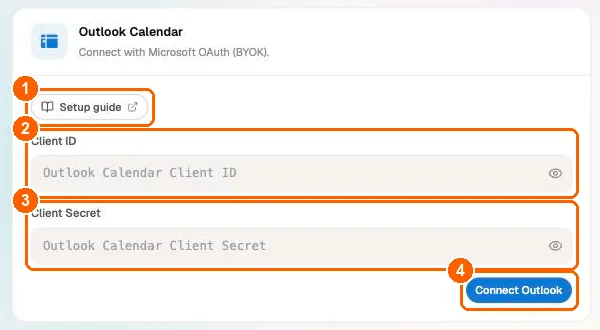
On the Outlook Calendar card (“Connect with Microsoft OAuth (BYOK).”), paste the Client ID (2), which is the Application (client) ID, and the Client Secret (3), which is the secret’s Value. Setup guide (1) links back to this page. Click Connect Outlook (4).
Microsoft shows AADSTS50011
The redirect URI on your app registration does not match https://app.meetstream.ai/calendar/callback. Add it under Authentication as a Web platform URI (not Single-page application) and retry.
Microsoft shows AADSTS50194
Your app is registered as single tenant. Change the app registration’s Supported account types to a multitenant option, or connect through the API with your tenant ID.
Microsoft shows AADSTS7000215
The client secret is wrong. Paste the secret’s Value, not its Secret ID, or create a new secret.
Your organization needs admin approval
Your tenant blocks user consent. Ask an administrator to open the app’s API permissions page and select Grant admin consent.
The dashboard says "Missing OAuth session data. Start connect again from Calendar settings."
The Client ID and Secret are held in your browser tab while you visit Microsoft. Start again from Calendar > + Connect calendar in the same tab and finish sign-in there.
Step 3: Turn on auto-join
On the Calendars page, switch on Auto-schedule bots: “MeetStream automatically schedules a bot for new meetings that have a join link.” Auto-join covers every connected account, Outlook and Google.
- Default bot settings sets the bot name, image URL, join message, audio and video, and automatic leave timeouts for calendar bots. These defaults are saved in your browser and sent to MeetStream when you switch auto-join on, so switch it off and on again after changing them.
- Click a connected account to see its events, Sync events, or schedule individual events with Schedule bots.
With the API, use POST /api/v1/calendar/auto-schedule/enable with a default_bot_config (see the Google Calendar guide’s API reference; the calendar endpoints are shared by both providers).
How auto-join works
Which links count as meeting links
MeetStream reads the event’s online meeting join URL first (the Teams link Outlook adds to online meetings), then URLs in the location, then meeting-platform URLs in the body.
If an event has no recognized meeting link but its location contains some other URL (or its body links to a conferencing service MeetStream does not support), that URL can still be saved as the event’s link, and auto-join will try to send a bot to it. The bot then fails with an invalid meeting link error. Keep such URLs out of events on calendars that use auto-join, or unschedule those events.
Before you rely on auto-join for Teams meetings, read the Microsoft Teams platform guide (lobby and admission rules) and, for meetings that only admit signed-in users, Microsoft Teams Signed-In Bots. Every status and error a bot can end with is listed in the status and error code reference.
Transcripts for calendar bots. A transcription provider inside a calendar bot configuration is not applied when the bot is dispatched today. To get a transcript, call POST /api/v1/bots/{bot_id}/transcribe after you receive audio.processed or bot.done. For live transcription, create the bot yourself with create_bot and join_at (see Scheduling Bots).
Connect with the API instead
Use this path to run the Microsoft consent flow inside your own product, or to use a single-tenant app.
Get a refresh token with the local helper
This Node.js 18+ helper runs the Microsoft authorization code flow on your machine and prints the refresh token. Register http://localhost:3000/api/microsoft/oauth-callback as a Web redirect URI first.
- Create a
.envfile (setMICROSOFT_TENANT_IDto your tenant ID for a single-tenant app, or leave it ascommon):
- Install dependencies with
npm install express dotenvand save this asserver_microsoft.js:
- Run
node server_microsoft.js, openhttp://localhost:3000, sign in with the account to connect, and approve access. Copy the refresh token.
If no refresh token comes back, confirm offline_access is in the requested scopes and that you accepted the consent screen.
Connect the account
MeetStream validates the credentials with Microsoft, reads the account’s email through Microsoft Graph (this becomes account_id), fetches the account’s calendars, stores the credentials encrypted, and subscribes to change notifications for the account’s calendars. The response includes provider: "outlook", account_id, user_email, calendars, primary_calendar_id and a watch_setup summary.
Each call connects one account. To add another Microsoft account (for example a second tenant), run the helper signed in as that account and call the endpoint again. Reconnecting an account that is already connected without replace returns 409:
Working with several accounts
A MeetStream account can hold many calendar connections, from Outlook and Google. Each is identified by (provider, account_id), where provider is outlook (the alias microsoft is accepted) and account_id is the account’s email. There is no fixed limit on the number of connections.
GET /api/v1/calendar/calendars, GET /api/v1/calendar/events and GET /api/v1/calendar/get_events return data for every account by default. Add ?provider=outlook&account_id=jane%40example.com to scope a call to one account.
Scheduling, unscheduling, managing scheduled bots and auto-join work the same way for both providers. See the Google Calendar guide’s API reference for POST /calendar/schedule/{event_id}, DELETE /calendar/schedule/{event_id}, the scheduled_bots endpoints and the auto-schedule endpoints.
FAQ
Do I need a Microsoft 365 (work or school) account?
No. Personal Microsoft accounts (Outlook.com, Hotmail, Live) and Microsoft 365 accounts both work when your app registration uses Any Entra ID Tenant + Personal Microsoft accounts. One MeetStream account can connect personal and work accounts at the same time.
Why did a bot join a meeting I declined?
Auto-join does not look at RSVP status today. Every event with a meeting link in the next 24 hours gets a bot. Use per-event scheduling if you need to skip declined or external meetings.
How early does the bot join?
The bot is dispatched about 2 minutes before the event’s start time.
What happens if I reschedule or cancel a meeting in Outlook?
Microsoft notifies MeetStream. A moved event moves its bot’s join time; a deleted or cancelled event cancels its bot (Cancelled).
My client secret expired. What do I do?
Create a new client secret under Certificates & secrets, then reconnect: in the dashboard, go to Calendar > + Connect another account and use Reconnect on the Outlook card with the new secret. With the API, get a fresh refresh token and call POST /api/v1/calendar/create_outlook_calendar with "replace": true.
How is my calendar data protected?
OAuth credentials are stored encrypted and are never returned by the API. MeetStream never sees or stores your Microsoft password. You can revoke access by disconnecting in MeetStream or by removing the app’s consent in your Microsoft account.
For webhook handling, see Webhooks and Events. For Google Calendar, see Google Calendar OAuth Setup.