
Skip to navigation

Per-Participant Audio Streams: Separate Audio for Every Speaker

View as Markdown

Get one audio file per speaker, aligned to the meeting timeline, alongside the usual mixed recording.

Supported platforms: Zoom, Google Meet and Microsoft Teams.


Platform support

ZoomGoogle MeetMicrosoft Teams
Per-participant audioYesYesYes
How speakers are separatedZoom delivers raw audio per speakerMeet delivers one audio track per participantTeams delivers one mixed track; the bot separates speakers using Teams’ speaker identifiers
IsolationEach file has only that person’s microphoneEach file has only that person’s audioGood for one speaker at a time. When people talk over each other, the overlap is attributed to one of them
Speakers capturedUp to 16Up to 16Up to 16
File formatWebM (Opus)WAV (PCM16, 48 kHz, mono)WebM (Opus)

See the capability matrix for the rest of what each platform supports.


1) What you need

  1. A MeetStream API key (see Dashboard Setup).
  2. A meeting link (Zoom, Google Meet or Microsoft Teams).
  3. audio_separate_streams: true in your Create Bot request.

2) Create a bot with per-participant audio

Use the Create Bot endpoint.

Minimal example

curl -X POST "https://api.meetstream.ai/api/v1/bots/create_bot" \
-H "Authorization: Token <YOUR_API_KEY>" \
-H "Content-Type: application/json" \
-d '{
"meeting_link": "<YOUR_MEETING_LINK>",
"bot_name": "RecorderBot",
"video_required": false,
"audio_separate_streams": true
}'

To try it without code, open API Playground in the dashboard and go to the Streams step:
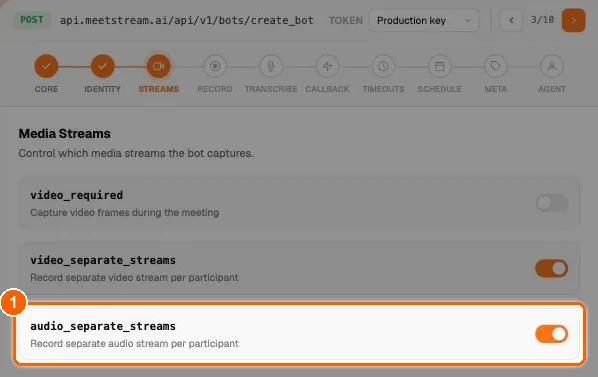
API Playground bot builder on the Streams step with the audio_separate_streams toggle highlighted
API Playground, Streams step: (1) audio_separate_streams turns on one audio file per speaker.

Full example with transcription and MP3 copies

{
"meeting_link": "https://meet.google.com/abc-defg-hij",
"bot_name": "RecorderBot",
"video_required": false,
"audio_separate_streams": true,
"audio_separate_mp3": true,
"recording_config": {
"transcript": {
"provider": {
"deepgram": {
"model": "nova-3",
"language": "en"
}
}
}
},
"automatic_leave": {
"everyone_left_timeout": 60
}
}

Parameter reference

ParameterTypeDefaultDescription
audio_separate_streamsbooleanfalseCapture one audio file per speaker
audio_separate_mp3booleanfalseAlso produce an MP3 copy of each file (download_url_mp3). Requires audio_separate_streams: true

Tip: You can also pass audio_separate_streams inside recording_config:

"recording_config": {
"audio_separate_streams": true
}

The top-level parameter takes precedence if both are set. Set audio_separate_streams: true explicitly when you need per-participant files.


3) What happens during the meeting

Once the bot is admitted, it automatically:

  • Captures each speaker’s audio as a separate file.
  • Records up to 16 speakers. A 17th distinct speaker is not captured.
  • Keeps the standard mixed audio file (audio.wav) as well.

Files are on the meeting timeline: gaps between a person’s turns are filled with silence, and each file’s start_timestamp tells you where it begins, so files can be laid side by side. If you pause recording, every file is silent for the paused stretch.


4) Retrieve per-participant audio streams

After the bot leaves and audio processing finishes (the audio.processed webhook), call:

curl -X GET "https://api.meetstream.ai/api/v1/bots/<BOT_ID>/get_audio_streams" \
-H "Authorization: Token <YOUR_API_KEY>"

Response when processing is complete (200)

The response is an array with one item per speaker file:

[
{
"id": "f923cd21-da86-4d77-b37b-0707d37751c8-spaces_AbCdEf_devices_185-0",
"created_at": "2026-09-20T17:01:58.913Z",
"is_bot": false,
"participant": {
"id": 48213377,
"name": "Jane Smith",
"is_host": true,
"is_bot": false,
"platform": "desktop",
"extra_data": {
"google_meet": { "static_participant_id": "spaces/AbCdEf/devices/185" }
}
},
"start_timestamp": { "absolute": "2026-09-20T17:01:58.913Z", "relative": 0.0 },
"duration": 1843.2,
"download_url": "https://...",
"download_url_mp3": "https://..."
}
]
FieldMeaning
participant.nameDisplay name in the meeting
participant.extra_dataKeyed by zoom, google_meet or microsoft_teams. static_participant_id is the platform’s participant ID. Use it to match audio with per-participant video and participants
is_bottrue for the bot’s own audio, present when the bot spoke into the meeting (for example with sendaudio or an agent)
start_timestamp.relativeSeconds from the start of the meeting recording
durationLength of the file in seconds, including the silence between turns. It is not talk time
download_urlLink to the file. Valid for 1 hour
download_url_mp3MP3 copy, only when audio_separate_mp3 was true

Other responses

StatusBodyMeaning
202{"audio_status": "in_progress", "message": "Bot is still in the meeting. ..."}The bot has not left yet
200[]No per-participant files (yet). audio_separate_streams was off, nobody spoke, or processing has not finished. Wait for audio.processed and try again
403{"message": "...", "access_mode": "write_only"}Your custom storage is write-only. Read the files from your bucket

5) Download the audio files

curl -o "jane.webm" "<download_url from the response>"

Links expire after 1 hour. Call get_audio_streams again for fresh links. Check the file extension in the link: Google Meet files are .wav, Zoom and Teams files are .webm.


6) Per-participant audio by platform

PlatformHow it worksWhat you get
ZoomThe Zoom Meeting SDK gives the bot raw audio for each speaker.Clean, isolated files.
Google MeetMeet sends the bot a separate audio track per participant. The bot keeps only audio it can attribute to a known speaker.Clean, isolated files.
Microsoft TeamsTeams sends the bot a single mixed track. Each audio packet names who was speaking, and the bot routes it to that speaker’s file.Clean files for normal turn-taking. When two people talk at once, that stretch goes to one speaker’s file, not both.

If exact isolation during crosstalk matters on Teams, rely on the post-call transcript’s speaker labels for overlapping segments.


7) Using both mixed and per-participant audio

Per-participant audio and the mixed audio are always captured together:

  • Mixed audio WAV (everyone combined): Get Bot Audio (/api/v1/bots/<BOT_ID>/get_audio). See retrieve recordings.
  • Per-speaker files: Get Audio Streams (/api/v1/bots/<BOT_ID>/get_audio_streams).

8) Using per-participant audio with per-participant video

{
"meeting_link": "<MEETING_LINK>",
"video_required": true,
"audio_separate_streams": true,
"video_separate_streams": true
}

Audio and video come as separate files; they are not muxed together. Match them with participant.extra_data (static_participant_id) across the two responses, and line them up with start_timestamp. On Zoom, per-participant video also needs video_required: true.


9) Webhook notifications

Subscribe to audio.processed in webhooks and events, then call get_audio_streams.


10) Troubleshooting

  • Empty array [] after the meeting?

    • Confirm audio_separate_streams: true was set when the bot was created.
    • Wait for audio.processed; files are uploaded after the bot leaves.
    • Participants who never spoke do not get a file.
  • A speaker is missing?

    • The bot captures up to 16 speakers.
    • The bot only records after it is admitted. If it never got in, see bot status and error codes.
  • Getting in_progress?

    • The bot is still in the meeting. Files are produced after it leaves.
  • The download link returns 403 Forbidden?

    • The link has expired (1-hour lifetime). Call get_audio_streams again.
  • On Teams, one file contains two voices?