Zoom OBF implementation in MeetStream
This guide walks you through connecting your Zoom account to MeetStream so bots can join Zoom meetings using MeetStream’s hosted OBF (OAuth-based) flow. After setup, you enable Zoom on each bot by adding a small zoom block to your create bot request.
What you need
- A Zoom account with permission to create apps in the Zoom App Marketplace.
- Access to the MeetStream dashboard.
- The same browser session for Zoom Marketplace configuration and for authorizing in the MeetStream dashboard (see below).
Step 1: Create a Zoom app and set the redirect URL
-
Go to the Zoom App Marketplace and sign in.
-
Create a new app (for example an OAuth app, following Zoom’s current marketplace flow for third-party integrations).
-
In your Zoom app’s OAuth settings, add this Redirect URL for OAuth (also called callback or redirect URI in the Zoom UI). In the OAuth Information screen, put the same URL in OAuth Redirect URL and, if your app shows it, add it to OAuth Allow Lists:
https://api.meetstream.ai/api/v1/admin/zoom/oauth/callbackThis must match the redirect URI MeetStream uses when sending users to Zoom; use the full path including
/callback.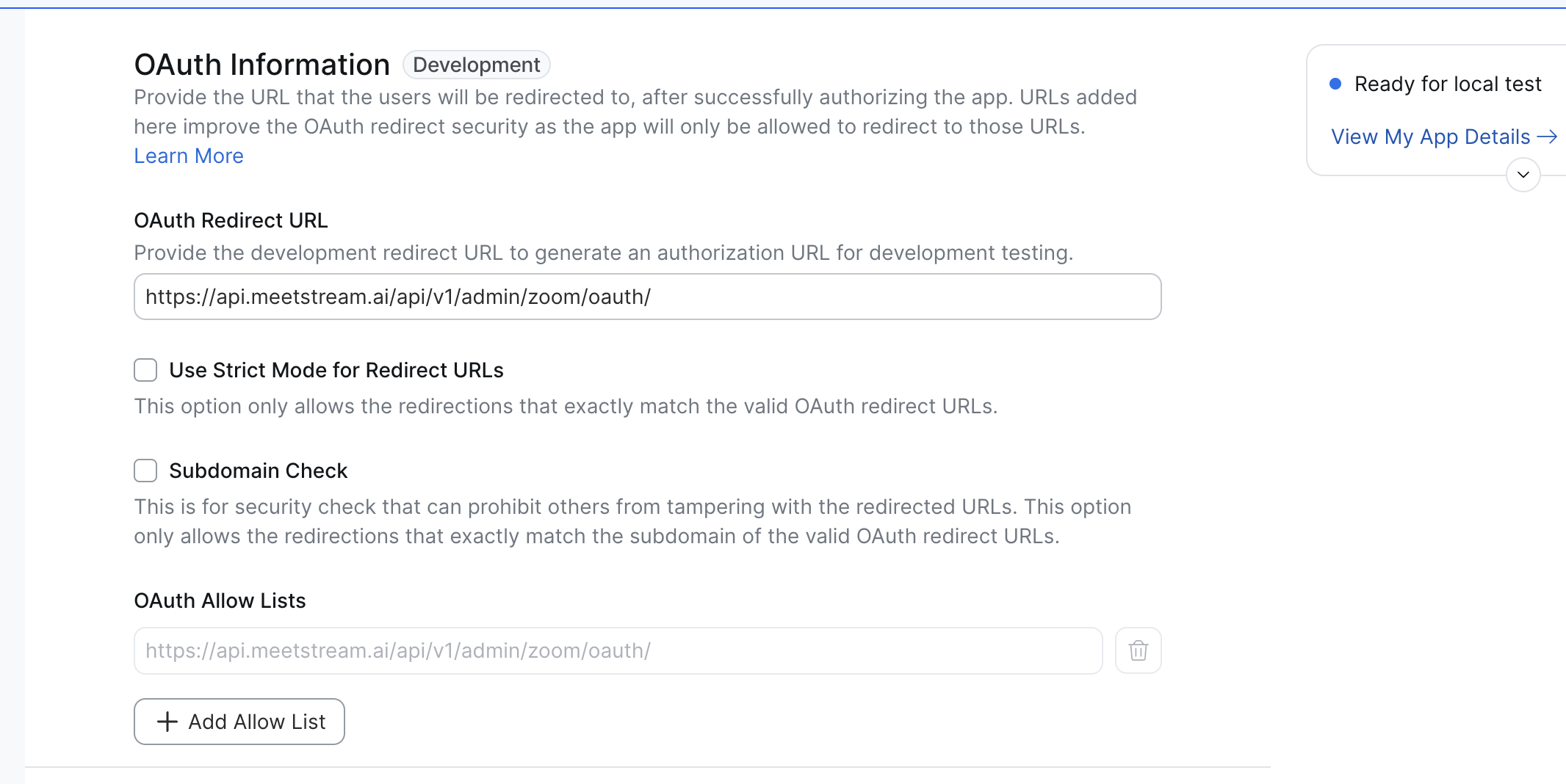
Development-stage example: enter MeetStream’s redirect URL in OAuth Redirect URL and list the same URL under OAuth Allow Lists.
-
Complete any other required fields Zoom asks for (app name, scopes, etc.) and save the app according to Zoom’s documentation.
Use the exact URL above so MeetStream can complete the OAuth flow after you click Authorise in the dashboard.
Step 2: Connect Zoom in the MeetStream dashboard
Do this in the same browser you used for Zoom Marketplace setup, so cookies and redirects behave as expected.
- Open the MeetStream dashboard: https://app.meetstream.ai.
- Go to the Integrations tab.
- Choose the option to add your Zoom credential (the control labeled for connecting Zoom).
- Click Authorise (or the equivalent button) to start the Zoom consent flow.
- Approve access in Zoom when prompted. After a successful connection, MeetStream will show Zoom as connected for your account.
If authorisation fails, confirm the redirect URL in Step 1 matches exactly and try again from the Integrations tab.
Step 3: Enable Zoom on your bot (create_bot)
After Zoom is connected, include this in your create bot JSON body whenever you want MeetStream to use your connected Zoom account for joining the meeting:
Example create_bot payload
meeting_linkmust be a Zoom meeting URL.use_zoom_obfmust be a boolean (trueorfalse).
Do not send custom token server fields such as zoom.obf_url or zoom.zak_url; MeetStream supplies those when hosted Zoom auth is enabled.
Troubleshooting
Summary
- Zoom Marketplace: Create an app and set the OAuth redirect URL to
https://api.meetstream.ai/api/v1/admin/zoom/oauth/callback. - MeetStream dashboard: Integrations → add Zoom credential → Authorise (same browser as above).
- API: Add
"zoom": { "use_zoom_obf": true }to yourcreate_botpayload for Zoom meetings.