Google Signed-In Bots

View as Markdown

Configure your MeetStream bot to sign in with a Google account before joining Google Meet meetings.

This guide applies to Google Meet.

Overview

By default, MeetStream bots join meetings as anonymous users — similar to opening an incognito browser and navigating to the meeting URL. A signed-in bot changes this: it logs into a real Google account before joining, making it look and behave like a regular participant.

Why use a signed-in bot?

Required for restricted meetings — Some Google Meet meetings are configured to block anonymous users entirely. In those cases, a signed-in bot is the only way to get in.

Better presence — Signed-in bots won’t carry the “Unverified” or “Guest” labels that meeting platforms attach to anonymous users.

How It Works

MeetStream uses SAML SSO to sign in the bot — not a username and password. You configure your Google Workspace to trust MeetStream as a SAML Identity Provider (IdP). When the bot needs to sign in, Google delegates authentication to MeetStream, which handles it securely.

This approach is more reliable and stable than credential-based login.


Setup

Step 1 — Create a Google Workspace account for the bot

  1. Create a new Google Workspace account. This should be a separate workspace dedicated to the bot — not your primary organization. It must be on a paid plan and linked to a domain (or subdomain) you own.
  2. Create a non-admin user inside this workspace. This is the account the bot will sign in as. Give it the name you want the bot to appear as in meetings, and optionally set a profile picture.
  3. Complete the Welcome flow. Log in as this new user and finish the “Welcome to Google Workspace” onboarding. The bot won’t be able to sign in until this is done.

Step 2 — Configure SAML SSO in Google Workspace Admin

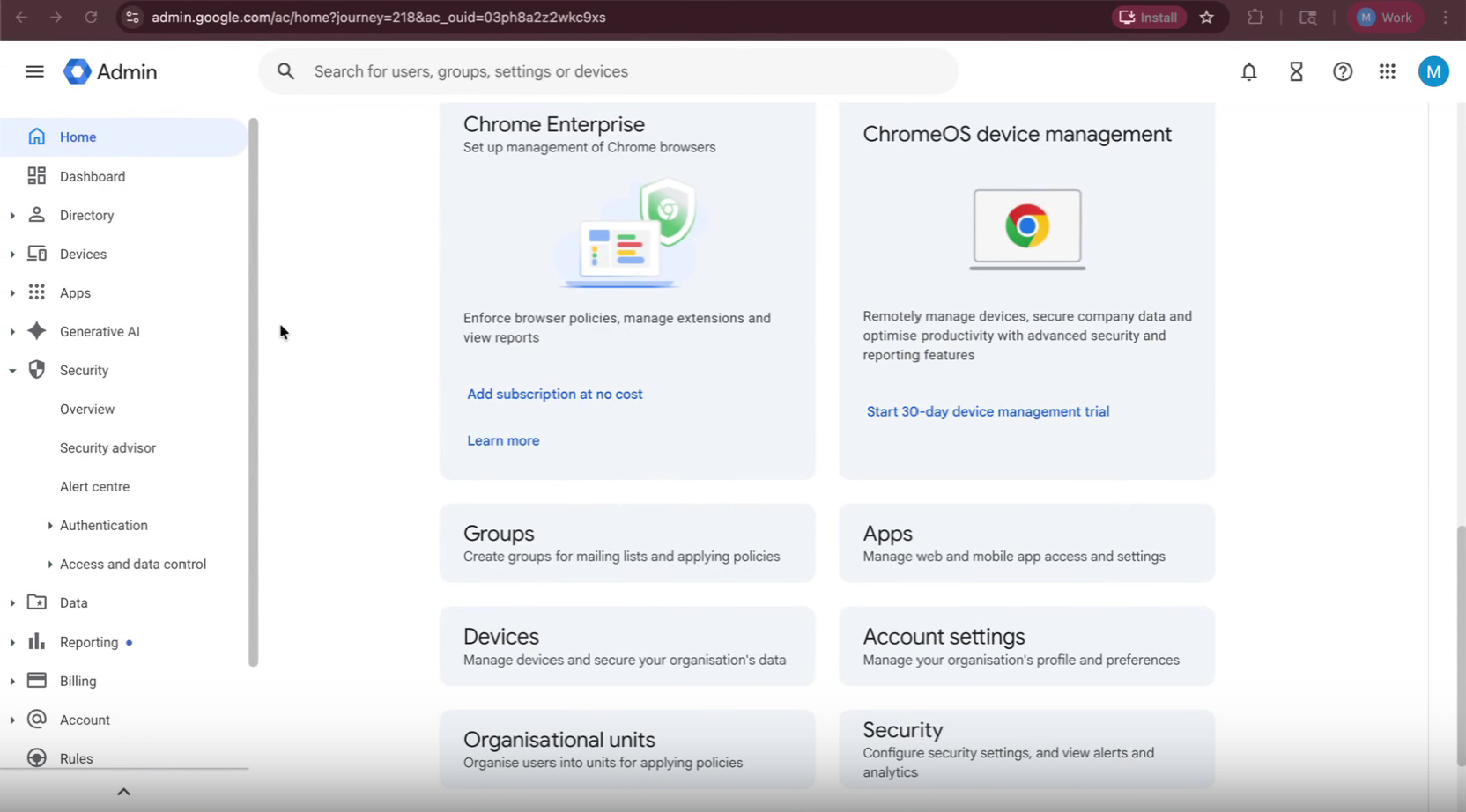
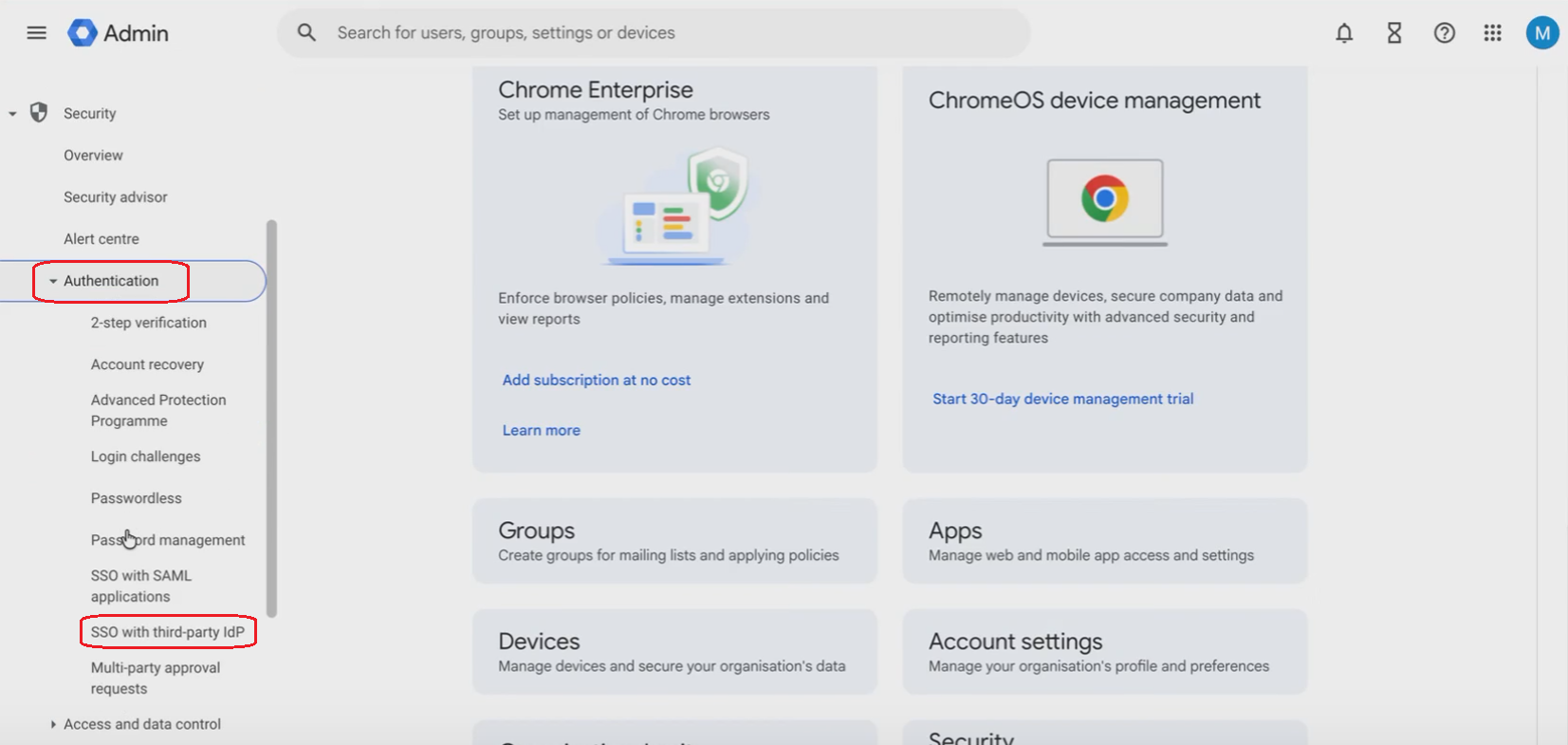
  1. Open the Admin Console and navigate to Security → Set up single sign-on (SSO) with a third party IdP.
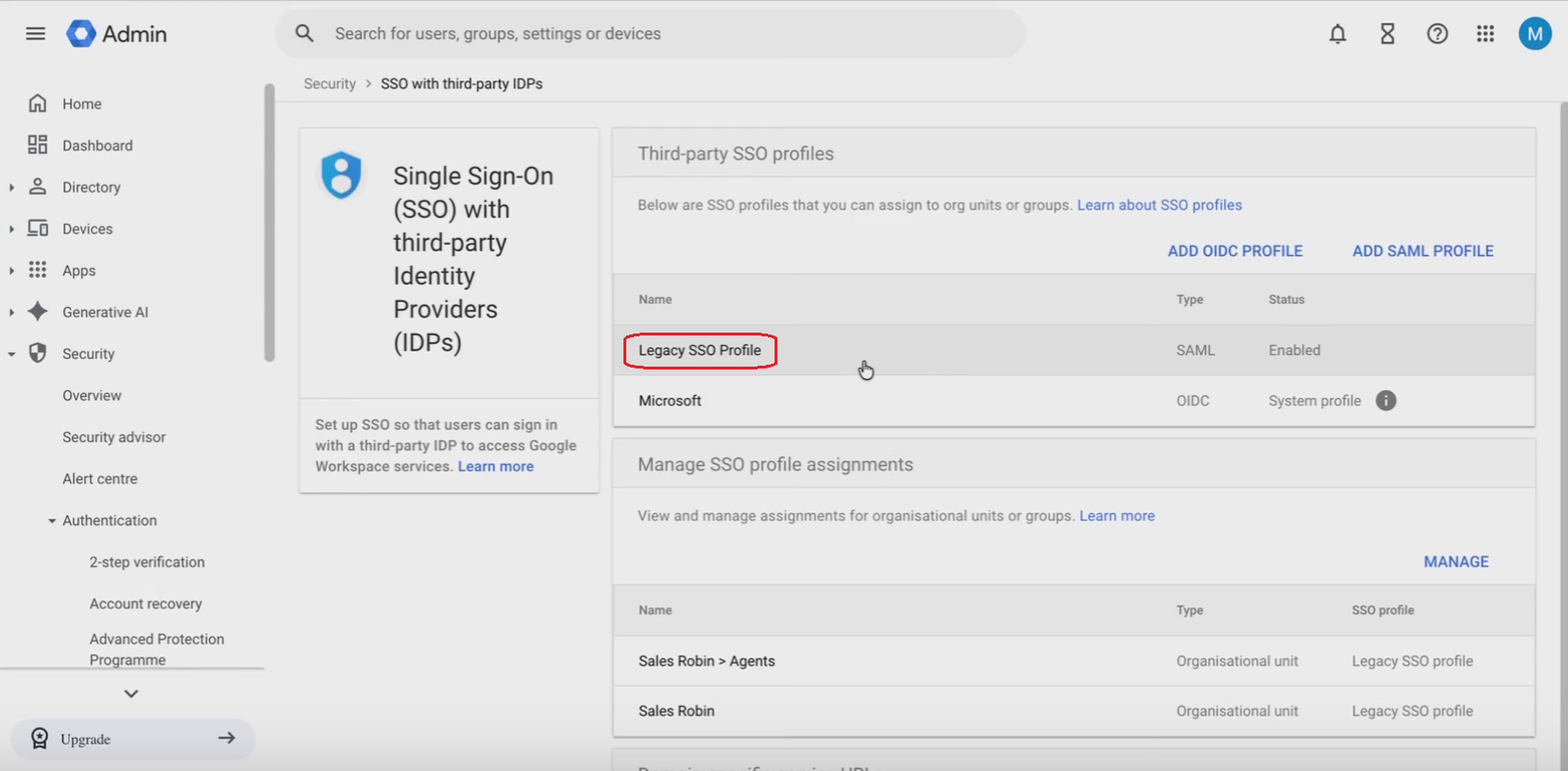
  2. Add a SAML Profile. Click “Add SAML Profile”. Scroll to the bottom of the SAML Profile page and click the “Legacy SSO profile” link.
  3. Generate a certificate and private key. Run the following command on your machine:
    $openssl req -x509 -newkey rsa:2048 -keyout key.pem -out cert.pem -sha256 -days 3650 -nodes
    This generates two files: key.pem (private key) and cert.pem (certificate). Keep both — you’ll need them in the next steps.
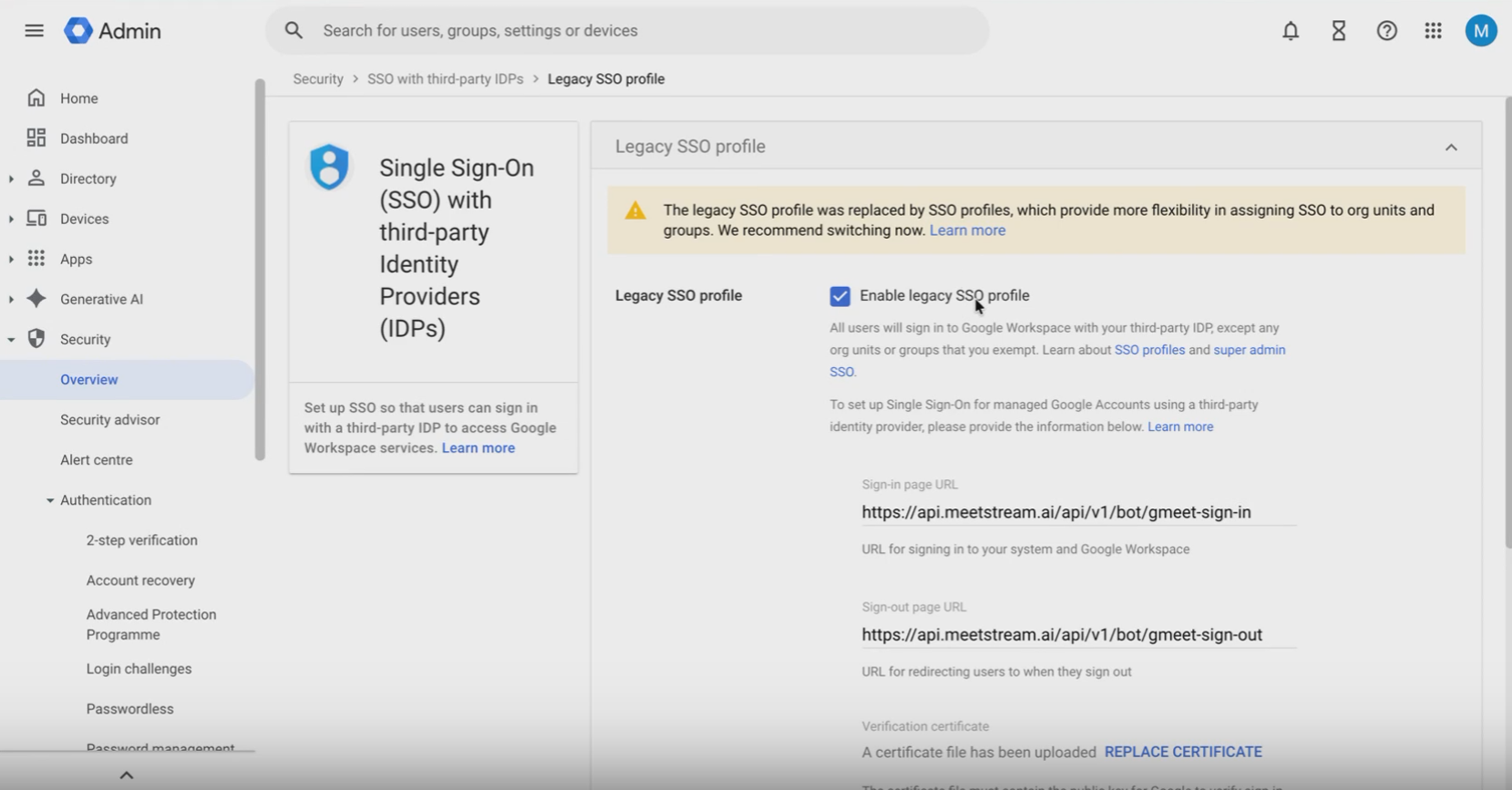
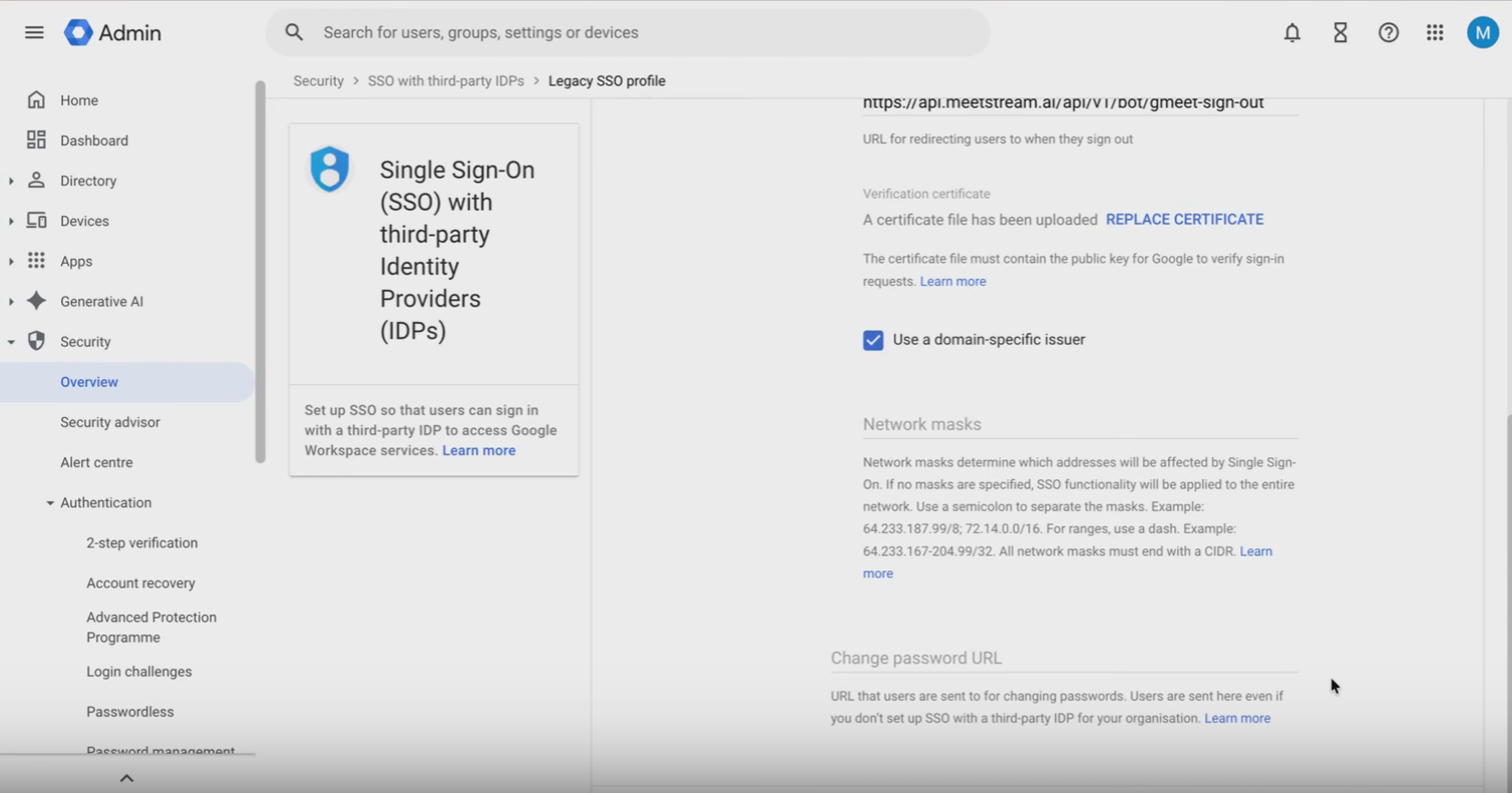
  4. Fill in the Legacy SSO profile with the following values:
    FieldValue
    Enable legacy SSO profileYes
    Sign-in URLhttps://app.meetstream.ai/bot_sso/google_meet_sign_in
    Sign-out URLhttps://app.meetstream.ai/bot_sso/google_meet_sign_out
    Use a domain-specific issuerYes
    CertificateUpload your cert.pem file

    Self-hosted users: Replace app.meetstream.ai with the hostname of your own MeetStream instance.

  5. Save and assign the profile. After saving, return to the SSO settings page. Under Manage SSO profile assignments, click “Manage”, select the Legacy SSO profile you just created, and save.

Step 3 — Add the bot login to MeetStream

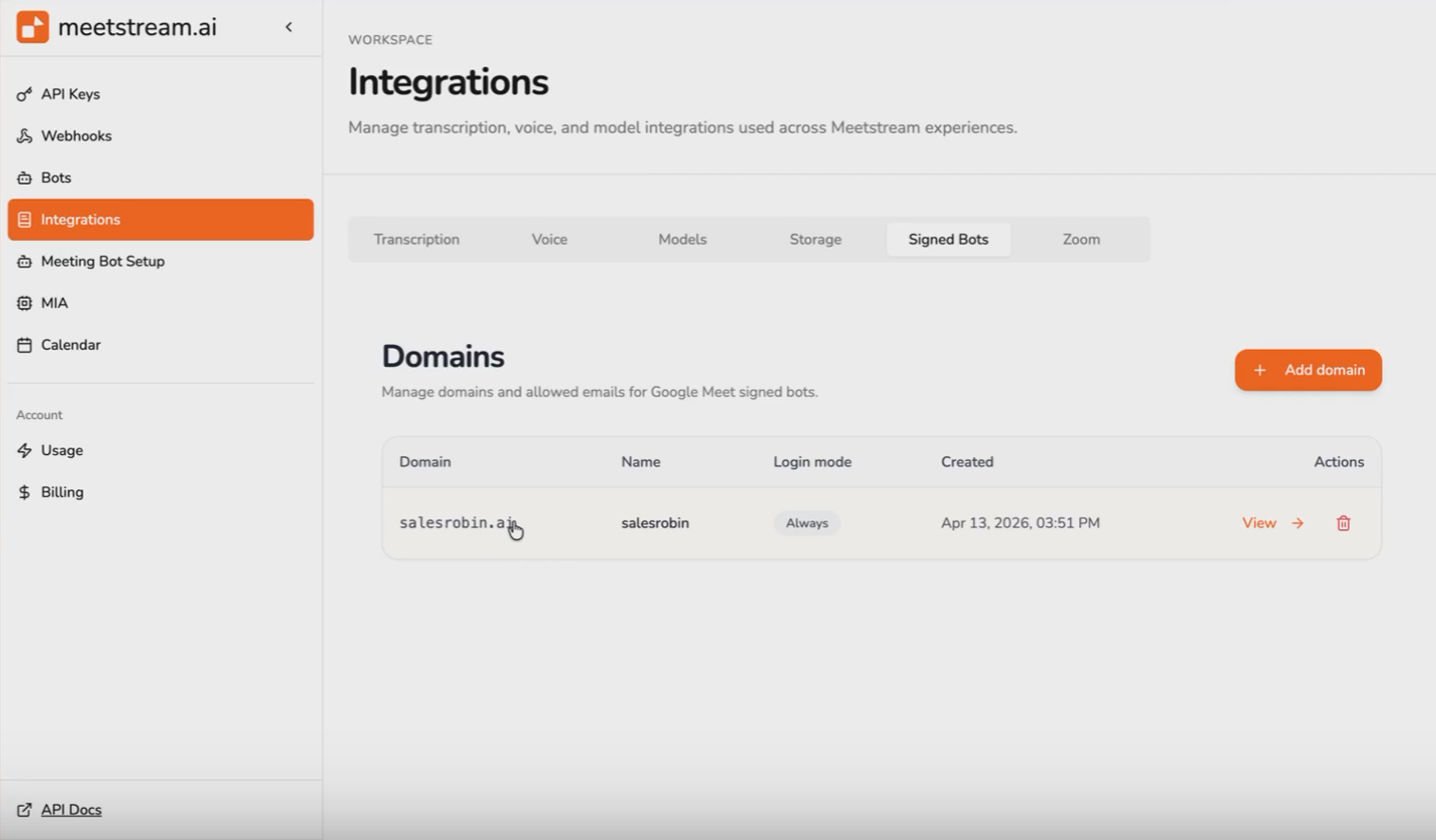
  1. Go to Settings → Credentials in the MeetStream dashboard.
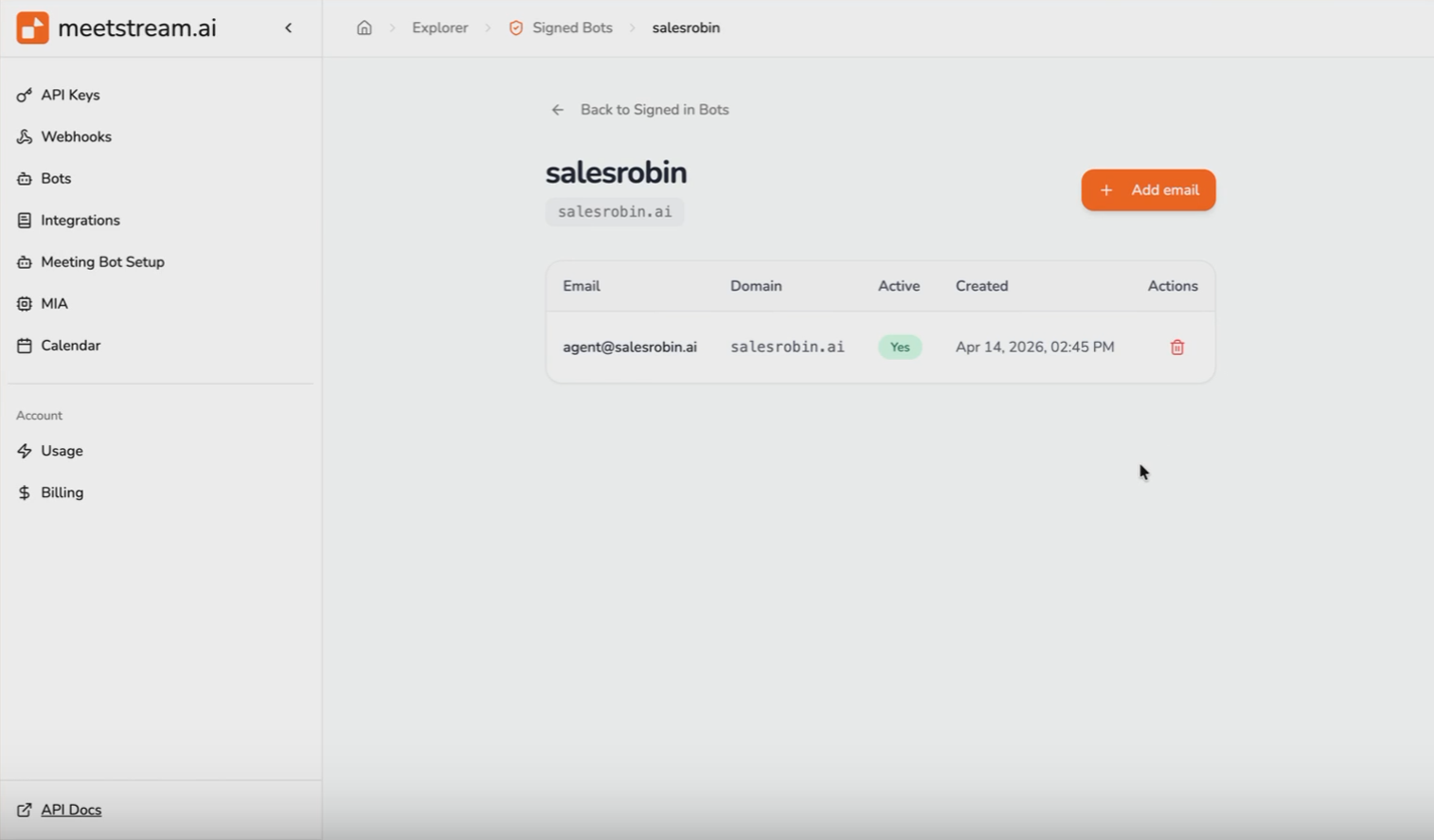
  2. Scroll to Google Meet Bot Logins and click “Add Login”.
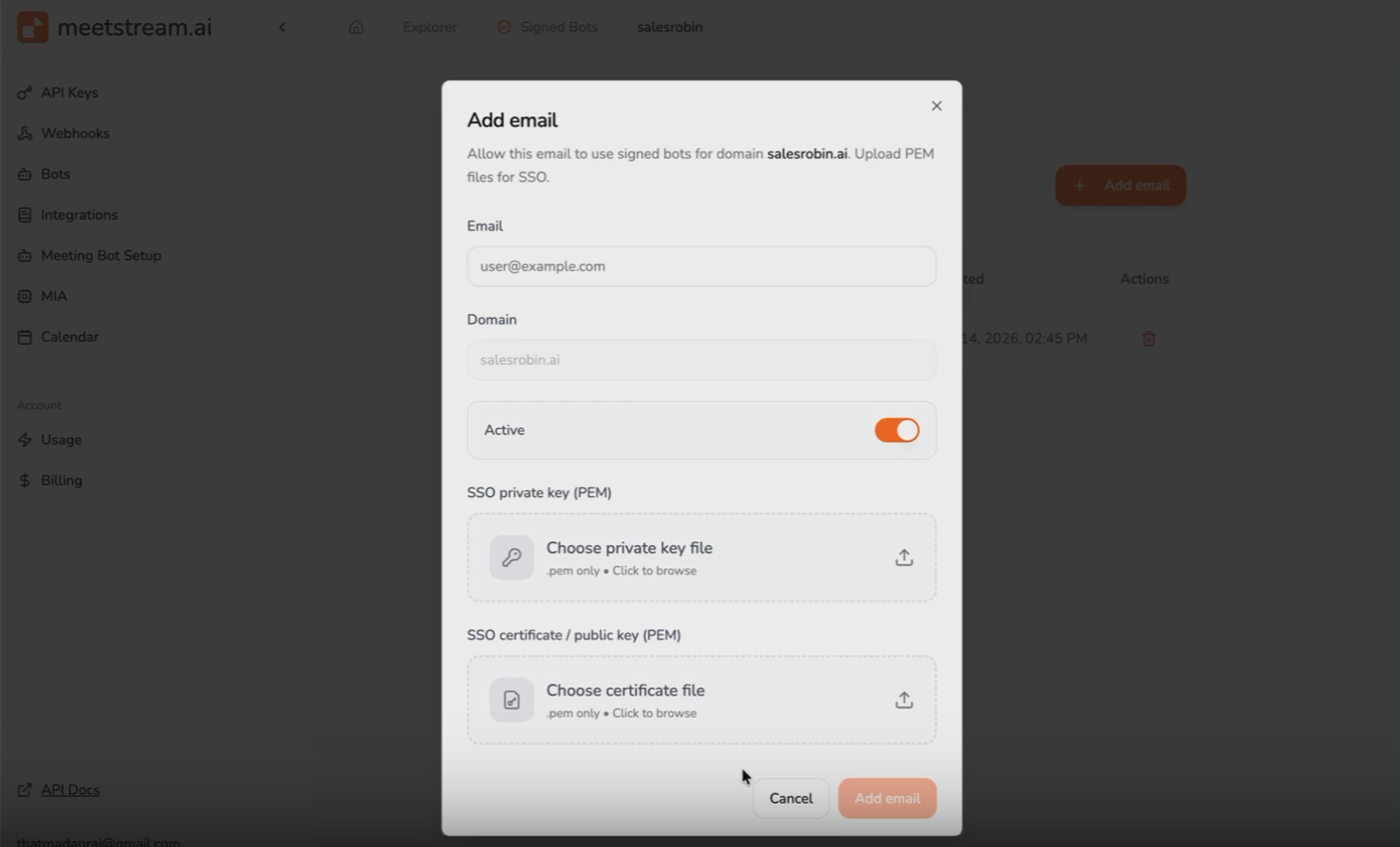
  3. Fill in the required fields:
    • Email — must match the bot user’s email in your Google Workspace account
    • Private key — upload your key.pem file
    • Certificate — upload your cert.pem file (must match the certificate added to the Legacy SSO profile)

Step 4 — Enable signed-in login on your bot

When calling the Create Bot endpoint, pass the following parameter to activate Google Meet sign-in:

1{
2 "google_meet_settings": {
3 "use_login": true
4 }
5}

There is also an optional login_mode parameter:

ValueBehavior
"always" (default)The bot always signs in before joining
"only_if_required"The bot only signs in if the meeting blocks anonymous users

Example with login_mode:

1{
2 "google_meet_settings": {
3 "use_login": true,
4 "login_mode": "only_if_required"
5 }
6}

How Many Bot Logins Should I Create?

Google enforces concurrency limits on the number of active meetings a single account can participate in simultaneously. To stay within these limits at scale, you can create multiple Google Meet bot logins — MeetStream will distribute them across bots in a round-robin fashion.

Recommended formula:

Number of logins = MAX_CONCURRENT_MEETINGS / 20

Example: If your application peaks at 100 concurrent Google Meet sessions, create 5 bot logins.


Setup Checklist

  • Created a dedicated Google Workspace account (paid plan, on a domain you own)
  • Created a non-admin bot user and completed the Welcome flow
  • Configured Legacy SSO profile in Google Workspace Admin with MeetStream as the IdP
  • Generated key.pem and cert.pem using OpenSSL
  • Added the bot login under Settings → Credentials → Google Meet Bot Logins in MeetStream
  • Passing "google_meet_settings": { "use_login": true } when creating bots

For general bot setup, see the Create Your First Bot guide. For webhook event handling, see Webhooks and Events.