Zoom Production App Submission
In the Zoom Marketplace App Setup guide, you created your Zoom app, added your development credentials to MeetStream, and got your first bot running. However, in development mode your bot can only join meetings hosted by your own Zoom account.
This guide walks you through submitting your Zoom app for production approval, so your bots can join meetings hosted by anyone.
Step 1: Verify Your Development Tab Settings
Before switching to the Production tab, make sure the following are correctly set in your app’s Development tab. Open your app at marketplace.zoom.us.
Basic Information → OAuth Information
- OAuth Redirect URL must be set to
https://meetstream.ai - Leave Use Strict Mode and Subdomain Check unchecked
Features
Go through each item in the Features section of the sidebar:
- Access — No changes needed
- Surface — No changes needed
- Embed — Enable Meeting SDK. Leave Device OAuth off
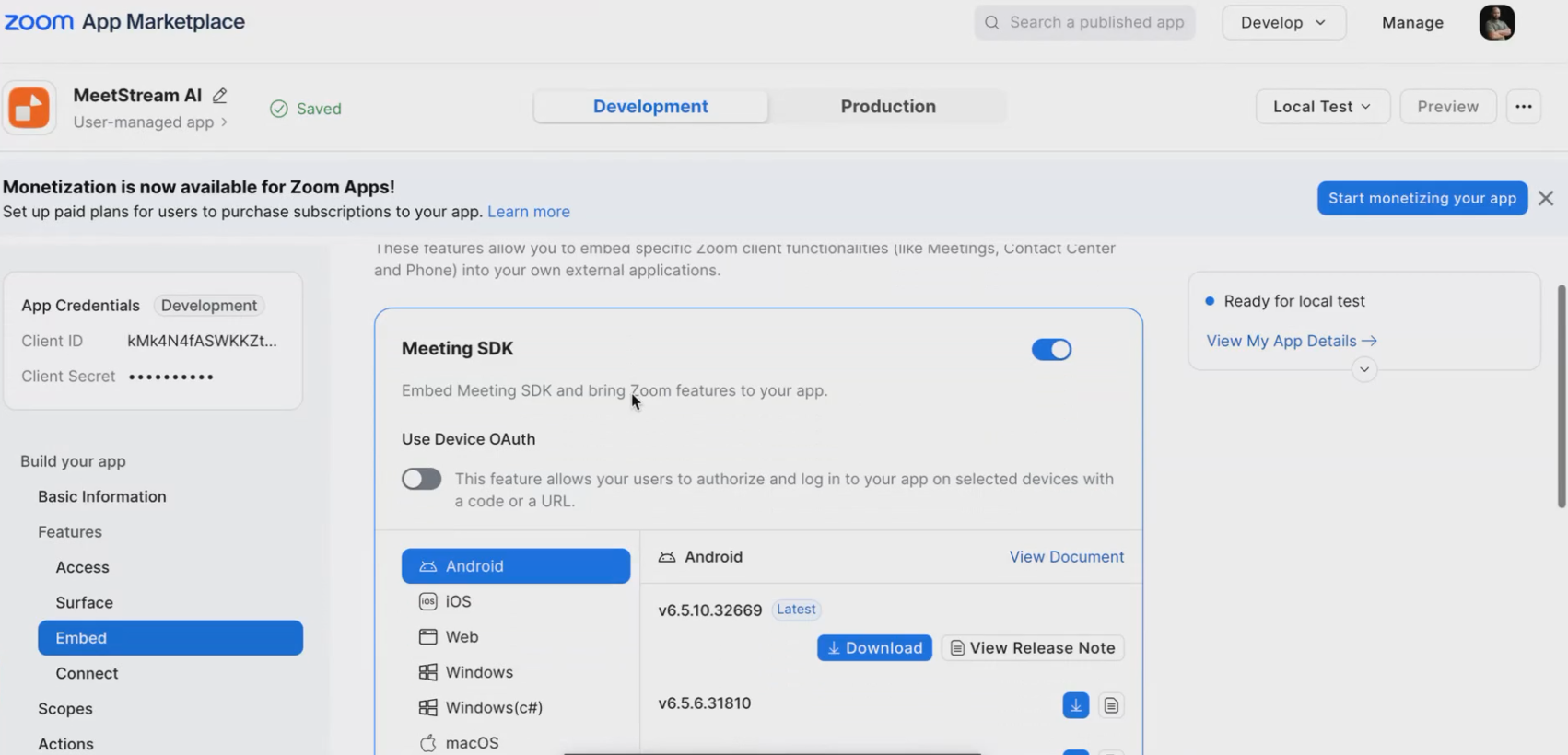
- Connect — Leave untouched
Scopes
The zak scope should already be present from your initial setup. No additional scopes are needed for core bot functionality.
If you are using Zoom Calendar features, you may need additional scopes such as
user:readormeeting:list.
You must also provide a Scope Description — a written justification for why your app needs the scopes it uses. Enter the following:
“We are using this scope to send our bot to the meeting and capture the meeting data. The data is stored encrypted in our own S3 bucket — primarily audio data, as a WAV file.”
Actions
No configuration required.
Step 2: Configure the Production Tab
Once your Development tab is in order, click the Production tab at the top of your app page. You will now fill out the Production-specific configuration.
Embed
Set this identically to your Development tab:
- Enable Meeting SDK
- Leave Device OAuth off
Scopes
Add the same scopes as in Development (zak, plus any extras you configured). Use the same scope description as above.
App Listing
This is the public-facing information Zoom reviewers will read. Fill it in with your own company’s details.
Long Description — Describe what your app does and how it uses Zoom. Be clear and specific as this is reviewed by Zoom. Cover what data you capture, how it is stored, and what developers use it for. Example:
[Your app] uses the Zoom Meeting SDK to deploy bots that join meetings, capture audio, and [describe your use case — e.g. transcribe, analyse, summarise]. Captured data is stored securely in [your infrastructure].
Monetization
Not required. Skip this section.
Technical Design
This section has two tabs: Overview and Security.
Overview — Technology Stack
Describe how your app is built and how it integrates with Zoom. Cover the Zoom APIs you use, the scopes and why, and how data is handled.
Example:
Our app uses the Zoom Meeting SDK to deploy automated bots that join meetings. It uses OAuth 2.0 for user authentication and the Zoom REST API to retrieve and manage meeting data.
Zoom APIs used:
- OAuth 2.0 — user authentication and secure token access
- Scopes:
meeting:read,user:read,recording:read,meeting:writeZoom REST API:
- Meetings API — to retrieve, create, or update meeting data
- Users API — to retrieve user details linked to accounts
- Recordings API — to access cloud recordings (if enabled)
Zoom Webhooks:
- Subscribed to meeting start/end and participant join/leave events
Overview — Architecture Diagram
Upload a diagram showing how your system connects to Zoom and your users. It should illustrate:
- Your users/developers interacting with your app
- Your app connecting to Zoom via the Meeting SDK
- The bot joining a Zoom meeting
- Data flowing back to your storage infrastructure
Use any tool (Lucidchart, draw.io, Excalidraw) and export as PNG or JPG.
Security
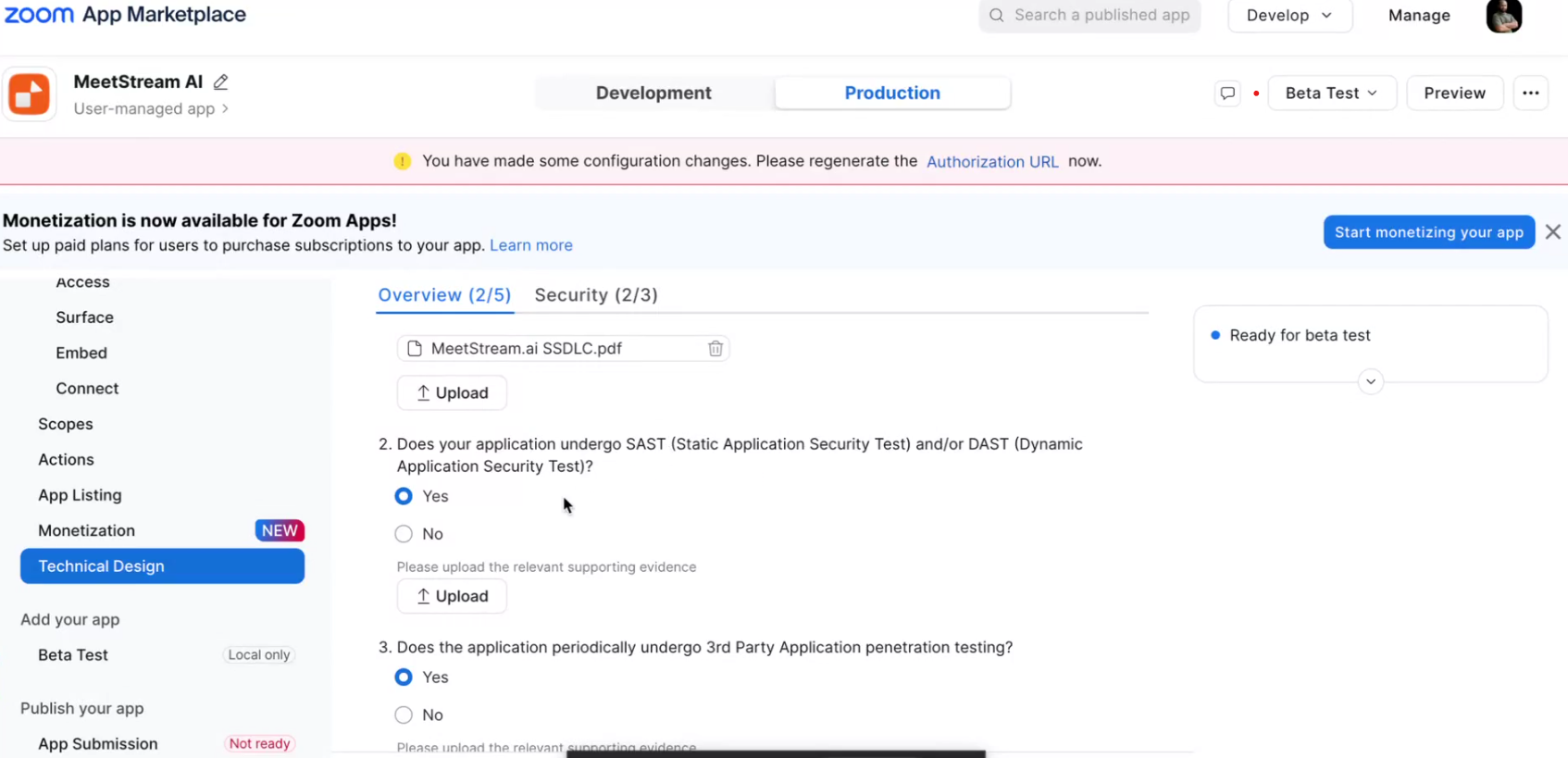
Answer both security questions:
- Do you have a secure software development process (SSDLC)? Select Yes and upload a document describing your SDLC process.
- Does your application undergo SAST and/or DAST testing? Select Yes and upload supporting evidence (e.g. scan reports).
Additional Documents
Upload any extra supporting materials — such as a short screen recording showing your bot joining a Zoom meeting and capturing data.
Step 3: Submit for Review
- Click App Submission in the left sidebar.
- Check the submission checklist. Every item must show as complete — any section marked Not ready must be addressed first.
- Click Submit to send your app to Zoom for review.
Zoom’s review typically takes a few business days. You’ll receive an email when your app is approved.
Step 4: Swap in Your Production Credentials
Once Zoom approves your app:
- Go back to your app in the Zoom App Marketplace.
- Navigate to App Credentials → Production.
- Copy your Production Client ID and Production Client Secret.
- Open the MeetStream Dashboard and go to Zoom SDK Credentials in the sidebar.
- Replace your development credentials with the production ones and save.
Your MeetStream bots will now be able to join Zoom meetings hosted by any user — not just your own account.