Zoom Bot Implementation Guide
Step 1: Set up your Zoom app in the Zoom App Marketplace
Follow the steps below to create and configure your Zoom app.
Login to the Zoom App Marketplace
Sign in or sign up to access the Zoom App Marketplace.
Recommendation
Use a dedicated/service account to avoid ownership issues later.
Create a new app
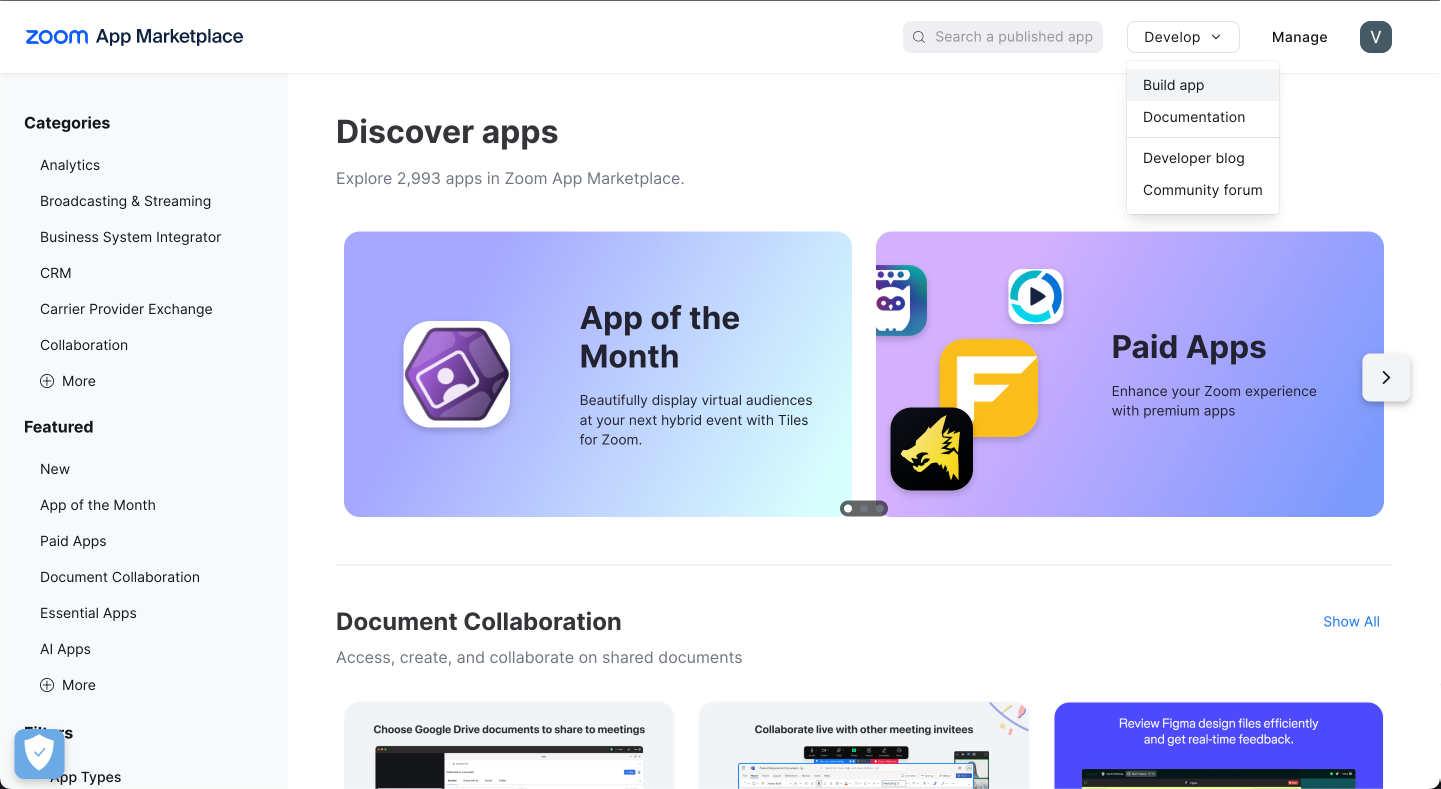
- Go to the Develop tab on the top right of the page
- Click the dropdown and select Build App
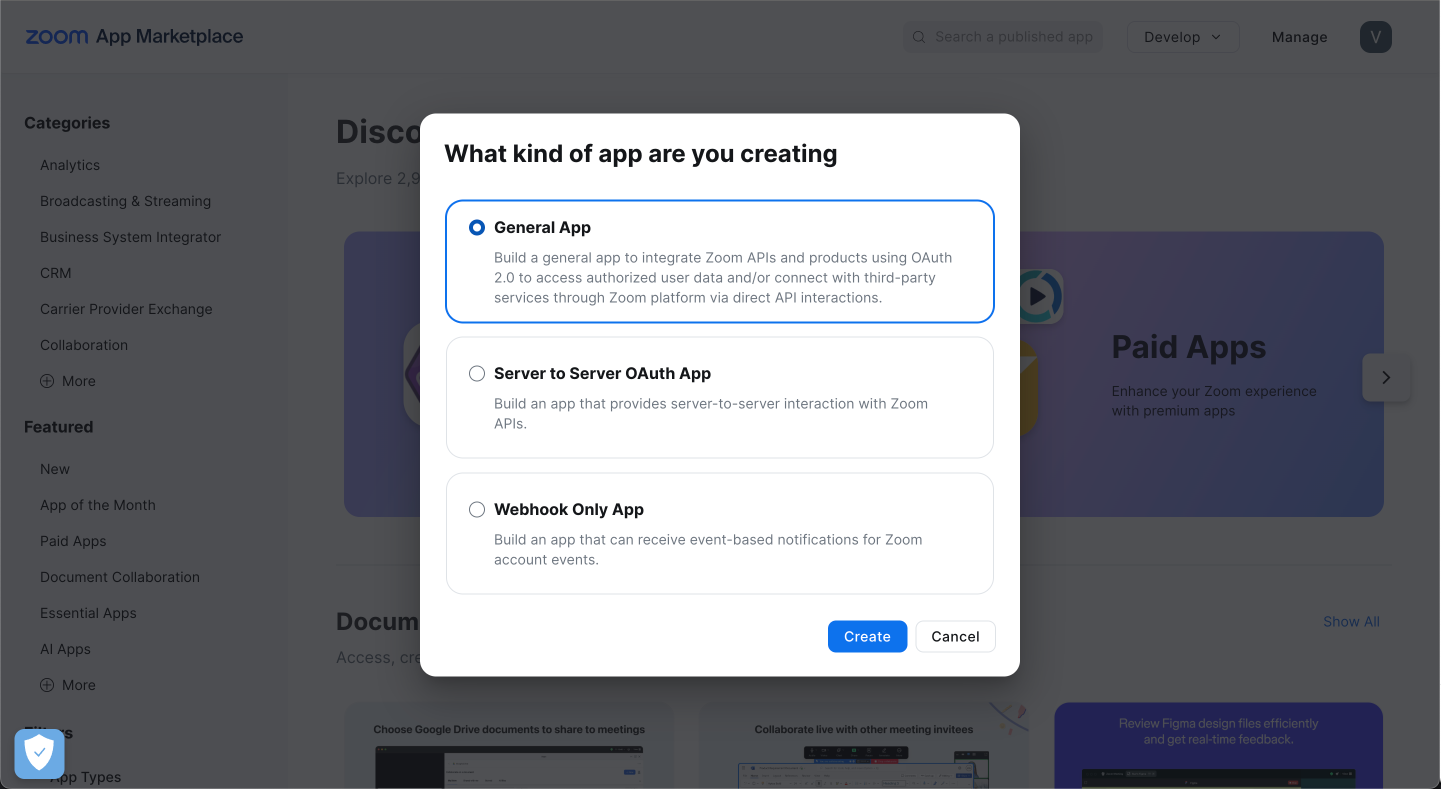
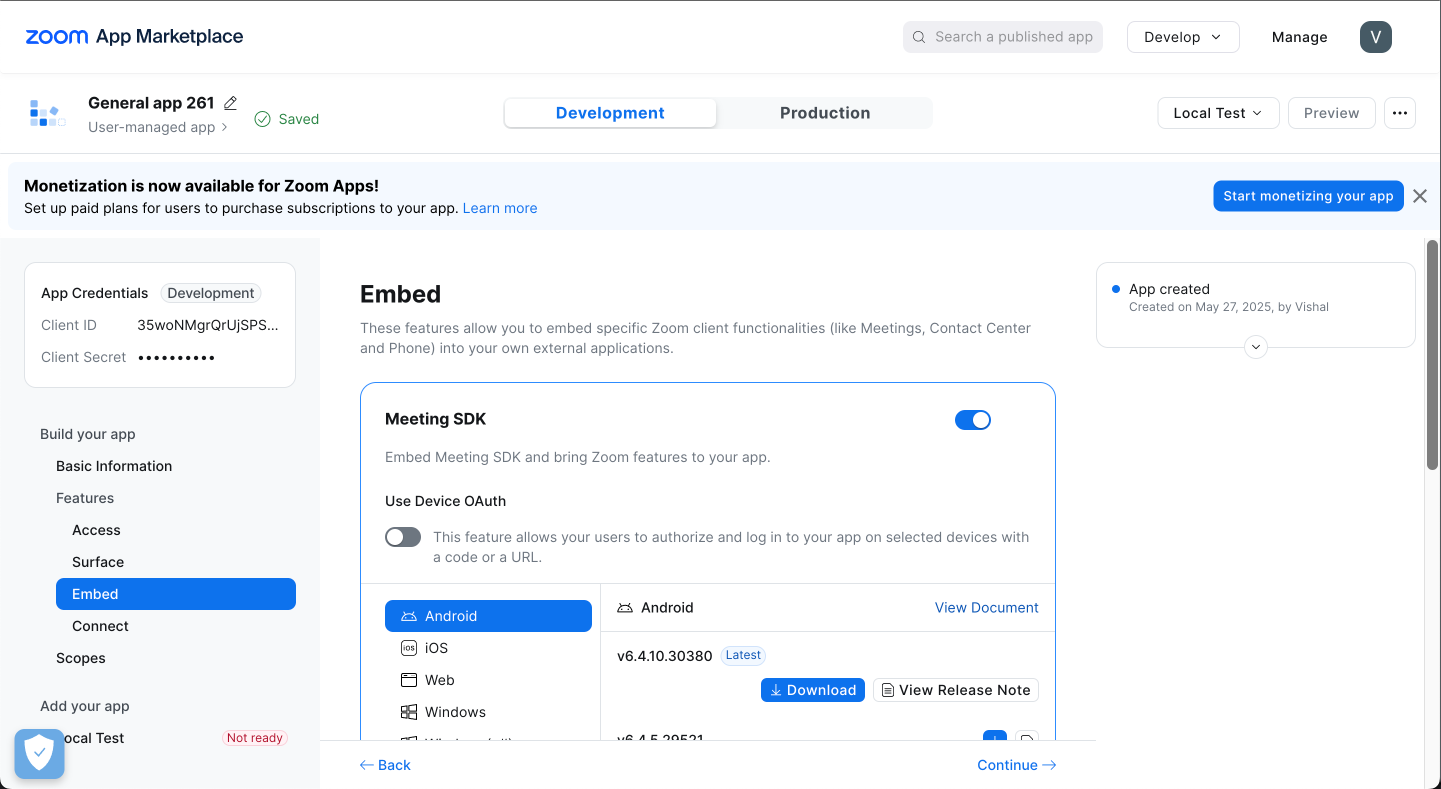
- Select General App
Choose app management type
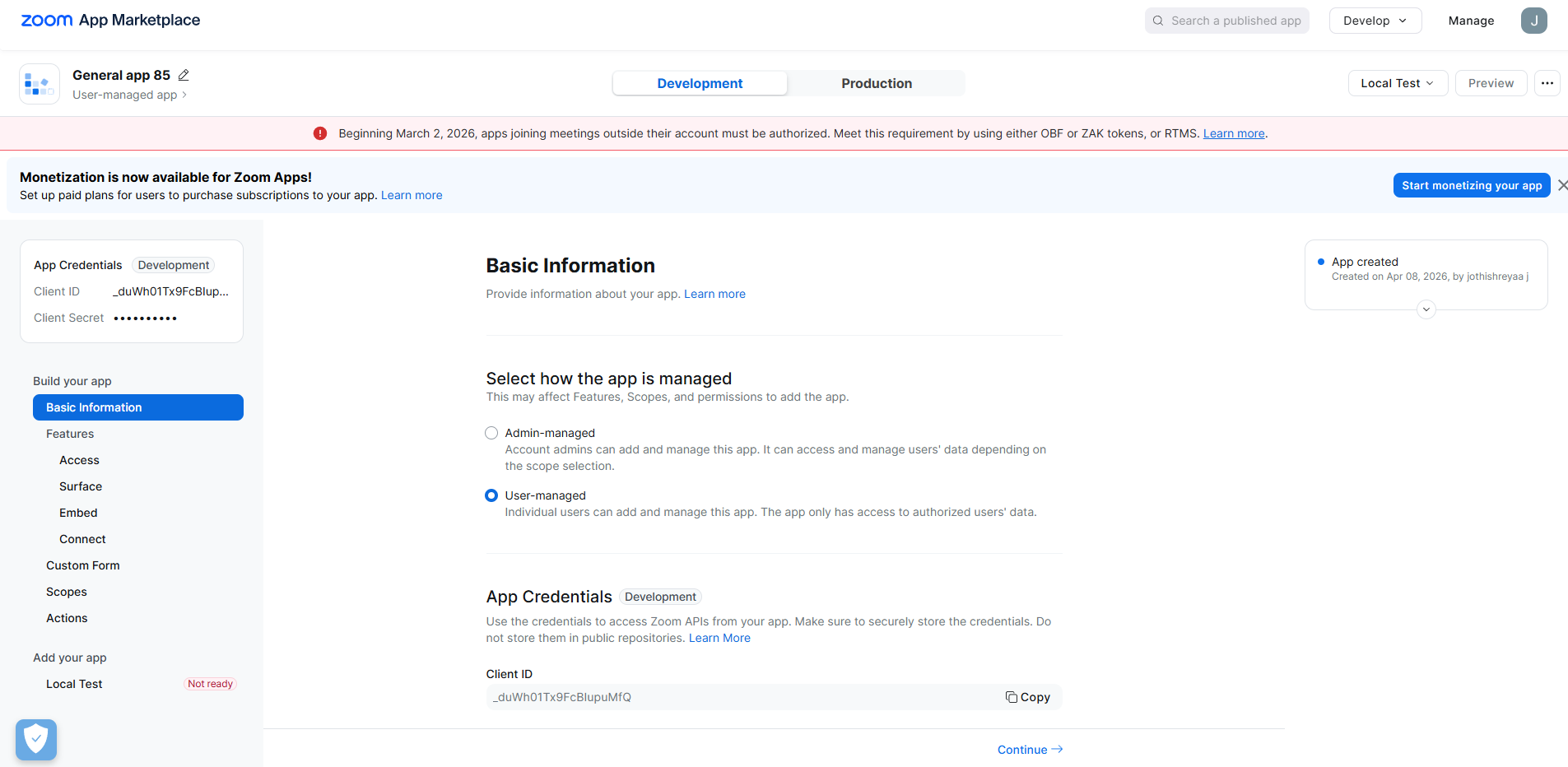
Select how permissions will be granted:
User-managed
Individual users authorize access to their Zoom account.
Admin-managed
Admins authorize access for the entire organization.
Configure OAuth settings
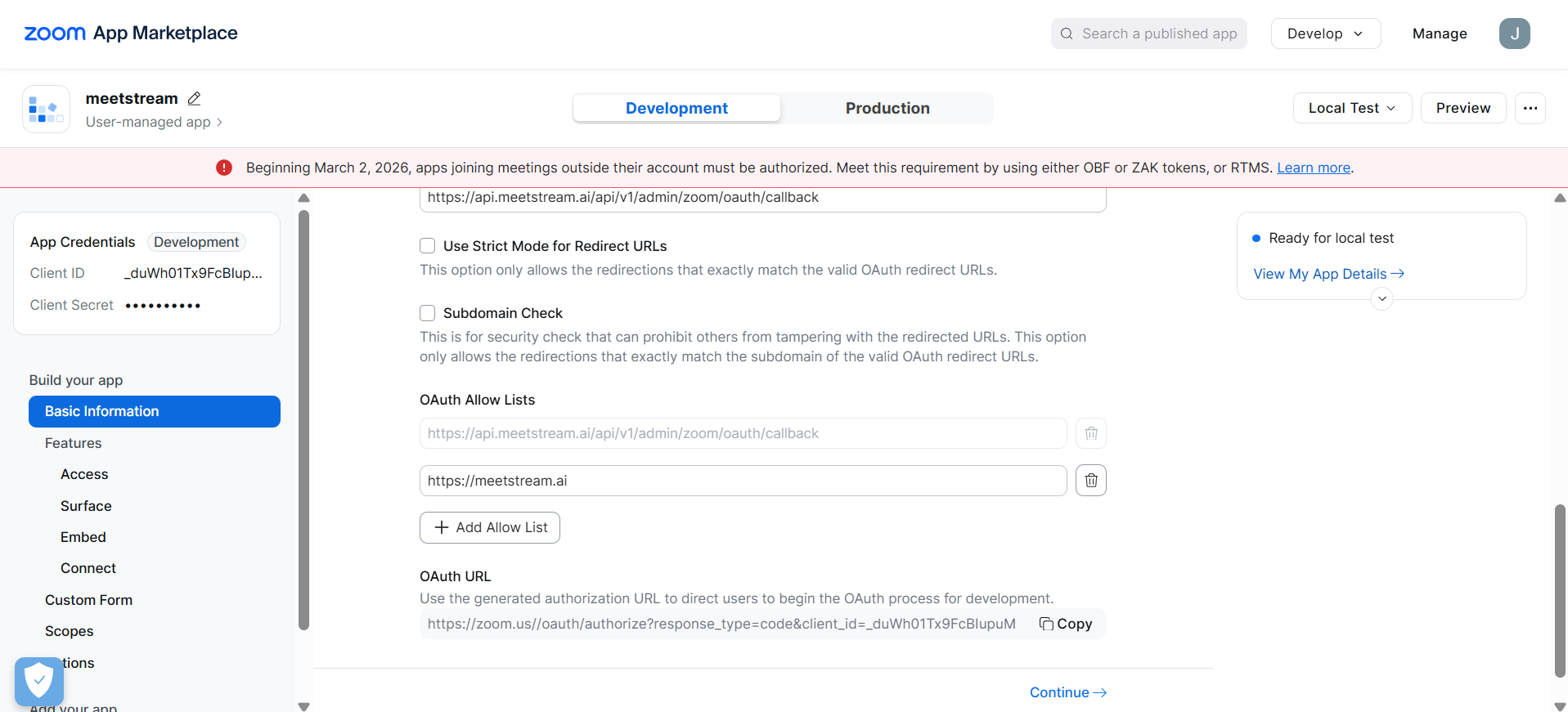
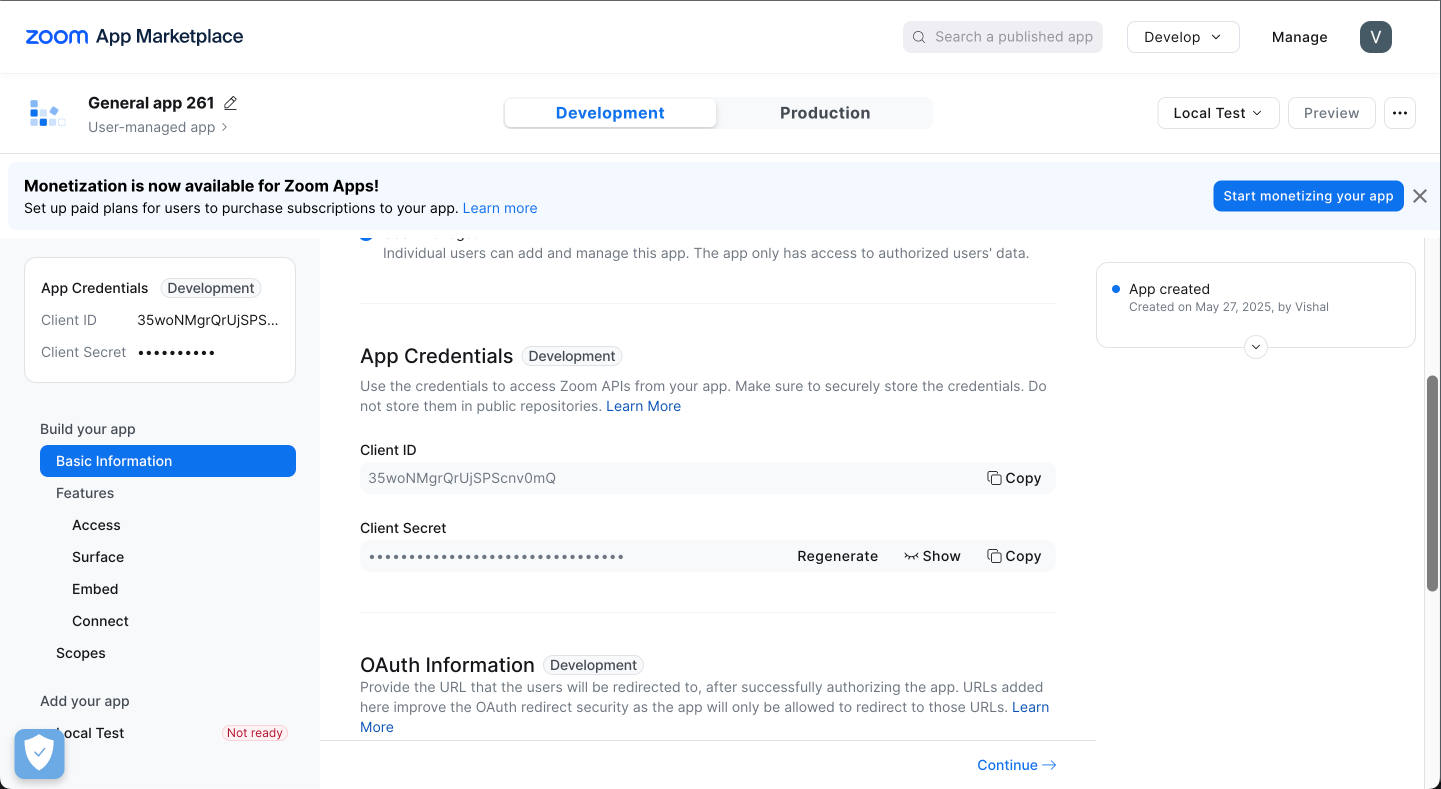
- Go to the Basic Information tab
- Scroll to OAuth Information
- Paste the below Callback URL into the OAuth Redirect URL field
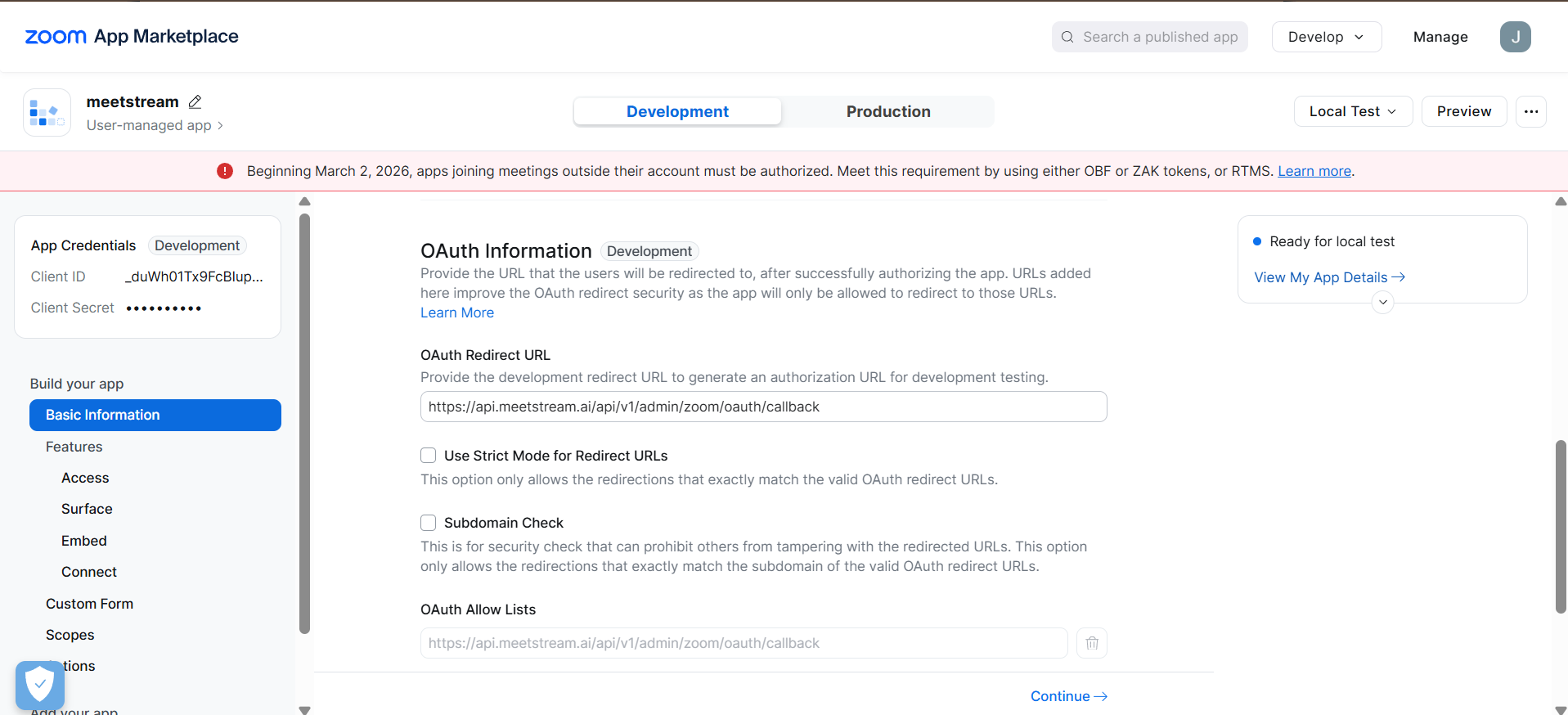
- Scroll further down in the same page and find OAuth Allow Lists and paste the below URL there
Step 2: Connect Zoom with MeetStream
Prerequisite: Make sure your Zoom app is created and configured by following the above steps.
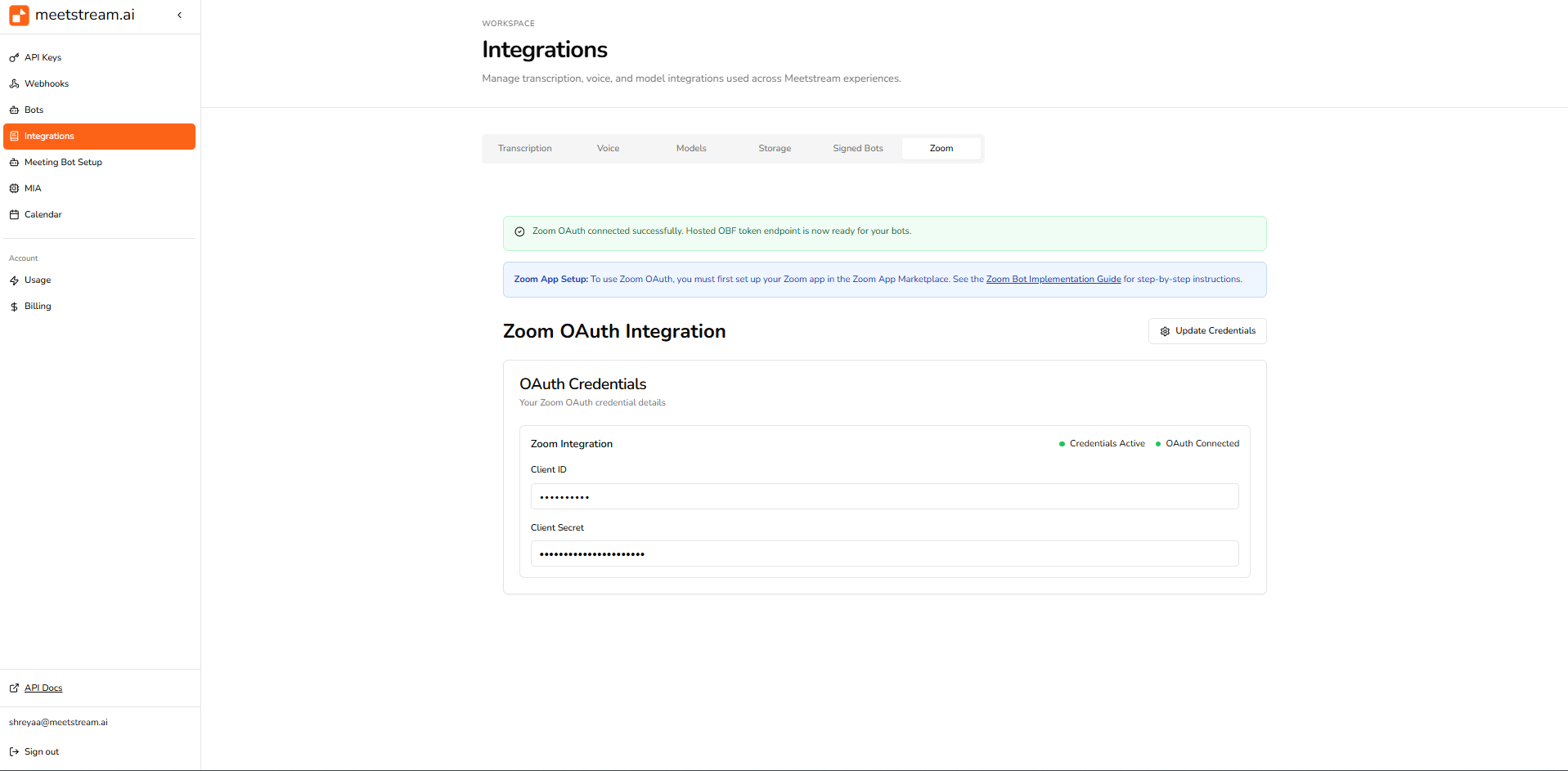
Add credentials to MeetStream
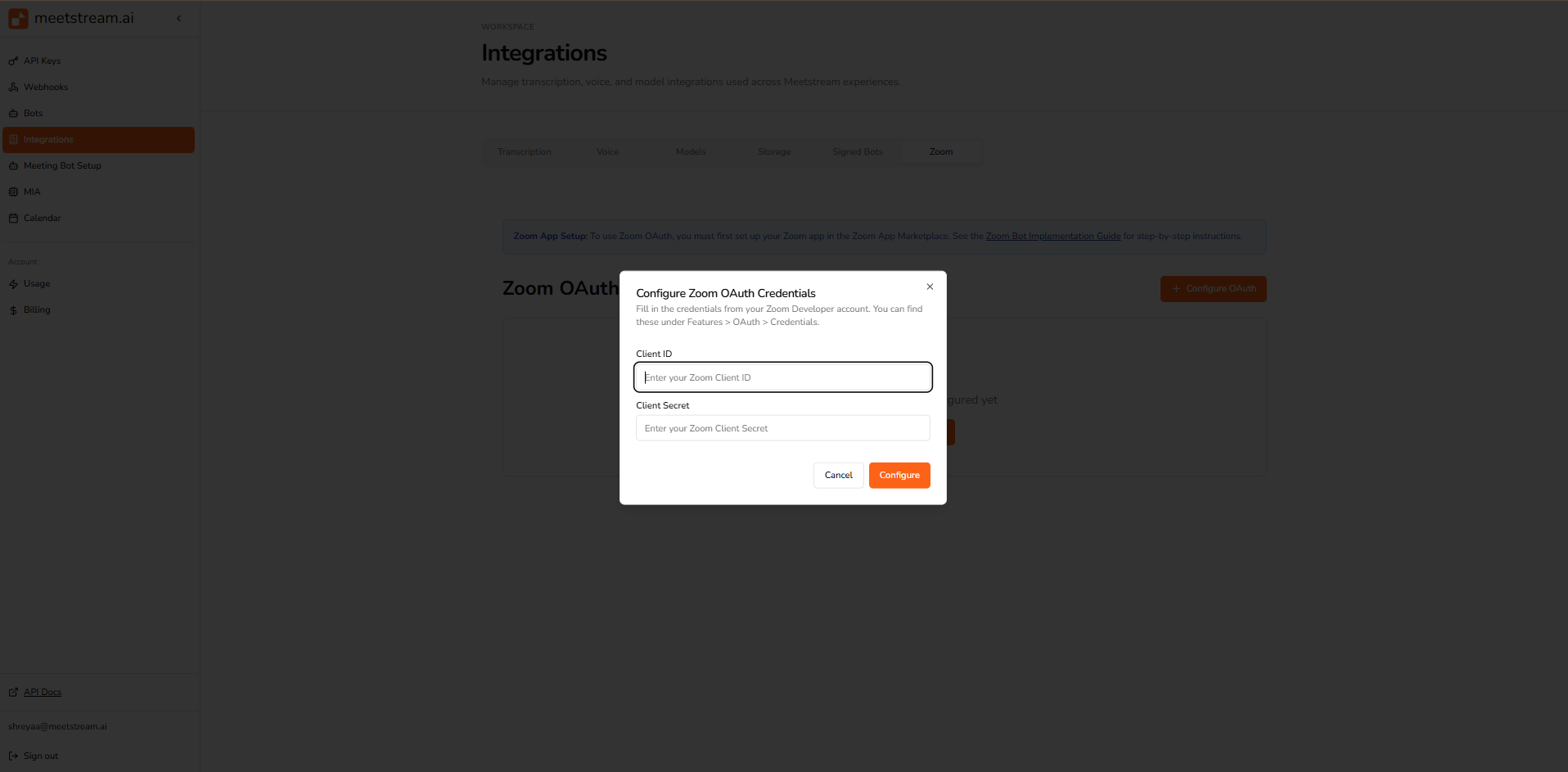
- Open the MeetStream Dashboard
- Go to the Integrations tab
- Navigate to the Zoom section
- Paste your Client ID and Client Secret
Authorize the connection
Complete the OAuth authorization flow to connect your Zoom account.
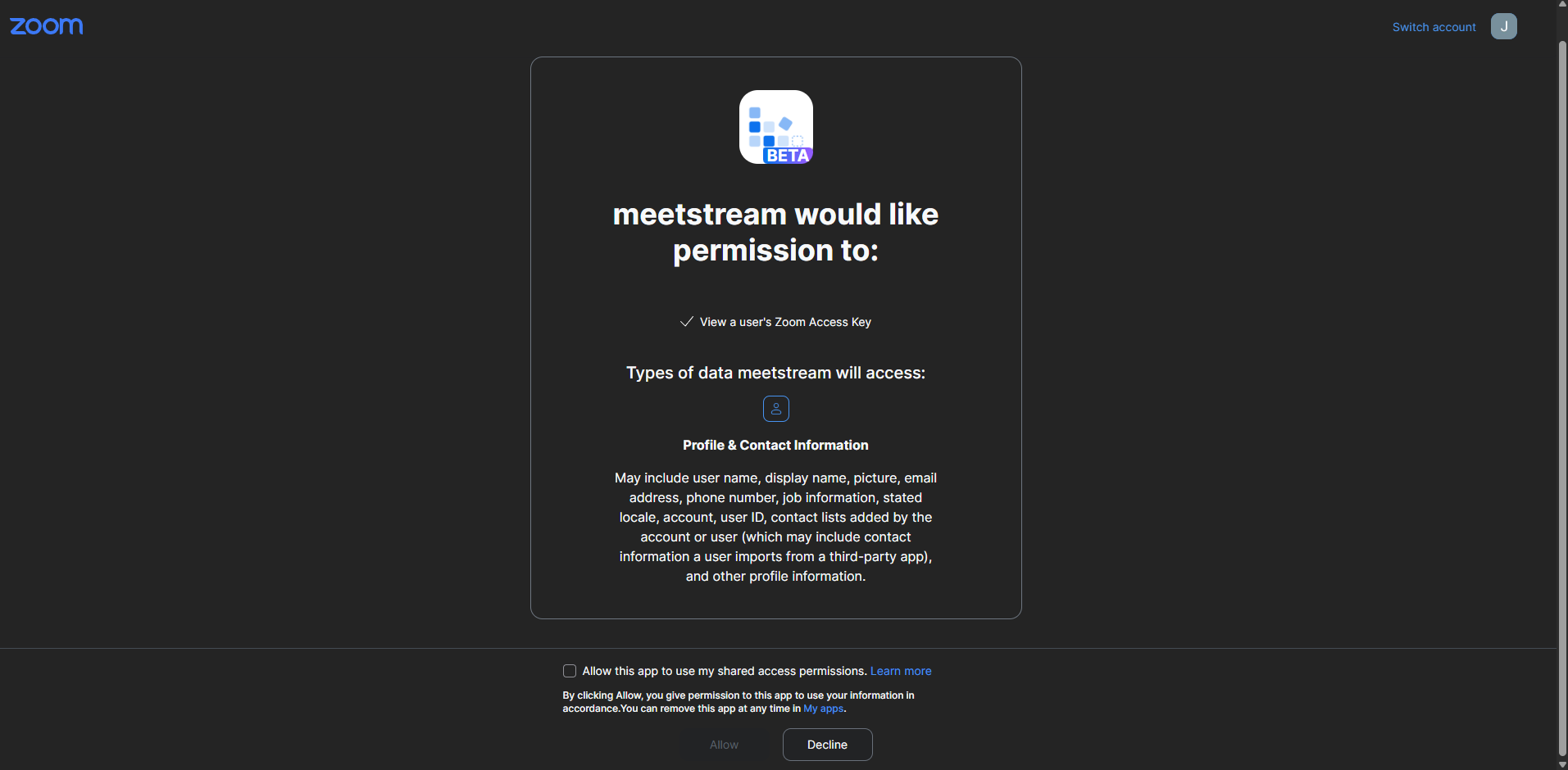
Once authorized, your integration is ready.
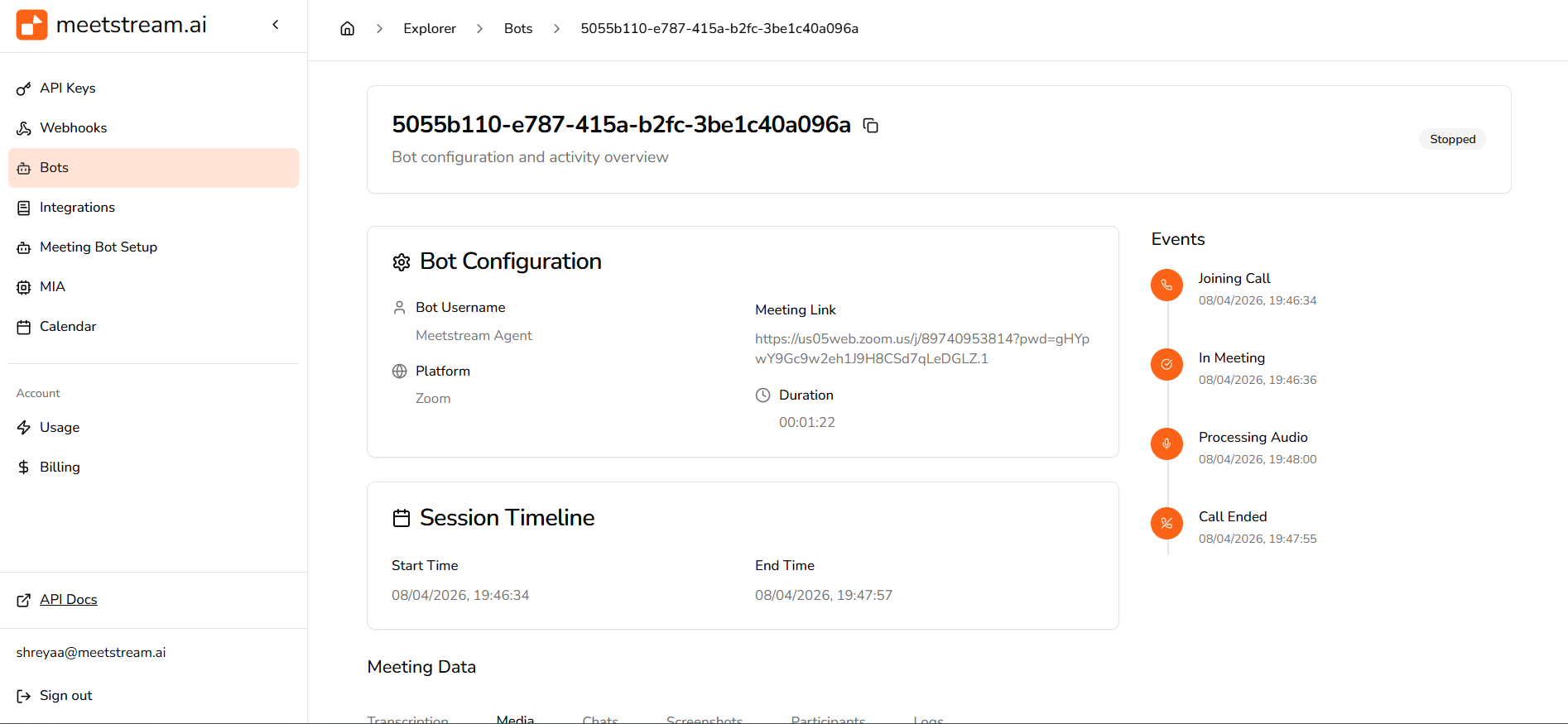
The above steps enable working for meetings hosted by your account only, to join meetings hosted by any account follow our Zoom App Production Submission Guide
Troubleshooting
Bot fails to join Zoom meeting
- Invalid or expired meeting link
- App is in development mode
- Waiting room not approved
- Password-protected meeting
No audio or transcript
- Audio not enabled in request
- No active speakers
- Permissions not granted by host
- Processing delay after meeting
Authentication errors
- Invalid API key
- Incorrect header format (
Token YOUR_API_KEY) - Missing permissions
- Rate limits exceeded