***
title: Zoom Bot Implementation Guide
description: Step-by-step guide to set up your Zoom app integration with Meetstream
-----------------------------------------------------------------------------------
## Step 1: Set up your Zoom app in the Zoom App Marketplace
Follow the steps below to get started.
Sign in or sign up for Zoom's App Marketplace to get started with creating your bot integration.
Access the Zoom App Marketplace to begin creating your integration
**Service Account Recommendation**
Create the app under a Zoom account that isn't tied to any particular user to avoid ownership issues later.
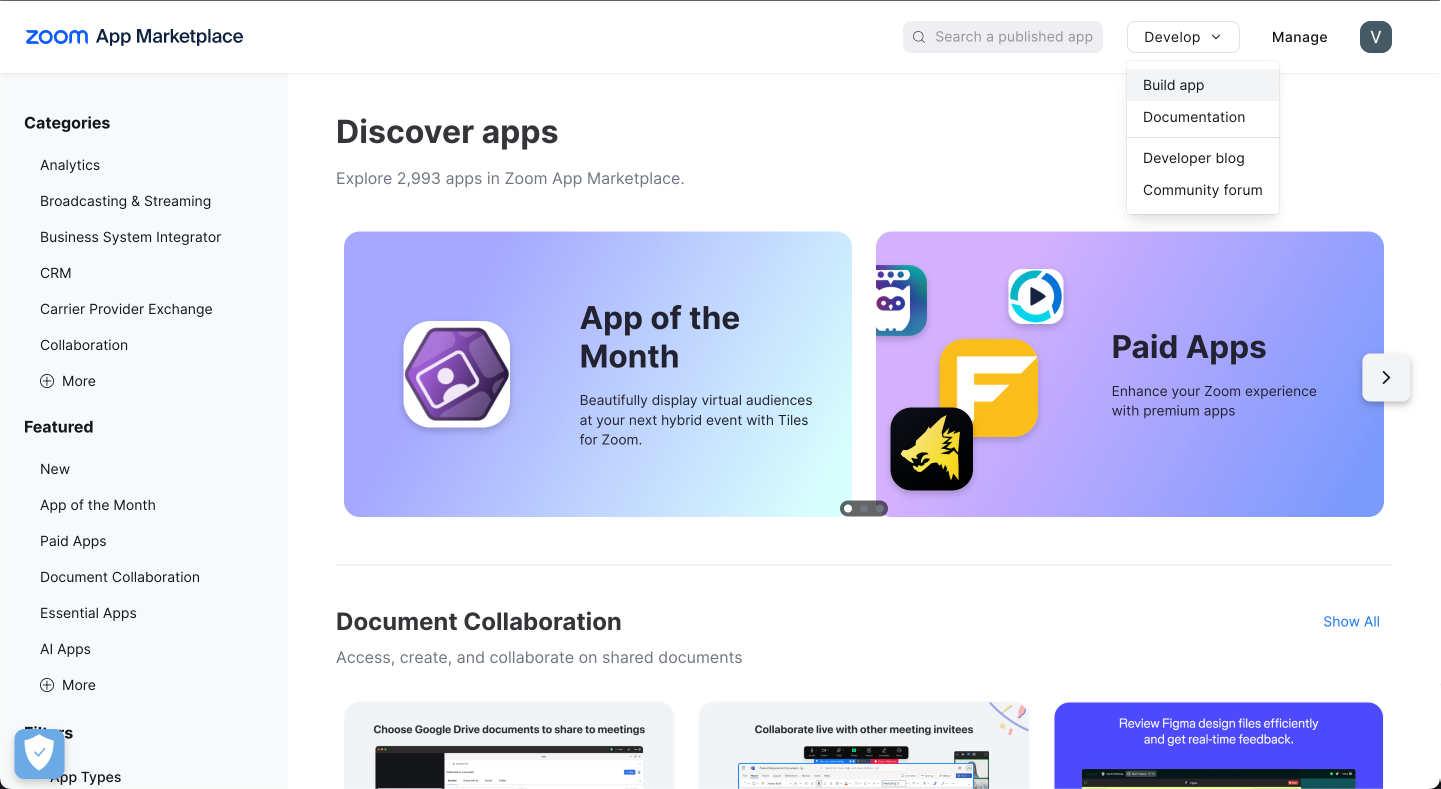
Once signed in, navigate to the development section and create a new app.
Follow these steps:
1. Click on the "Develop" tab
2. Select "Build App"
3. Choose "General" app type (unless you have a specific use case)
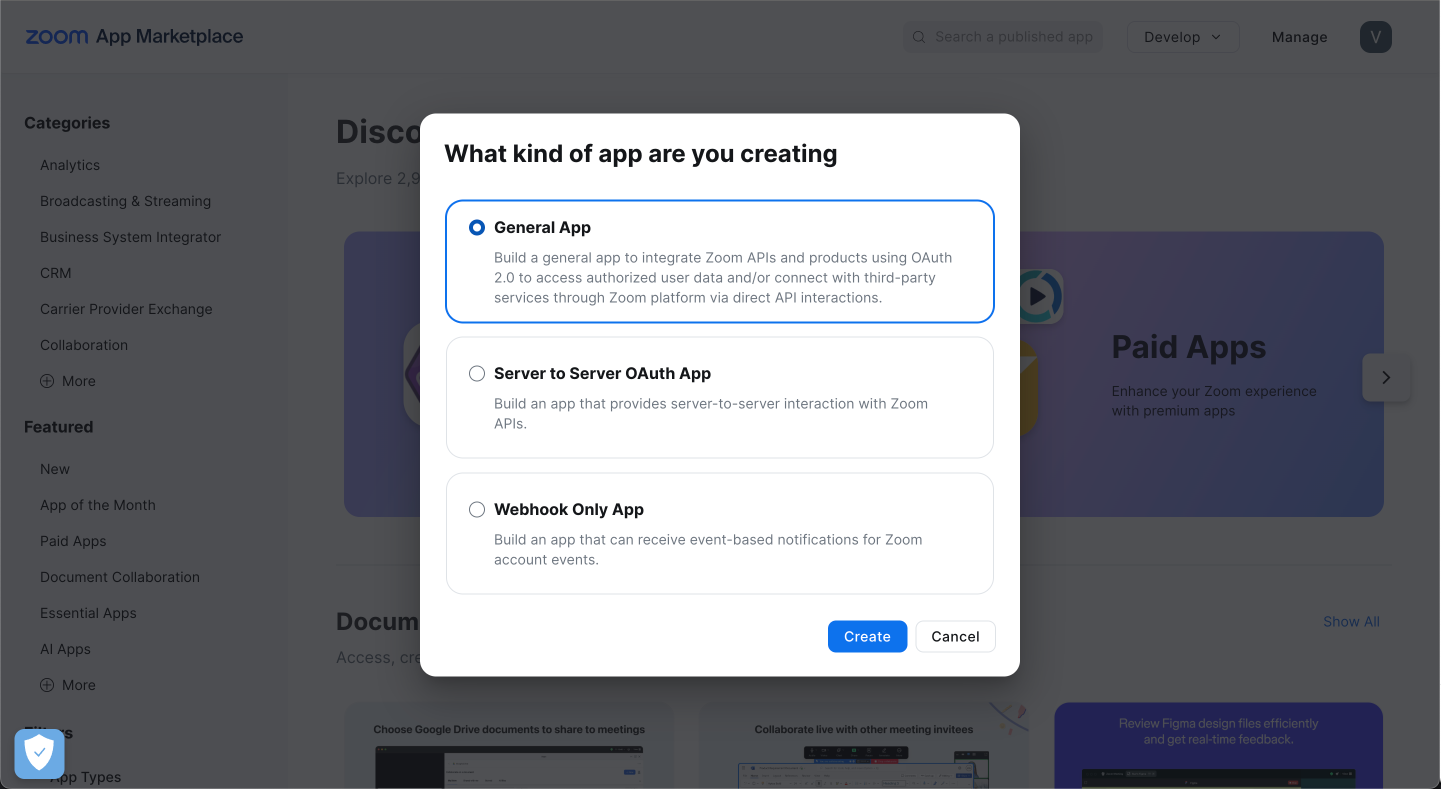
 **Choose App Management Type**
Select how your users will manage your app permissions:
Individual users grant permissions to access their personal Zoom data. Similar to how apps request access to Gmail or Google Drive.
Organization admins grant permissions for the entire organization. Similar to G Suite admin granting domain-wide permissions.
**Choose App Management Type**
Select how your users will manage your app permissions:
Individual users grant permissions to access their personal Zoom data. Similar to how apps request access to Gmail or Google Drive.
Organization admins grant permissions for the entire organization. Similar to G Suite admin granting domain-wide permissions.
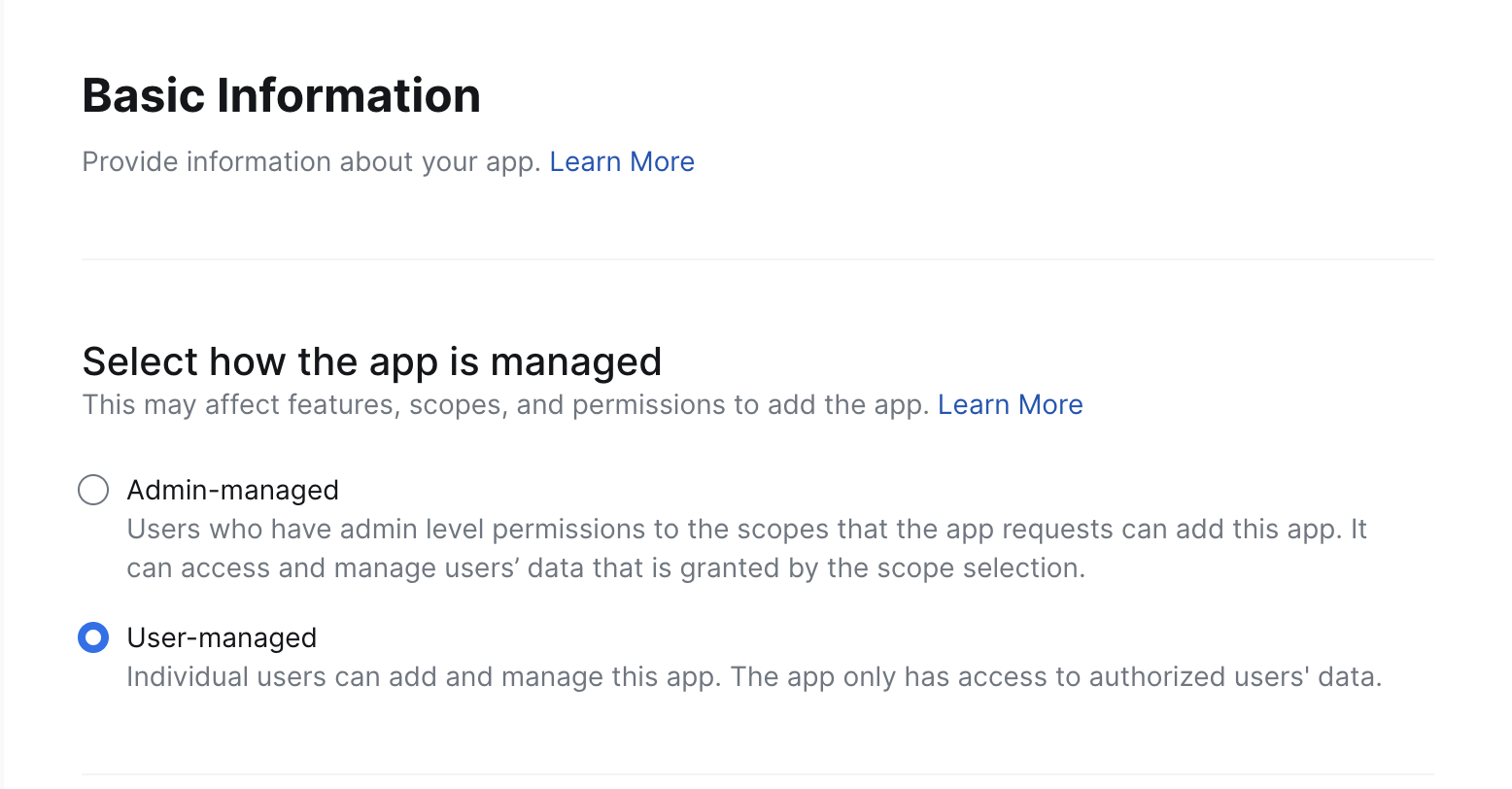
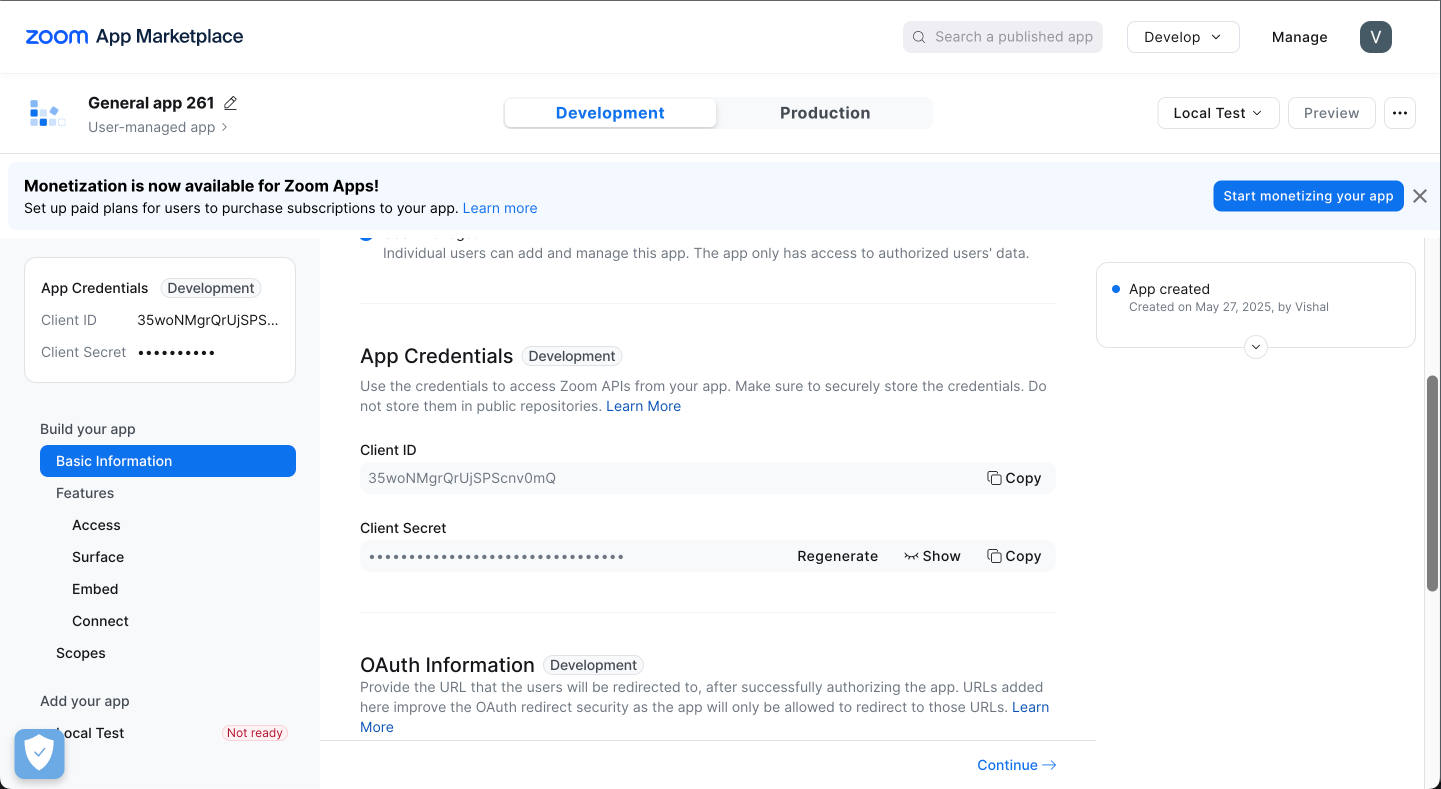
 Retrieve your development credentials to integrate with the Meetstream platform.
1. Go back to the "Basic Information" tab
2. Find the "App Credentials" section
3. Copy your development credentials
Retrieve your development credentials to integrate with the Meetstream platform.
1. Go back to the "Basic Information" tab
2. Find the "App Credentials" section
3. Copy your development credentials
 **Development vs Production**
Your Zoom credentials default to "development" which only works for meetings hosted by the user or organization that owns the app. For production use across external meetings, your app must be submitted and approved by Zoom.
## Step 2: Zoom Bot Implementation Guide
Complete guide to implementing Zoom bots with MeetStream. Learn how to create your first bot, configure credentials, and handle common scenarios.
**Prerequisites:** Before starting, ensure you have created a MeetStream account and a Zoom app in Zoom's marketplace. If you haven't created a Zoom app yet, follow the steps in Step 1.
**Important:** At this stage, Zoom bots can only join meetings hosted by the user or organization that owns the Zoom app.
Retrieve your development credentials from the Zoom Marketplace Dashboard.
1. **Navigate to Zoom Marketplace Dashboard**
Head to the Zoom Marketplace Dashboard and find your app under managed apps
2. **Access App Credentials**
Click on the 'Basic Information' tab and locate the 'App Credentials' section to find your development credentials
**Development vs Production**
Your Zoom credentials default to "development" which only works for meetings hosted by the user or organization that owns the app. For production use across external meetings, your app must be submitted and approved by Zoom.
## Step 2: Zoom Bot Implementation Guide
Complete guide to implementing Zoom bots with MeetStream. Learn how to create your first bot, configure credentials, and handle common scenarios.
**Prerequisites:** Before starting, ensure you have created a MeetStream account and a Zoom app in Zoom's marketplace. If you haven't created a Zoom app yet, follow the steps in Step 1.
**Important:** At this stage, Zoom bots can only join meetings hosted by the user or organization that owns the Zoom app.
Retrieve your development credentials from the Zoom Marketplace Dashboard.
1. **Navigate to Zoom Marketplace Dashboard**
Head to the Zoom Marketplace Dashboard and find your app under managed apps
2. **Access App Credentials**
Click on the 'Basic Information' tab and locate the 'App Credentials' section to find your development credentials
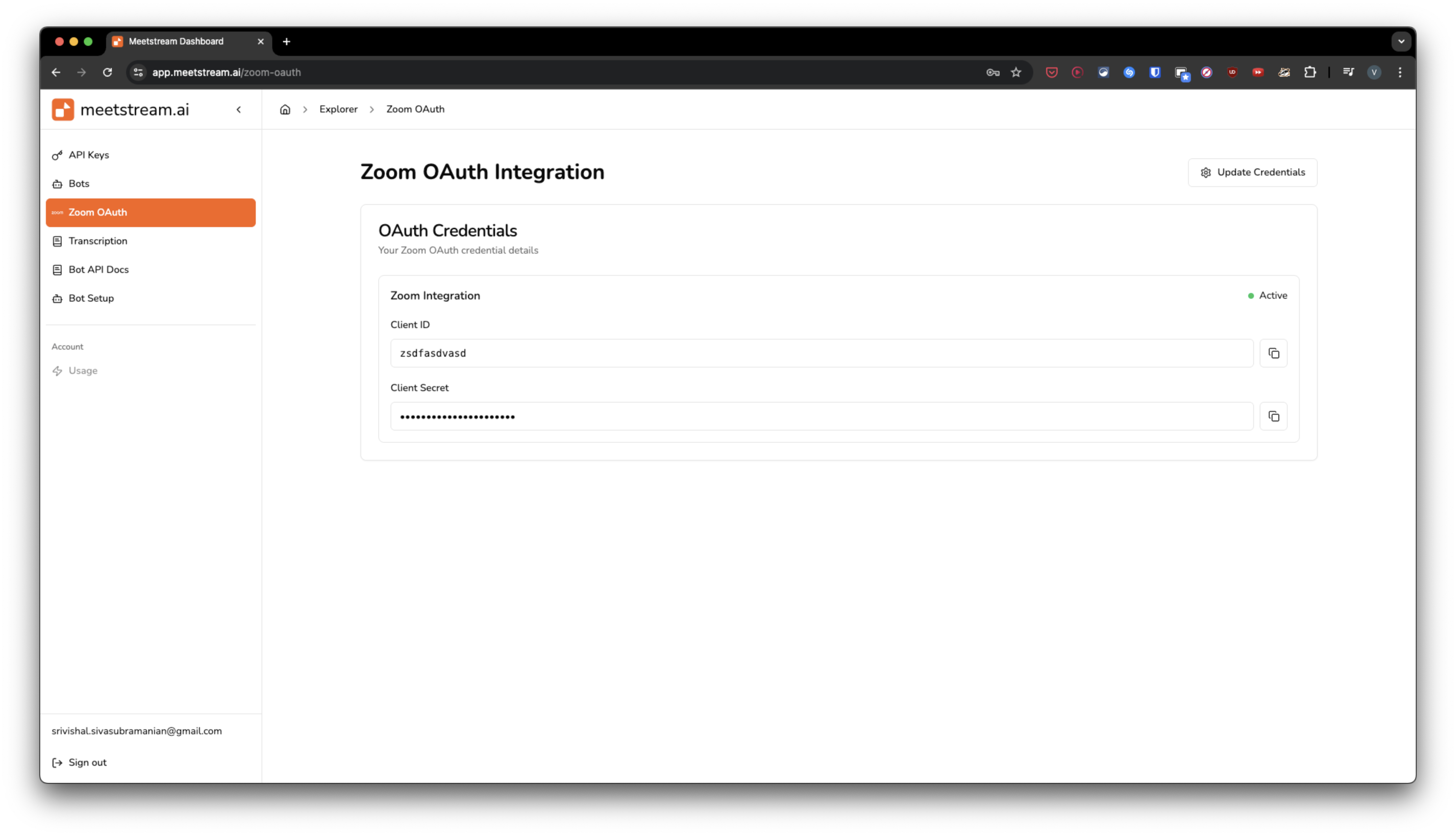
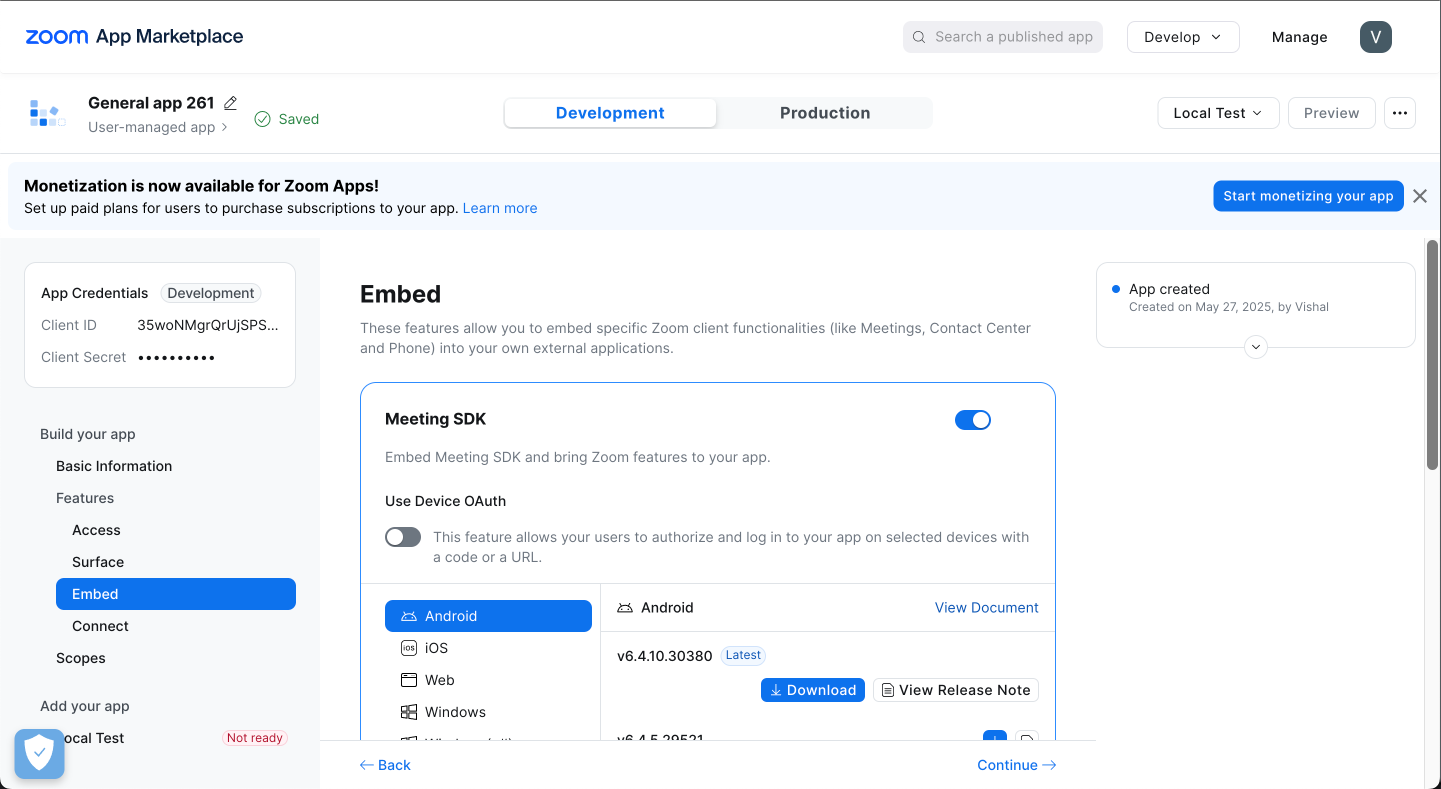 Configure your Zoom SDK credentials in the dashboard.
1. **Access MeetStream Dashboard**
Navigate to the Zoom SDK Credentials section in your dashboard sidebar
2. **Configure Credentials**
Add your Zoom app credentials from Step 1 to enable bot functionality
Configure your Zoom SDK credentials in the dashboard.
1. **Access MeetStream Dashboard**
Navigate to the Zoom SDK Credentials section in your dashboard sidebar
2. **Configure Credentials**
Add your Zoom app credentials from Step 1 to enable bot functionality
 Use the Create Bot API to deploy your first Zoom bot.
For full API details, see the Bot API documentation
**Endpoint:** `POST /bots/create_bot`
Creates a new bot instance to join a meeting.
**Authentication:** Requires API Key authentication (`Header: Authorization: Token YOUR_API_KEY`)
```bash cURL
curl -X POST "https://api.meestream.ai/api/v1/bots/create_bot" \
-H "Authorization: Token YOUR_API_KEY" \
-H "Content-Type: application/json" \
-d '{
"meeting_link": "",
"bot_name": "",
"bot_message": "",
"live_audio_required": {
"websocket_url": ""
},
"live_transcription_required": {
"webhook_url": ""
},
"custom_attributes": {
"tag": "",
"sample": ""
},
"callback_url": ""
}'
```
```json Request Body
{
"meeting_link": "",
"bot_name": "",
"bot_message": "",
"live_audio_required": {
"websocket_url": ""
},
"live_transcription_required": {
"webhook_url": ""
},
"custom_attributes": {
"tag": "",
"sample": ""
},
"callback_url": ""
}
```
**Possible Responses:**
* **201:** Bot creation initiated successfully. Returns `{ bot_id: string }`
* **400:** Bad Request (e.g., missing fields, invalid meeting link)
* **401:** Unauthorized (Invalid API Key)
* **500:** Internal Server Error
**Pro tip:** If a bot is denied recording permissions, you should signal this to the host to prevent lost recording opportunities. Set `recording_permission_denied_timeout` to automatically leave after 5 seconds if denied permissions.
Monitor and debug your bot using the dashboard's Bot Explorer.
1. **Access Bot Explorer**
Navigate to the "Bots" section in your dashboard to access the Bot explorer
2. **Find Your Bot**
Locate the bot you just created and click the 'view' button to access detailed information
3. **Debug and Monitor**
Access bot details, debugging tools, live screenshots, and more to monitor your bot's performance
Use the Create Bot API to deploy your first Zoom bot.
For full API details, see the Bot API documentation
**Endpoint:** `POST /bots/create_bot`
Creates a new bot instance to join a meeting.
**Authentication:** Requires API Key authentication (`Header: Authorization: Token YOUR_API_KEY`)
```bash cURL
curl -X POST "https://api.meestream.ai/api/v1/bots/create_bot" \
-H "Authorization: Token YOUR_API_KEY" \
-H "Content-Type: application/json" \
-d '{
"meeting_link": "",
"bot_name": "",
"bot_message": "",
"live_audio_required": {
"websocket_url": ""
},
"live_transcription_required": {
"webhook_url": ""
},
"custom_attributes": {
"tag": "",
"sample": ""
},
"callback_url": ""
}'
```
```json Request Body
{
"meeting_link": "",
"bot_name": "",
"bot_message": "",
"live_audio_required": {
"websocket_url": ""
},
"live_transcription_required": {
"webhook_url": ""
},
"custom_attributes": {
"tag": "",
"sample": ""
},
"callback_url": ""
}
```
**Possible Responses:**
* **201:** Bot creation initiated successfully. Returns `{ bot_id: string }`
* **400:** Bad Request (e.g., missing fields, invalid meeting link)
* **401:** Unauthorized (Invalid API Key)
* **500:** Internal Server Error
**Pro tip:** If a bot is denied recording permissions, you should signal this to the host to prevent lost recording opportunities. Set `recording_permission_denied_timeout` to automatically leave after 5 seconds if denied permissions.
Monitor and debug your bot using the dashboard's Bot Explorer.
1. **Access Bot Explorer**
Navigate to the "Bots" section in your dashboard to access the Bot explorer
2. **Find Your Bot**
Locate the bot you just created and click the 'view' button to access detailed information
3. **Debug and Monitor**
Access bot details, debugging tools, live screenshots, and more to monitor your bot's performance
 ## Troubleshooting
**Common causes:**
* Meeting link is invalid or expired
* Zoom app credentials are in development mode (only works for meetings hosted by app owner)
* Meeting requires waiting room approval
* Meeting has password protection not handled by the bot
**Check these settings:**
* Ensure audio is enabled in bot creation request
* Verify meeting participants are speaking
* Check if meeting host has enabled audio permissions for bots
* Wait for processing time after meeting ends
**Verify:**
* API key is correct and active
* Authorization header format: `Token YOUR_API_KEY`
* Account has sufficient permissions
* API quotas not exceeded
## Troubleshooting
**Common causes:**
* Meeting link is invalid or expired
* Zoom app credentials are in development mode (only works for meetings hosted by app owner)
* Meeting requires waiting room approval
* Meeting has password protection not handled by the bot
**Check these settings:**
* Ensure audio is enabled in bot creation request
* Verify meeting participants are speaking
* Check if meeting host has enabled audio permissions for bots
* Wait for processing time after meeting ends
**Verify:**
* API key is correct and active
* Authorization header format: `Token YOUR_API_KEY`
* Account has sufficient permissions
* API quotas not exceeded