> For clean Markdown of any page, append .md to the page URL.
> For a complete documentation index, see https://docs.meetstream.ai/llms.txt.
> For full documentation content, see https://docs.meetstream.ai/llms-full.txt.
> For AI client integration (Claude Code, Cursor, etc.), connect to the MCP server at https://docs.meetstream.ai/_mcp/server.
# Zoom OBF implementation in MeetStream
This guide walks you through connecting your Zoom account to MeetStream so bots can join Zoom meetings using MeetStream’s hosted **OBF** (OAuth-based) flow. After setup, you enable Zoom on each bot by adding a small `zoom` block to your **create bot** request.
---
## What you need
- A Zoom account with permission to create apps in the [Zoom App Marketplace](https://marketplace.zoom.us/).
- Access to the [MeetStream dashboard](https://app.meetstream.ai).
- The **same browser session** for Zoom Marketplace configuration and for authorizing in the MeetStream dashboard (see below).
---
## Step 1: Create a Zoom app and set the redirect URL
1. Go to the [Zoom App Marketplace](https://marketplace.zoom.us/) and sign in.
2. Create a new app (for example an **OAuth** app, following Zoom’s current marketplace flow for third-party integrations).
3. In your Zoom app’s OAuth settings, add this **Redirect URL for OAuth** (also called callback or redirect URI in the Zoom UI). In the **OAuth Information** screen, put the same URL in **OAuth Redirect URL** and, if your app shows it, add it to **OAuth Allow Lists**:
`https://api.meetstream.ai/api/v1/admin/zoom/oauth/callback`
This must match the redirect URI MeetStream uses when sending users to Zoom; use the full path including `/callback`.
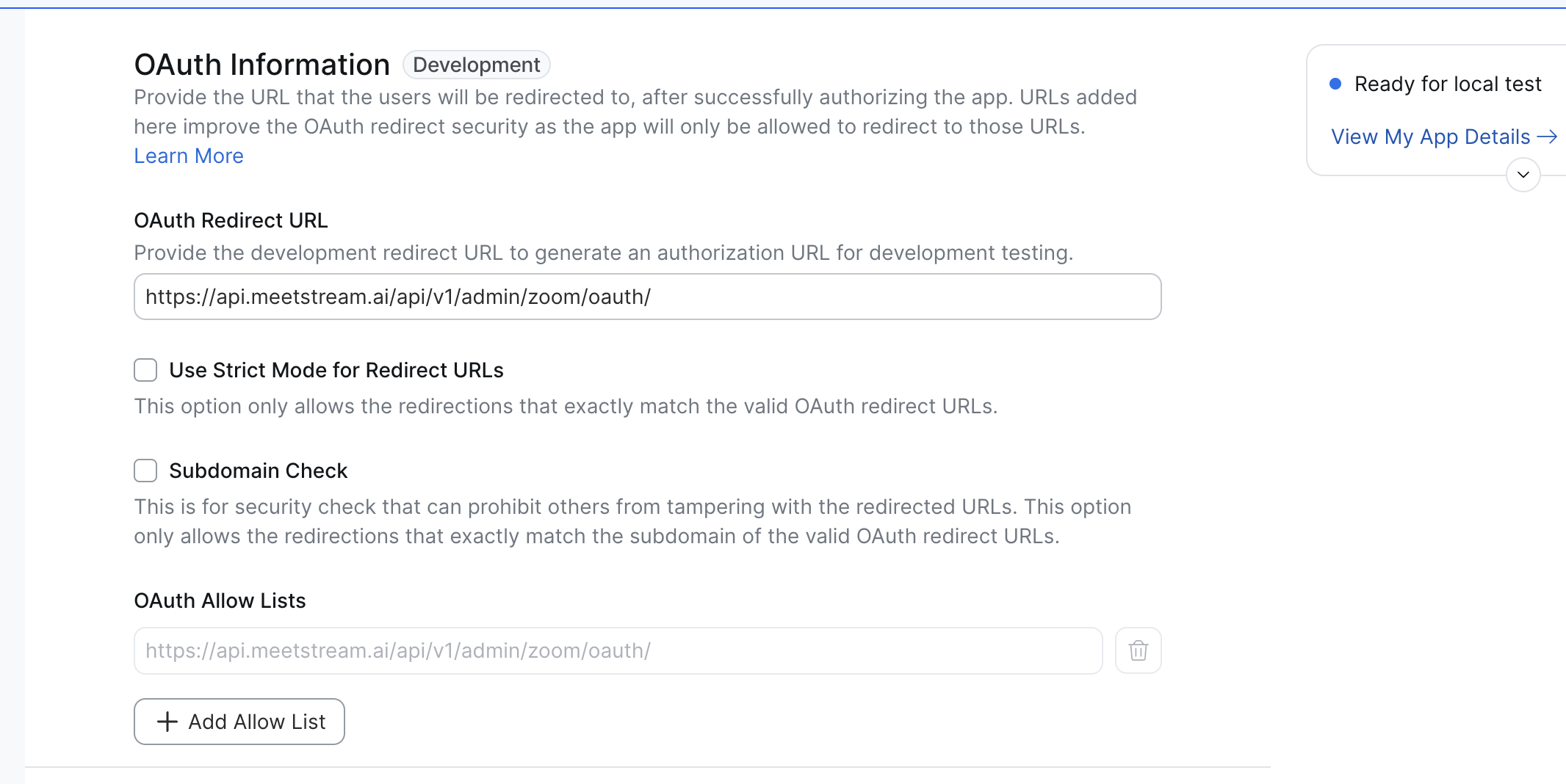 *Development-stage example: enter MeetStream’s redirect URL in **OAuth Redirect URL** and list the same URL under **OAuth Allow Lists**.*
4. Complete any other required fields Zoom asks for (app name, scopes, etc.) and save the app according to Zoom’s documentation.
Use the exact URL above so MeetStream can complete the OAuth flow after you click **Authorise** in the dashboard.
---
## Step 2: Connect Zoom in the MeetStream dashboard
Do this **in the same browser** you used for Zoom Marketplace setup, so cookies and redirects behave as expected.
1. Open the **MeetStream dashboard**: [https://app.meetstream.ai](https://app.meetstream.ai).
2. Go to the **Integrations** tab.
3. Choose the option to **add your Zoom credential** (the control labeled for connecting Zoom).
4. Click **Authorise** (or the equivalent button) to start the Zoom consent flow.
5. Approve access in Zoom when prompted. After a successful connection, MeetStream will show Zoom as connected for your account.
If authorisation fails, confirm the redirect URL in Step 1 matches exactly and try again from the Integrations tab.
---
## Step 3: Enable Zoom on your bot (`create_bot`)
After Zoom is connected, include this in your **create bot** JSON body whenever you want MeetStream to use your connected Zoom account for joining the meeting:
```json
"zoom": {
"use_zoom_obf": true
}
```
### Example `create_bot` payload
```json
{
"meeting_link": "https://zoom.us/j/123456789?pwd=...",
"bot_name": "MeetStream Bot",
"audio_required": true,
"video_required": false,
"zoom": {
"use_zoom_obf": true
}
}
```
- `meeting_link` must be a **Zoom** meeting URL.
- `use_zoom_obf` must be a boolean (`true` or `false`).
Do **not** send custom token server fields such as `zoom.obf_url` or `zoom.zak_url`; MeetStream supplies those when hosted Zoom auth is enabled.
---
## Troubleshooting
| Issue | What to try |
|--------|-------------|
| API returns an error about Zoom not being connected | Reopen **Integrations**, confirm Zoom shows as connected, and run **Authorise** again if needed. |
| Redirect or “invalid redirect” from Zoom | Verify the Zoom app redirect URL is exactly `https://api.meetstream.ai/api/v1/admin/zoom/oauth/callback` (including `/callback`), with no extra trailing slash unless Zoom requires it. |
| Error that `use_zoom_obf` is invalid | Ensure it is a JSON boolean, not a string. |
| Bot created but meeting is not Zoom | `use_zoom_obf` is only for Zoom links; use a Zoom `meeting_link`. |
---
## Summary
1. **Zoom Marketplace:** Create an app and set the OAuth redirect URL to `https://api.meetstream.ai/api/v1/admin/zoom/oauth/callback`.
2. **MeetStream dashboard:** **Integrations** → add Zoom credential → **Authorise** (same browser as above).
3. **API:** Add `"zoom": { "use_zoom_obf": true }` to your `create_bot` payload for Zoom meetings.
*Development-stage example: enter MeetStream’s redirect URL in **OAuth Redirect URL** and list the same URL under **OAuth Allow Lists**.*
4. Complete any other required fields Zoom asks for (app name, scopes, etc.) and save the app according to Zoom’s documentation.
Use the exact URL above so MeetStream can complete the OAuth flow after you click **Authorise** in the dashboard.
---
## Step 2: Connect Zoom in the MeetStream dashboard
Do this **in the same browser** you used for Zoom Marketplace setup, so cookies and redirects behave as expected.
1. Open the **MeetStream dashboard**: [https://app.meetstream.ai](https://app.meetstream.ai).
2. Go to the **Integrations** tab.
3. Choose the option to **add your Zoom credential** (the control labeled for connecting Zoom).
4. Click **Authorise** (or the equivalent button) to start the Zoom consent flow.
5. Approve access in Zoom when prompted. After a successful connection, MeetStream will show Zoom as connected for your account.
If authorisation fails, confirm the redirect URL in Step 1 matches exactly and try again from the Integrations tab.
---
## Step 3: Enable Zoom on your bot (`create_bot`)
After Zoom is connected, include this in your **create bot** JSON body whenever you want MeetStream to use your connected Zoom account for joining the meeting:
```json
"zoom": {
"use_zoom_obf": true
}
```
### Example `create_bot` payload
```json
{
"meeting_link": "https://zoom.us/j/123456789?pwd=...",
"bot_name": "MeetStream Bot",
"audio_required": true,
"video_required": false,
"zoom": {
"use_zoom_obf": true
}
}
```
- `meeting_link` must be a **Zoom** meeting URL.
- `use_zoom_obf` must be a boolean (`true` or `false`).
Do **not** send custom token server fields such as `zoom.obf_url` or `zoom.zak_url`; MeetStream supplies those when hosted Zoom auth is enabled.
---
## Troubleshooting
| Issue | What to try |
|--------|-------------|
| API returns an error about Zoom not being connected | Reopen **Integrations**, confirm Zoom shows as connected, and run **Authorise** again if needed. |
| Redirect or “invalid redirect” from Zoom | Verify the Zoom app redirect URL is exactly `https://api.meetstream.ai/api/v1/admin/zoom/oauth/callback` (including `/callback`), with no extra trailing slash unless Zoom requires it. |
| Error that `use_zoom_obf` is invalid | Ensure it is a JSON boolean, not a string. |
| Bot created but meeting is not Zoom | `use_zoom_obf` is only for Zoom links; use a Zoom `meeting_link`. |
---
## Summary
1. **Zoom Marketplace:** Create an app and set the OAuth redirect URL to `https://api.meetstream.ai/api/v1/admin/zoom/oauth/callback`.
2. **MeetStream dashboard:** **Integrations** → add Zoom credential → **Authorise** (same browser as above).
3. **API:** Add `"zoom": { "use_zoom_obf": true }` to your `create_bot` payload for Zoom meetings.