> For clean Markdown of any page, append .md to the page URL.
> For a complete documentation index, see https://docs.meetstream.ai/llms.txt.
> For full documentation content, see https://docs.meetstream.ai/llms-full.txt.
> For AI client integration (Claude Code, Cursor, etc.), connect to the MCP server at https://docs.meetstream.ai/_mcp/server.
# Zoom Bot Implementation Guide
> Step-by-step guide to set up your Zoom app integration with MeetStream
## Step 1: Set up your Zoom app in the Zoom App Marketplace
Follow the steps below to create and configure your Zoom app.
Sign in or sign up to access the Zoom App Marketplace.
Go to the Zoom Marketplace
**Recommendation**
Use a dedicated/service account to avoid ownership issues later.
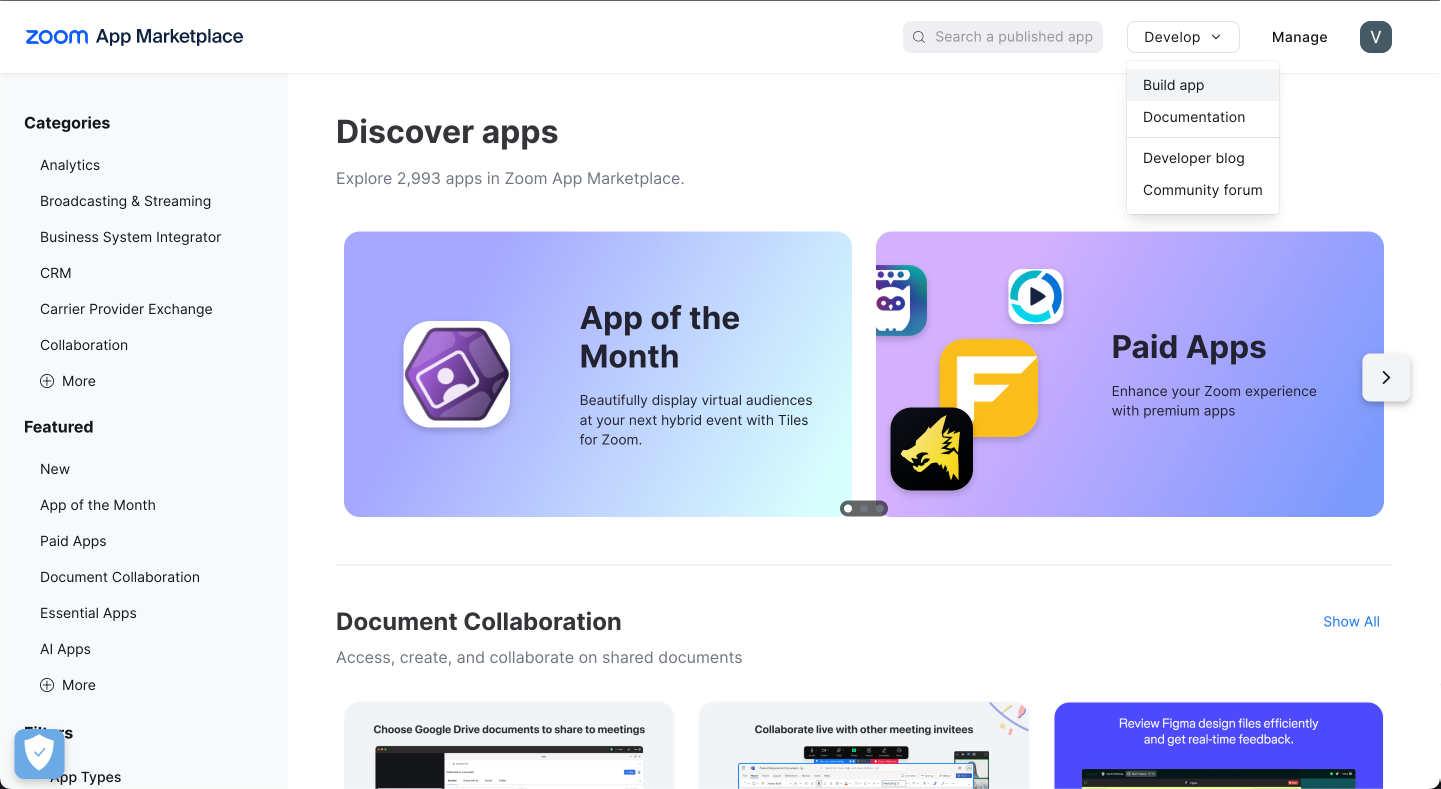
1. Go to the **Develop** tab on the top right of the page
2. Click the dropdown and select **Build App**
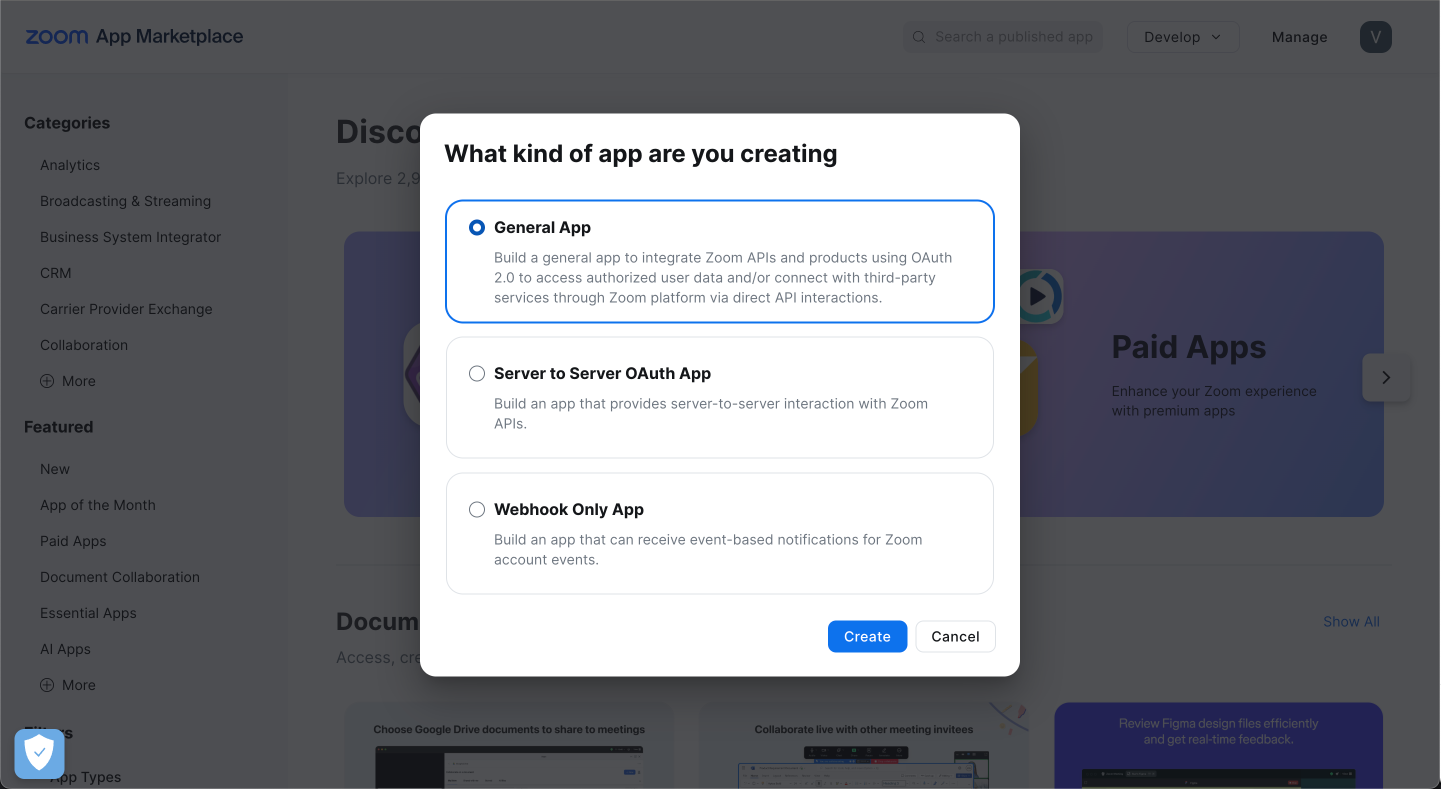
3. Select **General App**
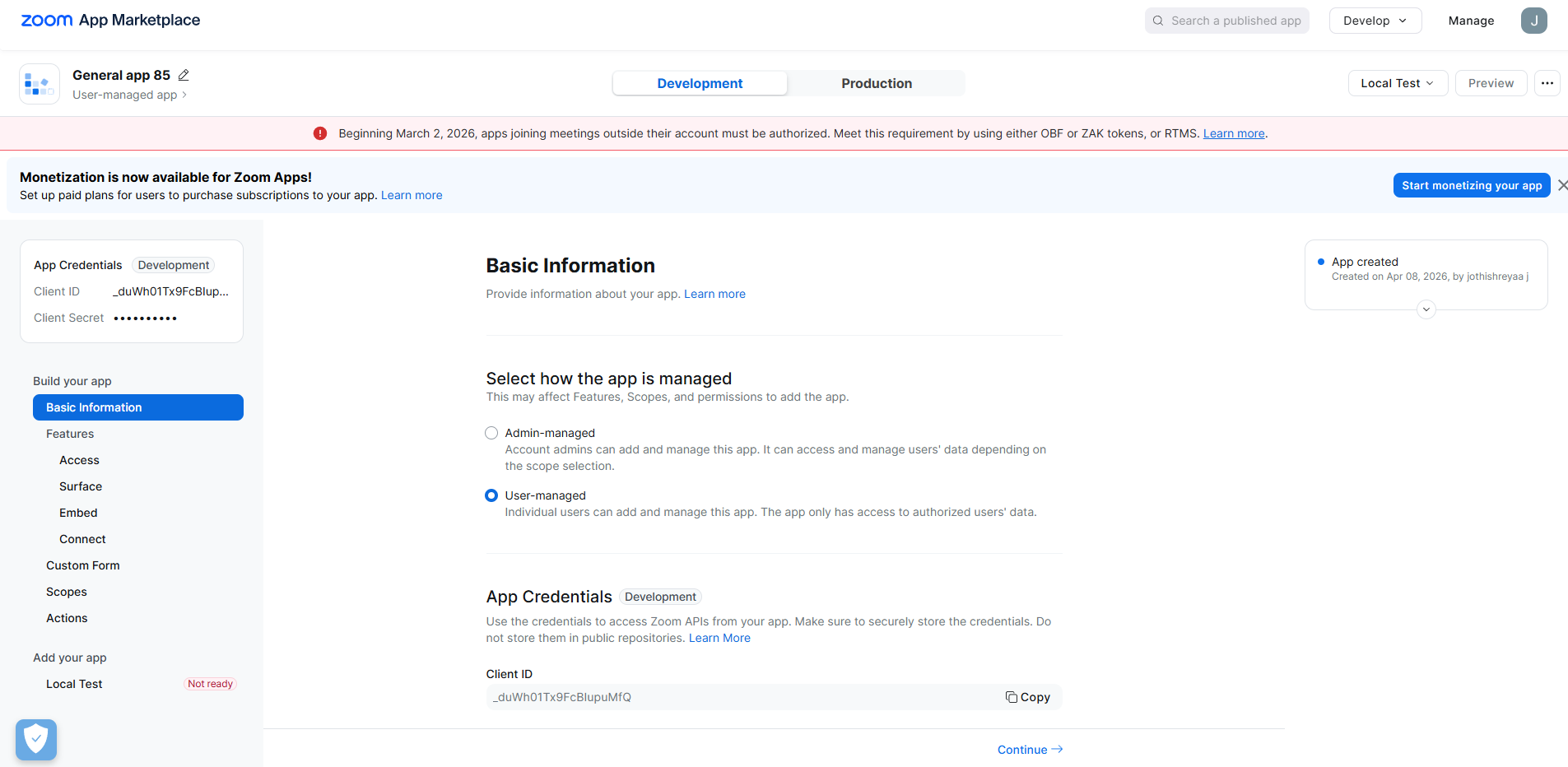
 Select how permissions will be granted:
Individual users authorize access to their Zoom account.
Admins authorize access for the entire organization.
Select how permissions will be granted:
Individual users authorize access to their Zoom account.
Admins authorize access for the entire organization.
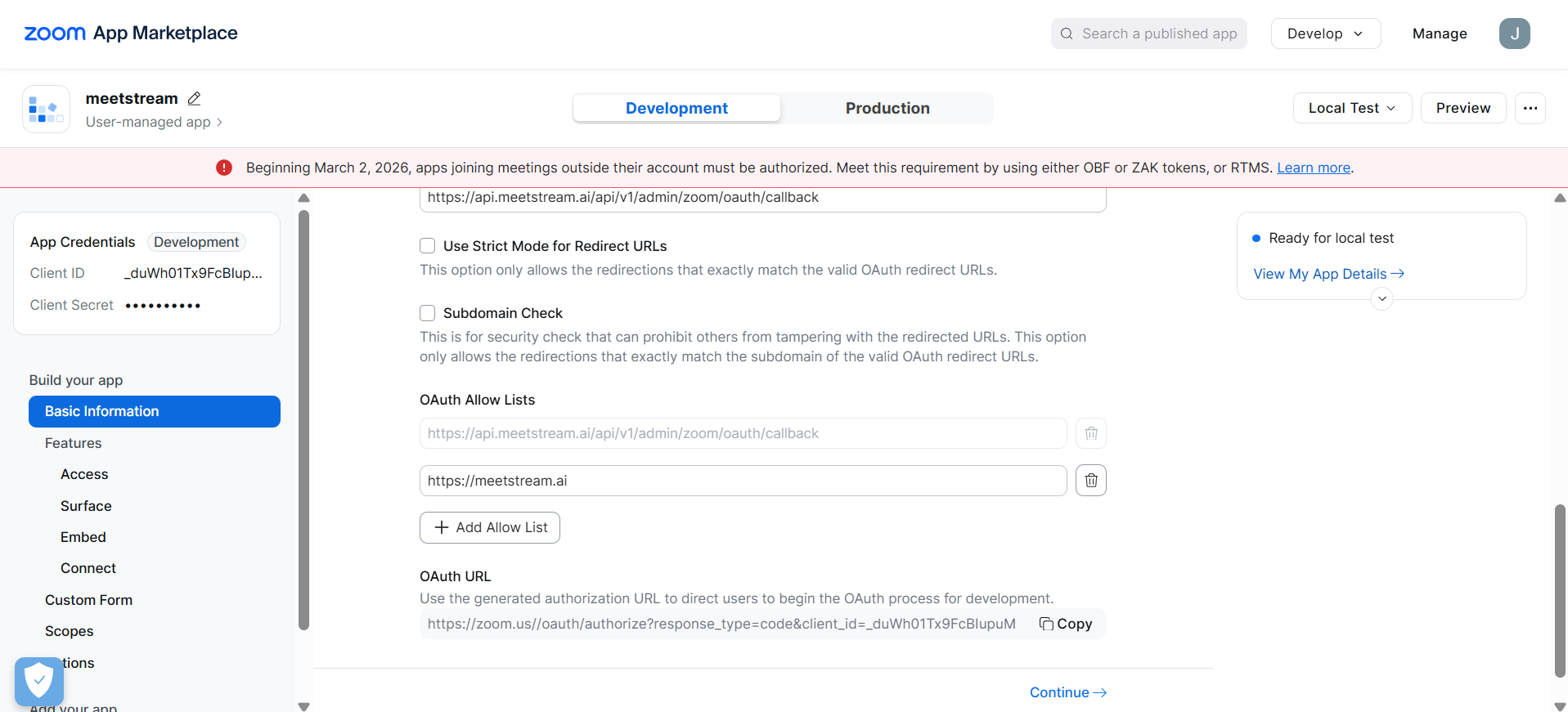
 1. Go to the **Basic Information** tab
2. Scroll to **OAuth Information**
3. Paste the below **Callback URL** into the OAuth Redirect URL field
```
https://api.meetstream.ai/api/v1/admin/zoom/oauth/callback
```
1. Go to the **Basic Information** tab
2. Scroll to **OAuth Information**
3. Paste the below **Callback URL** into the OAuth Redirect URL field
```
https://api.meetstream.ai/api/v1/admin/zoom/oauth/callback
```
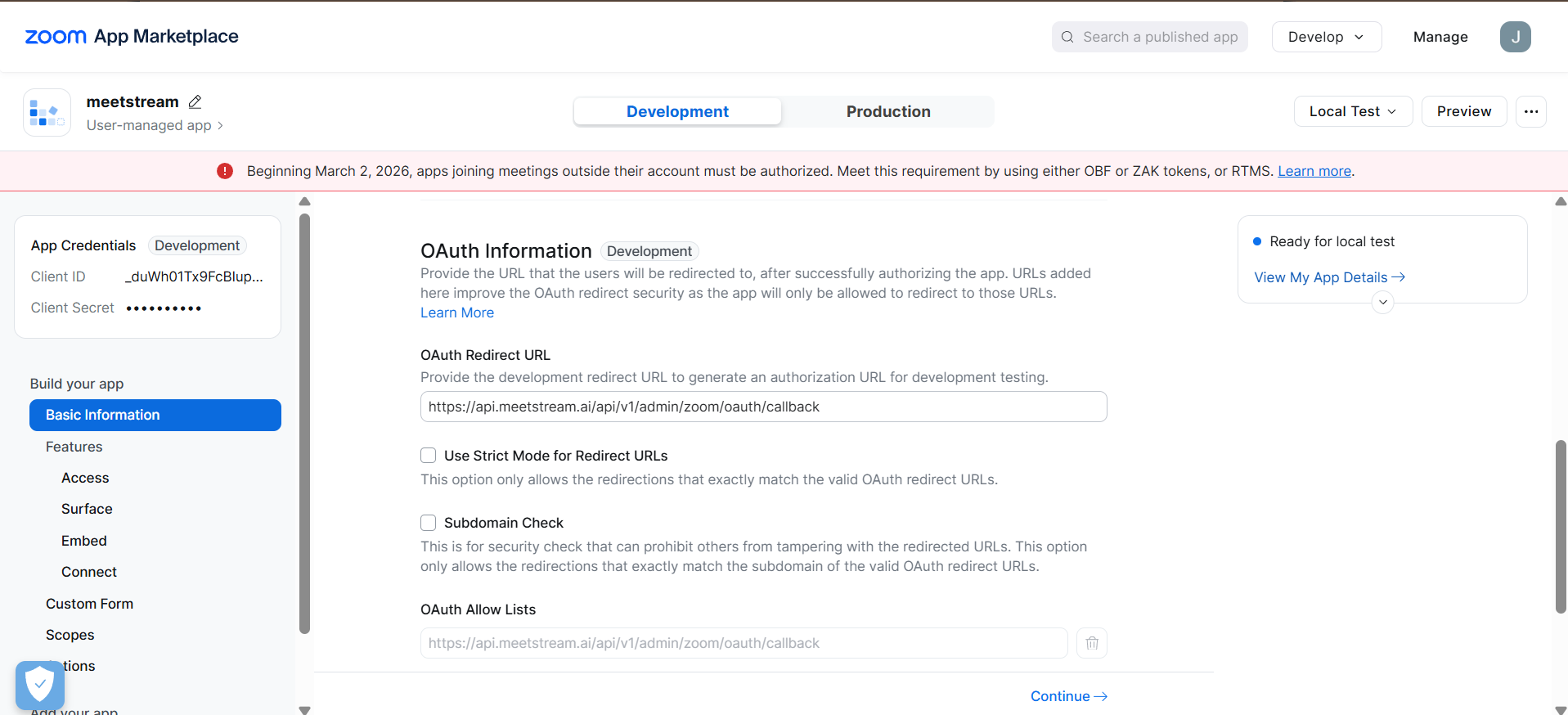 4. Scroll further down in the same page and find **OAuth Allow Lists** and paste the below URL there
```
https://meetstream.ai
```
4. Scroll further down in the same page and find **OAuth Allow Lists** and paste the below URL there
```
https://meetstream.ai
```
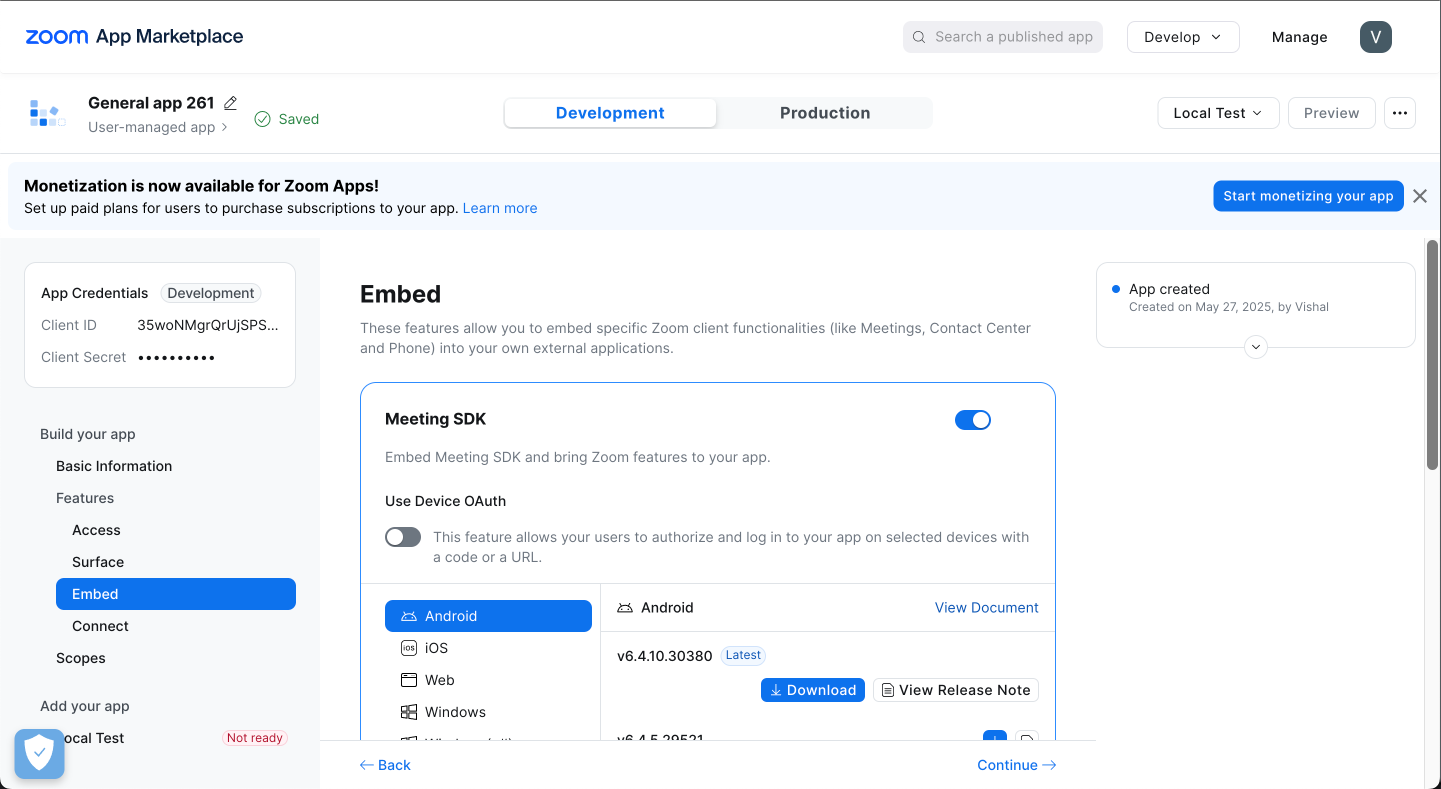
 1. Under **Features** tab click on **Embed**, and enable **Meeting SDK**
The rest can be ignored for now, just following what is mentioned is enough to connect our platform to zoom.
1. Under **Features** tab click on **Embed**, and enable **Meeting SDK**
The rest can be ignored for now, just following what is mentioned is enough to connect our platform to zoom.
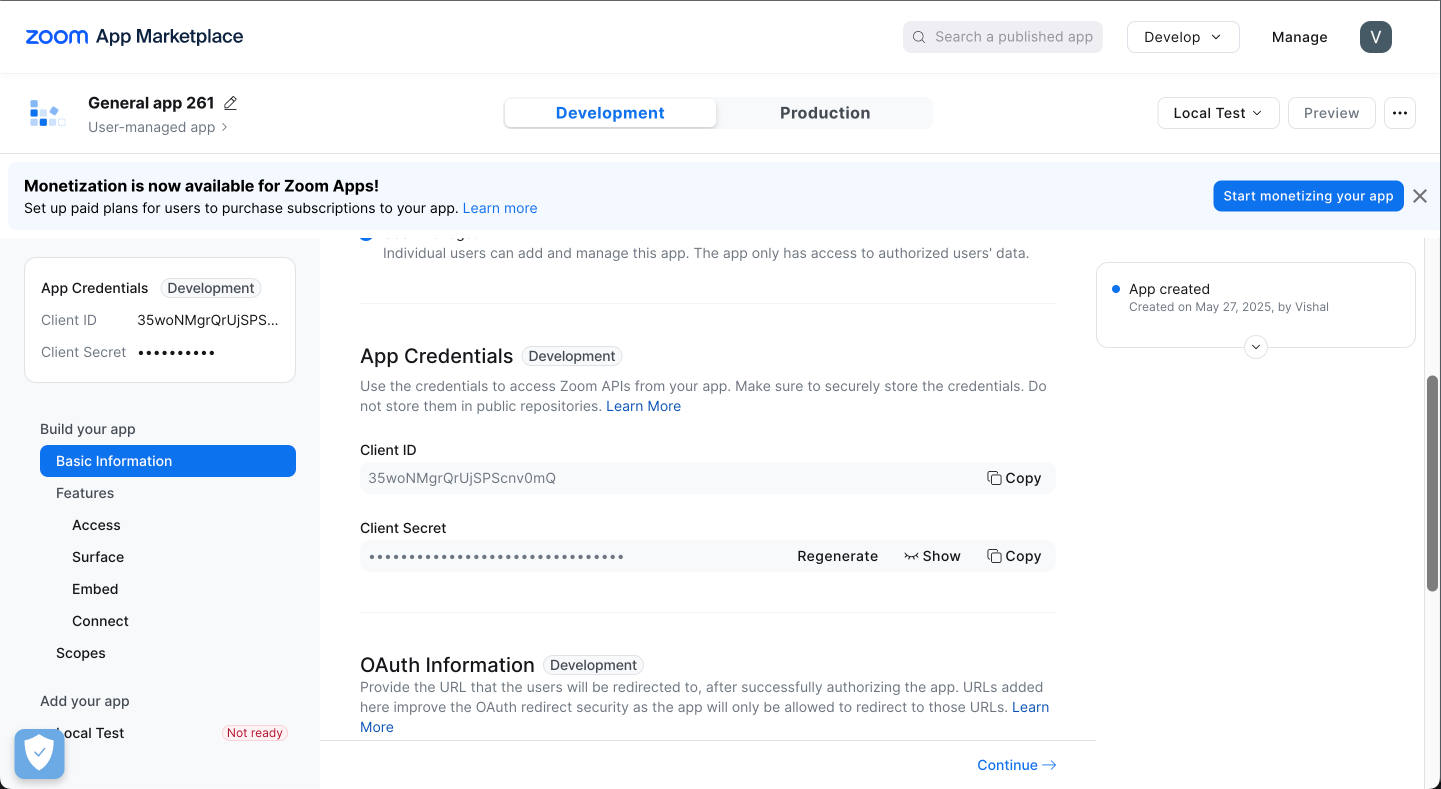
 1. Scroll to the top of the menu on the left or go to **Basic Information**
2. Find **App Credentials**
3. Copy your **Client ID** and **Client Secret**
1. Scroll to the top of the menu on the left or go to **Basic Information**
2. Find **App Credentials**
3. Copy your **Client ID** and **Client Secret**
 ## Step 2: Connect Zoom with MeetStream
**Prerequisite:** Make sure your Zoom app is created and configured by following the above steps.
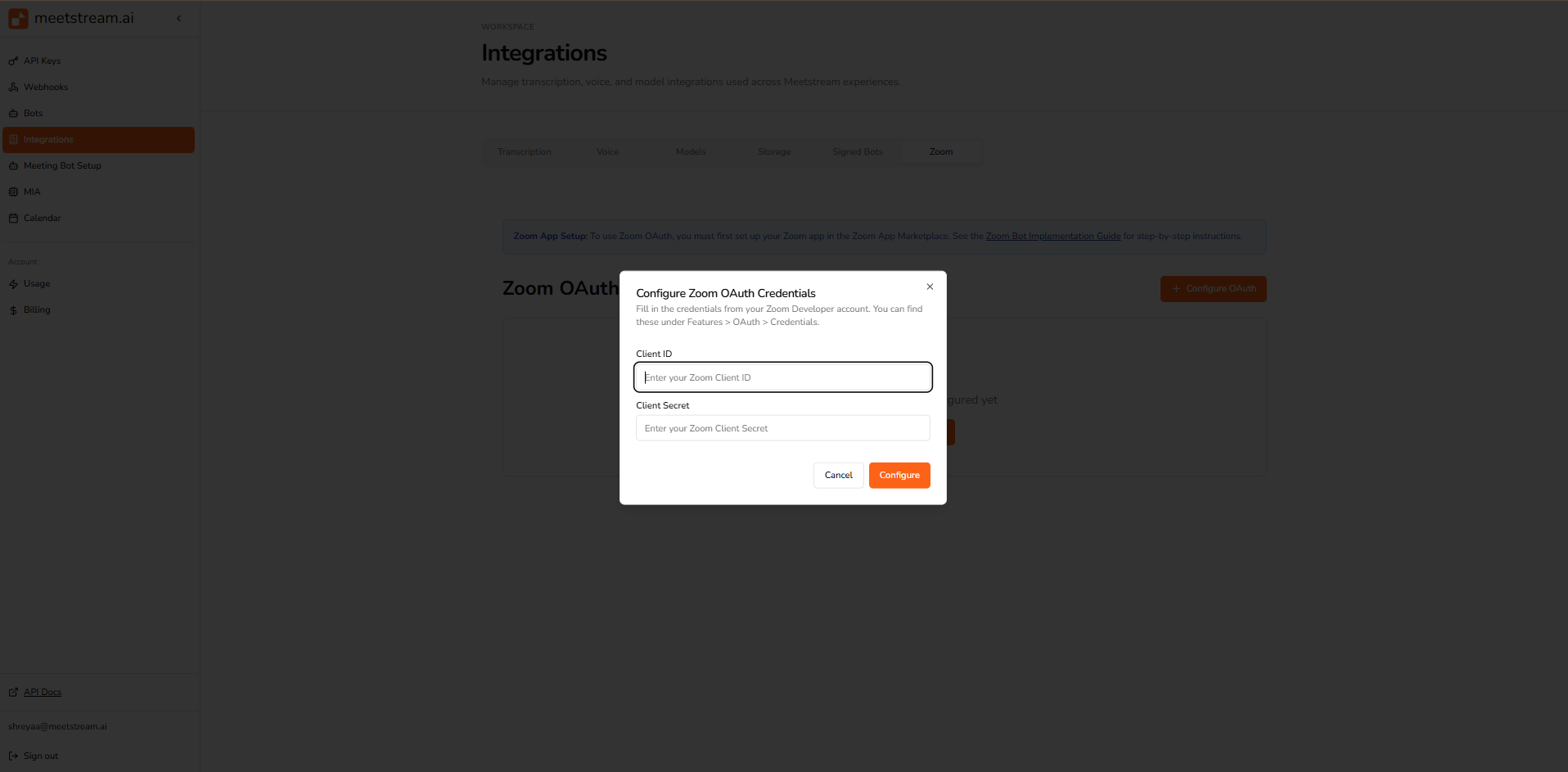
1. Open the [MeetStream Dashboard](https://app.meetstream.ai/integrations)
2. Go to the **Integrations** tab
3. Navigate to the **Zoom** section
4. Paste your **Client ID** and **Client Secret**
## Step 2: Connect Zoom with MeetStream
**Prerequisite:** Make sure your Zoom app is created and configured by following the above steps.
1. Open the [MeetStream Dashboard](https://app.meetstream.ai/integrations)
2. Go to the **Integrations** tab
3. Navigate to the **Zoom** section
4. Paste your **Client ID** and **Client Secret**
 Complete the OAuth authorization flow to connect your Zoom account.
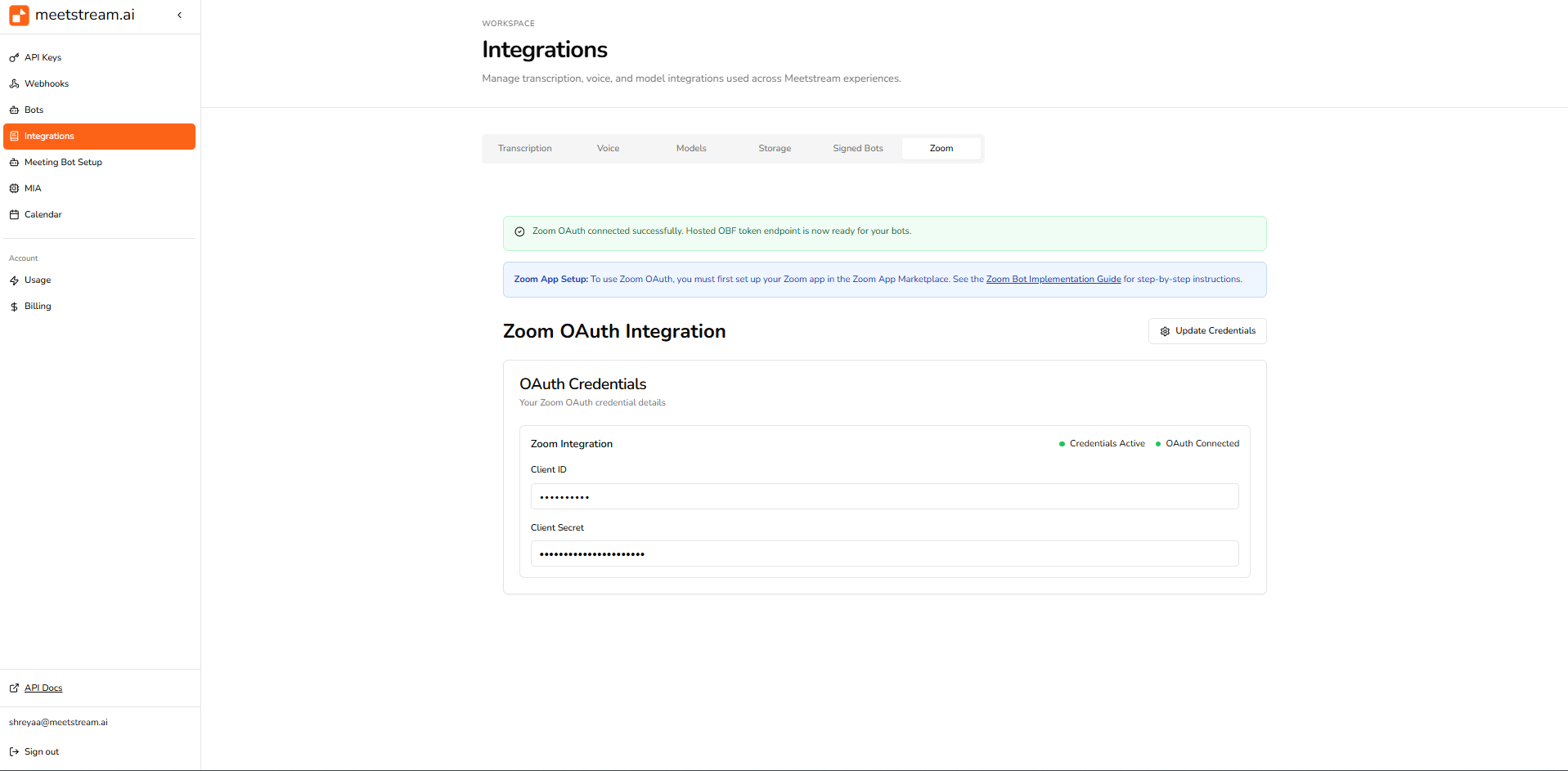
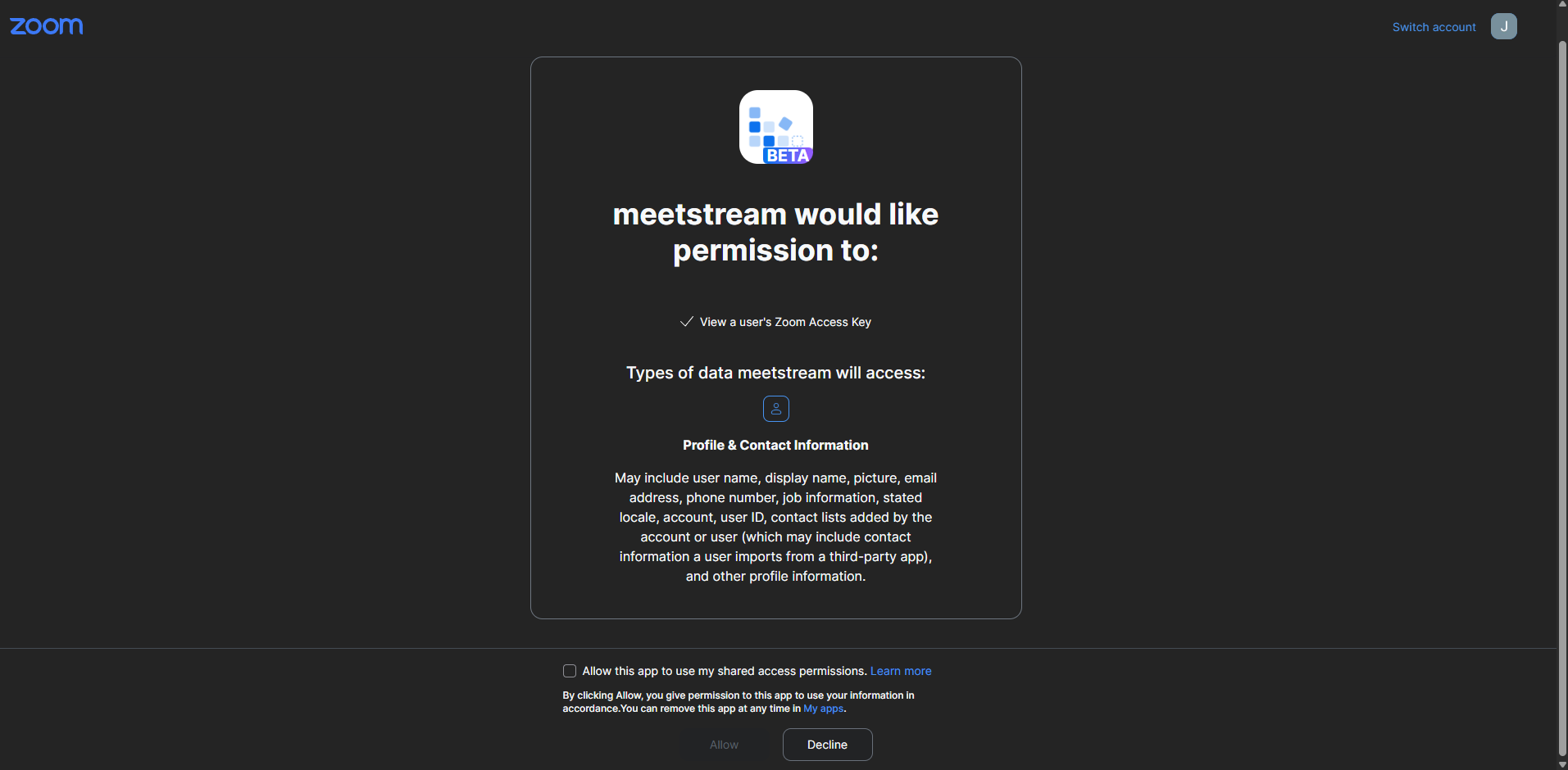 Once authorized, your integration is ready.
 Use the Create Bot API to start a bot.
View full API reference
**Endpoint:** `POST /bots/create_bot`
```bash cURL
curl -X POST "https://api.meestream.ai/api/v1/bots/create_bot" \
-H "Authorization: Token YOUR_API_KEY" \
-H "Content-Type: application/json" \
-d '{
"meeting_link": "",
"bot_name": "",
"bot_message": "",
"live_audio_required": {
"websocket_url": ""
},
"live_transcription_required": {
"webhook_url": ""
},
"custom_attributes": {
"tag": "",
"sample": ""
},
"callback_url": ""
}'
```
```json Request Body
{
"meeting_link": "",
"bot_name": "",
"bot_message": "",
"live_audio_required": {
"websocket_url": ""
},
"live_transcription_required": {
"webhook_url": ""
},
"custom_attributes": {
"tag": "",
"sample": ""
},
"callback_url": ""
}
```
**Responses:**
- **201:** Bot created successfully
- **400:** Invalid request
- **401:** Unauthorized
- **500:** Server error
If recording permission is denied, consider exiting early to avoid missing recordings.
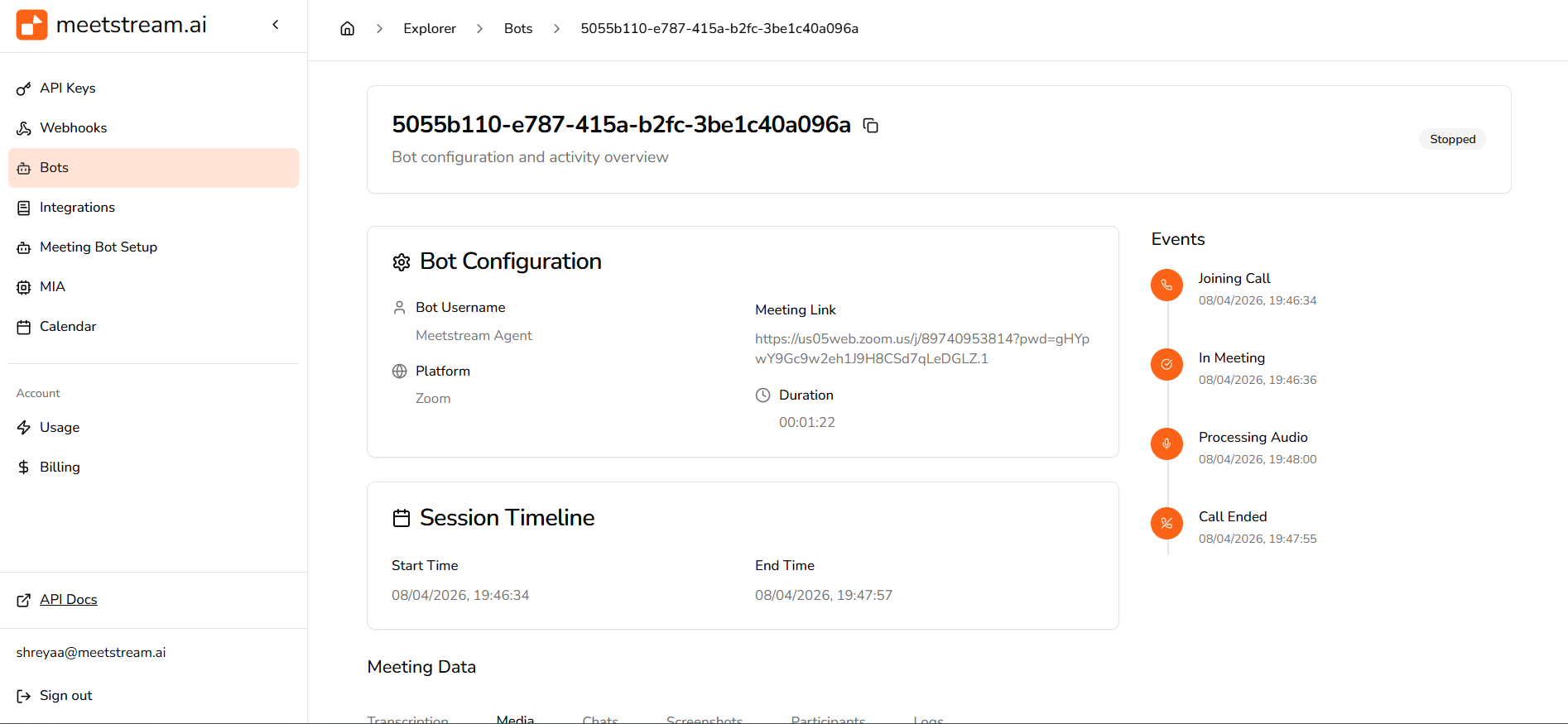
1. Go to the **Bots** section in your dashboard
2. Find your bot
3. Click **View** to monitor and debug
Use the Create Bot API to start a bot.
View full API reference
**Endpoint:** `POST /bots/create_bot`
```bash cURL
curl -X POST "https://api.meestream.ai/api/v1/bots/create_bot" \
-H "Authorization: Token YOUR_API_KEY" \
-H "Content-Type: application/json" \
-d '{
"meeting_link": "",
"bot_name": "",
"bot_message": "",
"live_audio_required": {
"websocket_url": ""
},
"live_transcription_required": {
"webhook_url": ""
},
"custom_attributes": {
"tag": "",
"sample": ""
},
"callback_url": ""
}'
```
```json Request Body
{
"meeting_link": "",
"bot_name": "",
"bot_message": "",
"live_audio_required": {
"websocket_url": ""
},
"live_transcription_required": {
"webhook_url": ""
},
"custom_attributes": {
"tag": "",
"sample": ""
},
"callback_url": ""
}
```
**Responses:**
- **201:** Bot created successfully
- **400:** Invalid request
- **401:** Unauthorized
- **500:** Server error
If recording permission is denied, consider exiting early to avoid missing recordings.
1. Go to the **Bots** section in your dashboard
2. Find your bot
3. Click **View** to monitor and debug
 The above steps enable working for meetings hosted by your account only, to join meetings hosted by any account follow our [Zoom App Production Submission Guide](https://docs.meetstream.ai/guides/zoom/zoom-app-production-submission)
## Troubleshooting
- Invalid or expired meeting link
- App is in development mode
- Waiting room not approved
- Password-protected meeting
- Audio not enabled in request
- No active speakers
- Permissions not granted by host
- Processing delay after meeting
- Invalid API key
- Incorrect header format (`Token YOUR_API_KEY`)
- Missing permissions
- Rate limits exceeded
The above steps enable working for meetings hosted by your account only, to join meetings hosted by any account follow our [Zoom App Production Submission Guide](https://docs.meetstream.ai/guides/zoom/zoom-app-production-submission)
## Troubleshooting
- Invalid or expired meeting link
- App is in development mode
- Waiting room not approved
- Password-protected meeting
- Audio not enabled in request
- No active speakers
- Permissions not granted by host
- Processing delay after meeting
- Invalid API key
- Incorrect header format (`Token YOUR_API_KEY`)
- Missing permissions
- Rate limits exceeded