> For clean Markdown of any page, append .md to the page URL.
> For a complete documentation index, see https://docs.meetstream.ai/llms.txt.
> For full documentation content, see https://docs.meetstream.ai/llms-full.txt.
> For AI client integration (Claude Code, Cursor, etc.), connect to the MCP server at https://docs.meetstream.ai/_mcp/server.
# Google Signed-In Bots
> This guide applies to **Google Meet**.
By default, MeetStream bots join as anonymous users. A signed-in bot logs into a real Google account before joining — so it appears as a named participant, not a guest.
**Use this when:**
- The meeting blocks anonymous/guest users
- You want the bot to appear with a name and avatar instead of "Unknown"
---
---
## Prerequisites
- A **Google Workspace account** with a custom domain (e.g. `yourcompany.com`)
- Access to your **Google Workspace Admin Console**
- Terminal access to run an OpenSSL command
---
## Setup
Navigate to [admin.google.com](https://admin.google.com).
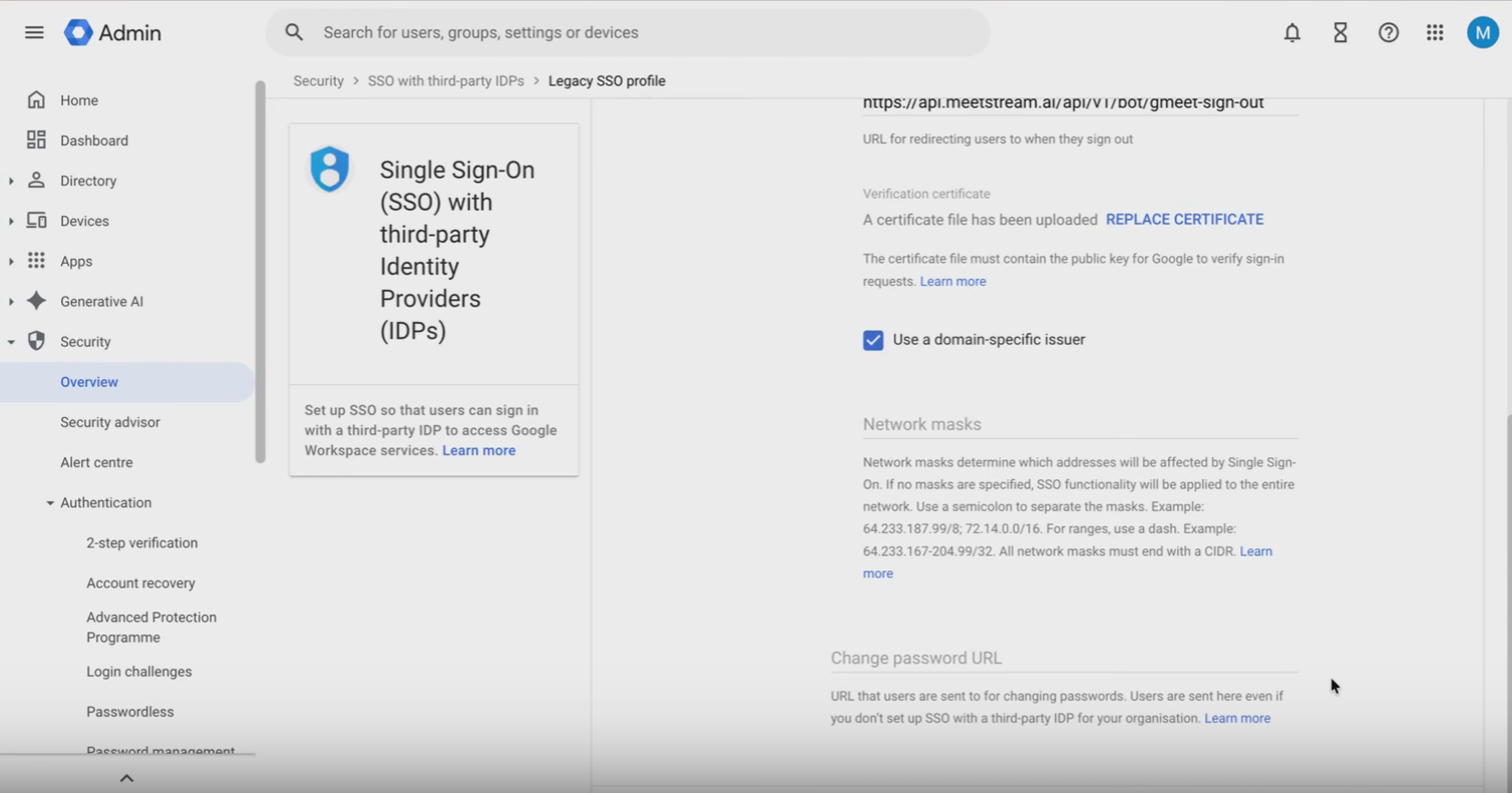
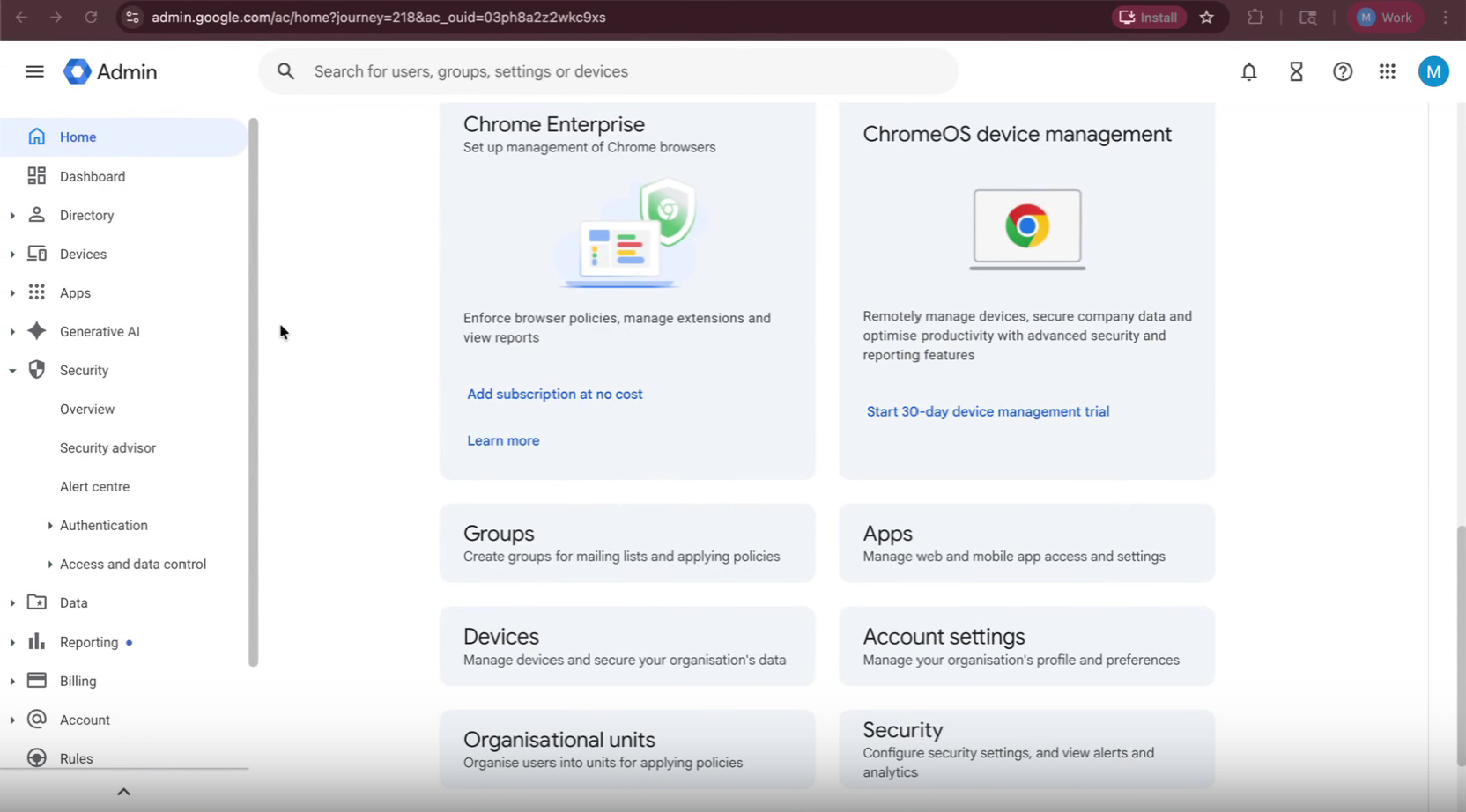 Go to **Security → Authentication → SSO with third-party IdPs**.
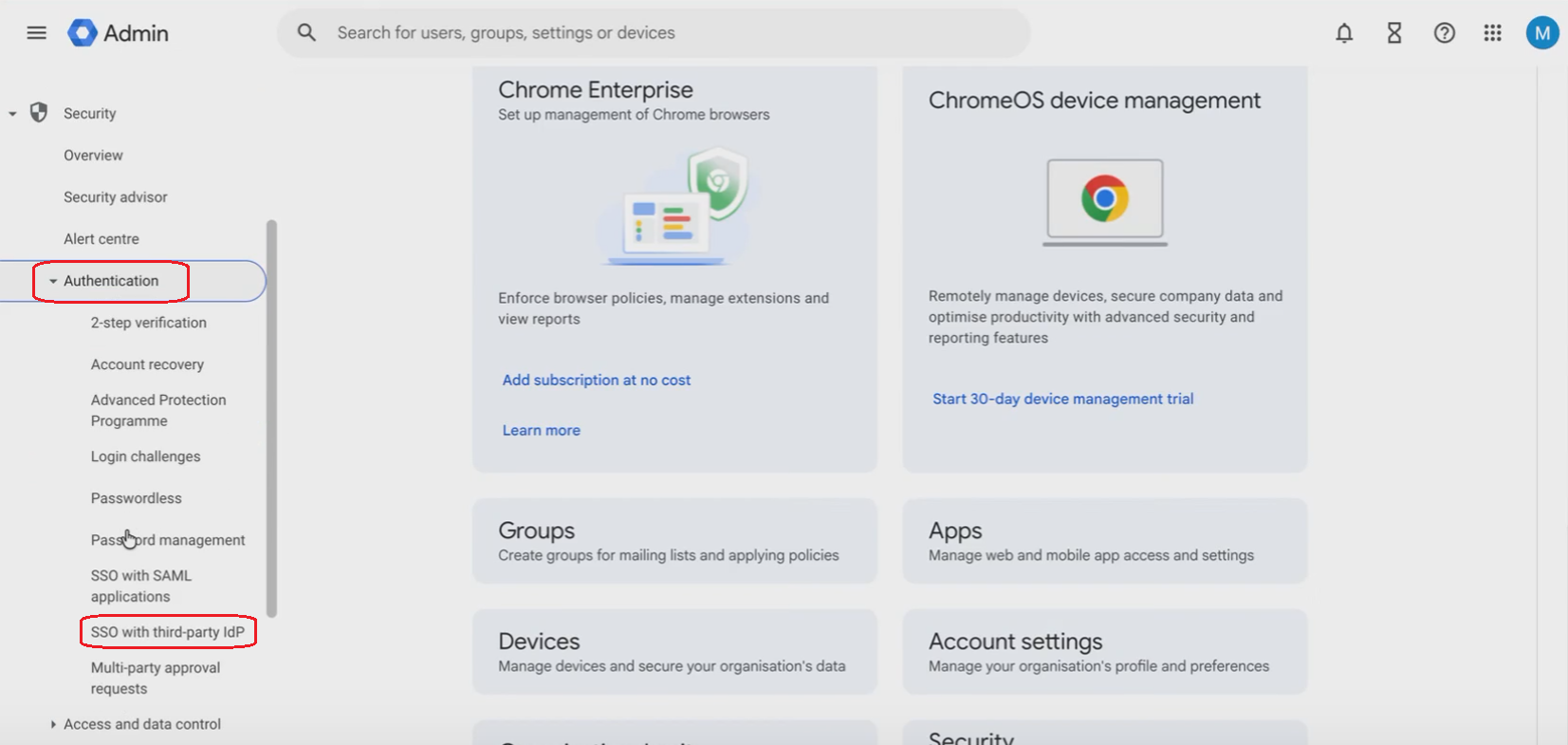 Select **SSO with third-party IdPs**, then open **Legacy SSO profile**.
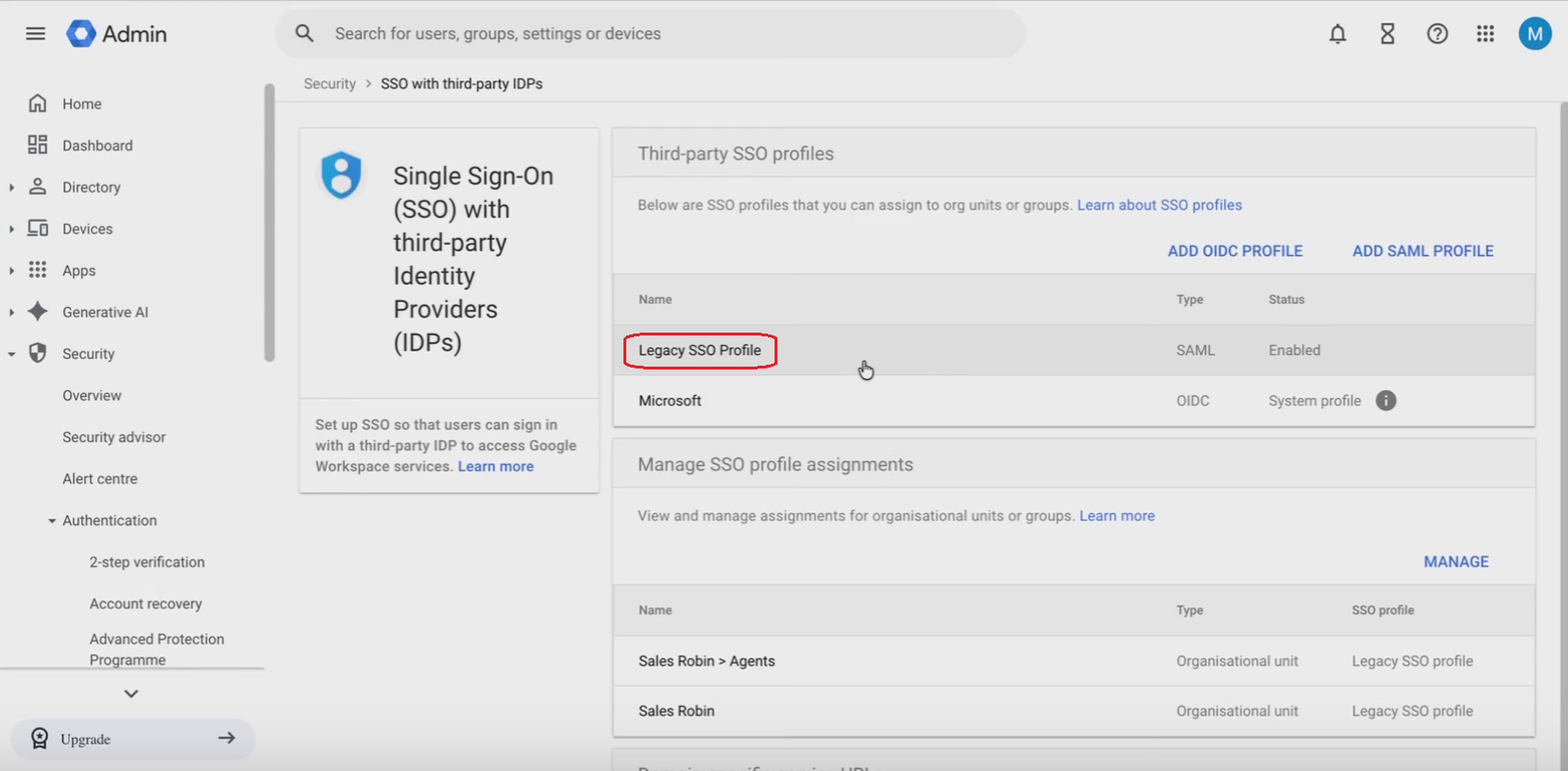 Turn on **Enable legacy SSO profile** and fill in these URLs:
Sign-in page URL
```
https://api.meetstream.ai/api/v1/bot/gmeet-sign-in
```
Sign-out page URL
```
https://api.meetstream.ai/api/v1/bot/gmeet-sign-out
```
Also enable **Domain-specific issuer** on the same page.
Turn on **Enable legacy SSO profile** and fill in these URLs:
Sign-in page URL
```
https://api.meetstream.ai/api/v1/bot/gmeet-sign-in
```
Sign-out page URL
```
https://api.meetstream.ai/api/v1/bot/gmeet-sign-out
```
Also enable **Domain-specific issuer** on the same page.
 Run this command in your terminal:
```bash
openssl req -x509 -newkey rsa:2048 -keyout key.pem -out cert.pem -sha256 -days 3650 -nodes
```
This creates two files:
- `key.pem` — your private key
- `cert.pem` — your certificate
Save both. You'll need them in the next steps.
In the [MeetStream dashboard](https://app.meetstream.ai/integrations), go to **Integrations → Google Signed-In Bots**.
Run this command in your terminal:
```bash
openssl req -x509 -newkey rsa:2048 -keyout key.pem -out cert.pem -sha256 -days 3650 -nodes
```
This creates two files:
- `key.pem` — your private key
- `cert.pem` — your certificate
Save both. You'll need them in the next steps.
In the [MeetStream dashboard](https://app.meetstream.ai/integrations), go to **Integrations → Google Signed-In Bots**.
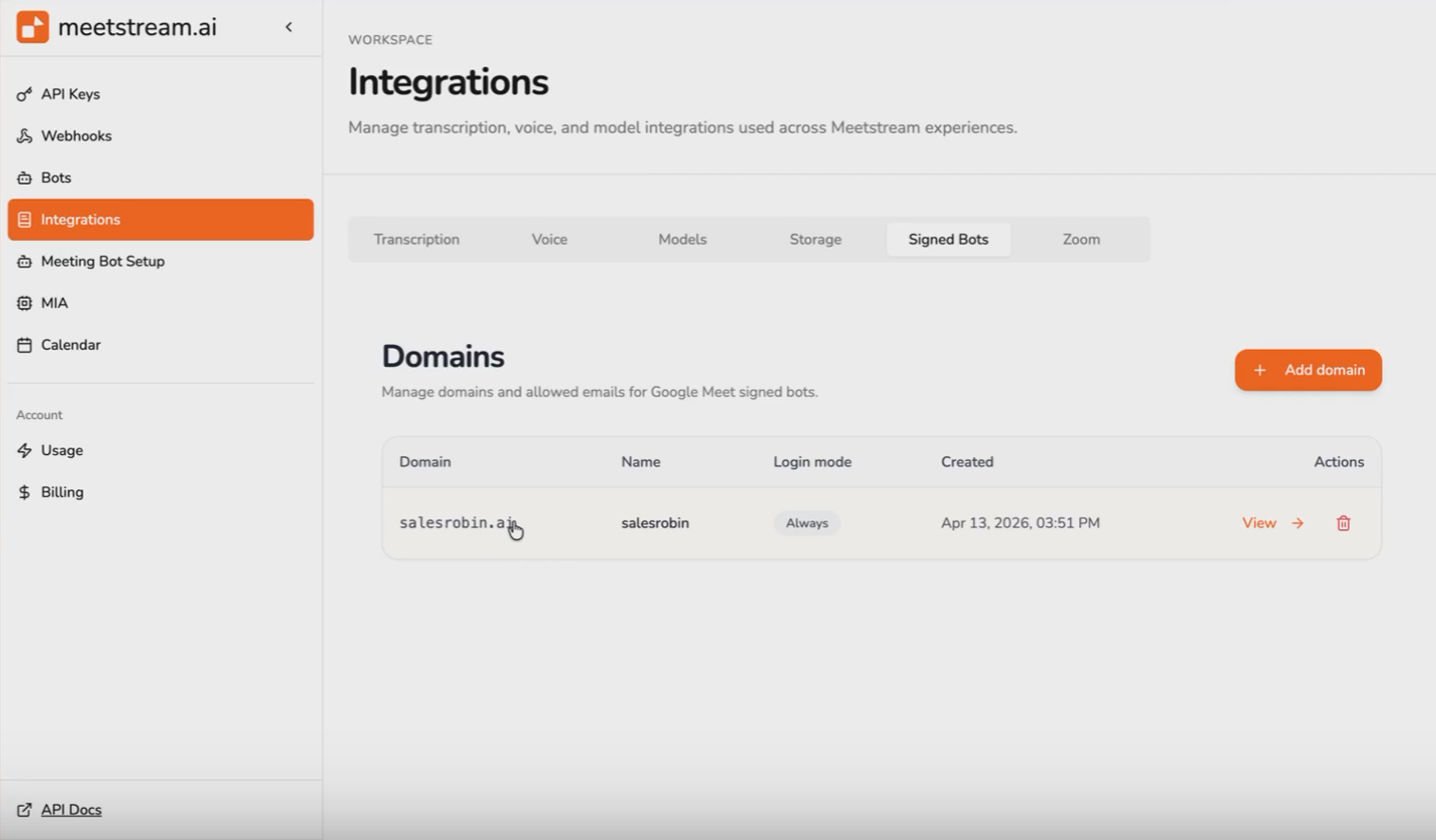 Enter the custom domain you use with your Google Workspace account.
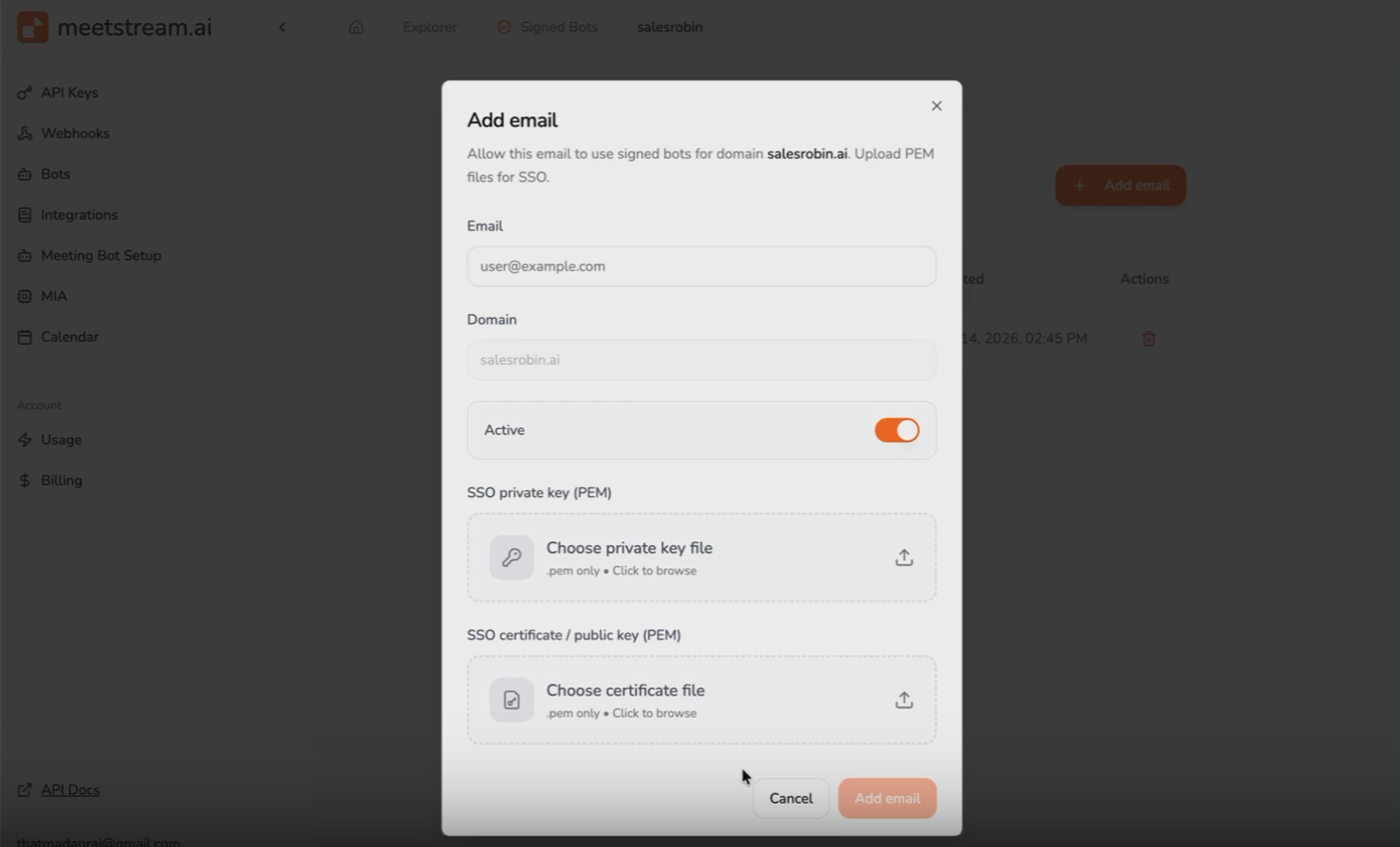
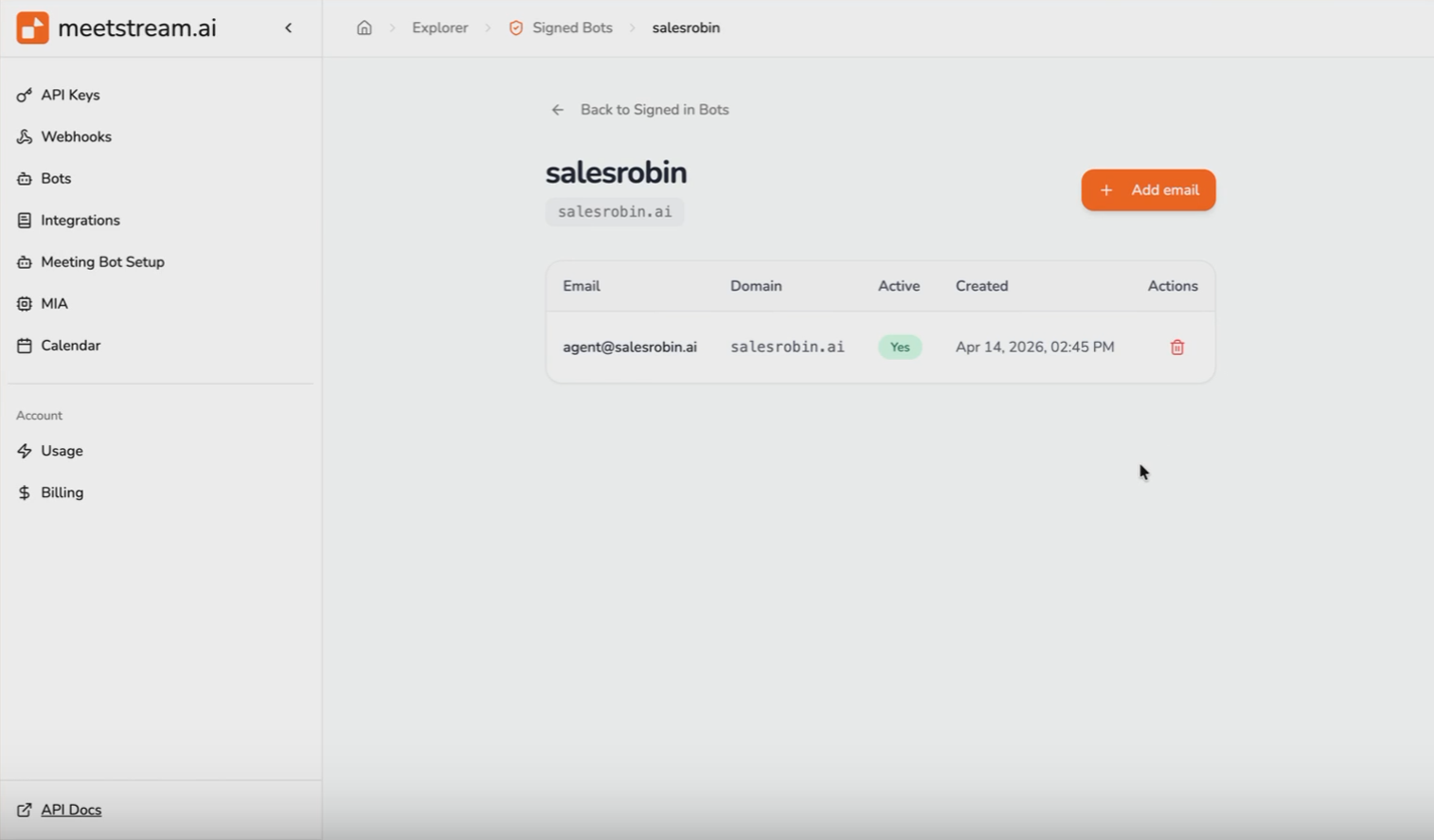 Add each email address you use to invite the bot. For every email you add, upload the `key.pem` and `cert.pem` certificate generated in Step 5.
> Upload the certificate each time you add a new mail ID under a domain.
Add each email address you use to invite the bot. For every email you add, upload the `key.pem` and `cert.pem` certificate generated in Step 5.
> Upload the certificate each time you add a new mail ID under a domain.
 ---
## Deploy Your Signed-In Bot
Now you are ready to use Google meet using configured email identity! When calling the [Create Bot](/api-reference/api-endpoints/bot-endpoints/create-bot) endpoint, pass the following parameter to activate Google Meet sign-in:
```json
"google_meet": {
"login_required": true,
"google_login_domain": "your domain name"
}
```
Here is an example with a full working payload that supports signed-in bots for google meet:
```json
{
"meeting_link": "{{meeting_link}}",
"bot_name": "{{bot_name}} Agent",
"video_required": {{video_required}},
"bot_message": "Hey Everyone, I'm a speaking agent",
"bot_image_url":"{{bot_profile}}",
"google_meet": {
"login_required": true,
"google_login_domain": "salesrobin.ai"
},
"custom_attributes": {
"tag": "Meetstream",
"sample": "testing",
"user": "{{user_id}}"
},
"recording_config": {
"retention": {
"type": "timed",
"hours": 48
}
},
"automatic_leave": {
"waiting_room_timeout": 100, // sec
"everyone_left_timeout": 100, // secs
"voice_inactivity_timeout": 51, // secs
"in_call_recording_timeout": 14400, // secs
"recording_permission_denied_timeout": 60 // only for zoom
}
}
```
---
For general bot setup, see the [Create Your First Bot](/guides/get-started/create-your-first-bot) guide and webhook event handling, see [Webhooks and Events](/guides/webhooks/webhooks-and-events).
---
## Deploy Your Signed-In Bot
Now you are ready to use Google meet using configured email identity! When calling the [Create Bot](/api-reference/api-endpoints/bot-endpoints/create-bot) endpoint, pass the following parameter to activate Google Meet sign-in:
```json
"google_meet": {
"login_required": true,
"google_login_domain": "your domain name"
}
```
Here is an example with a full working payload that supports signed-in bots for google meet:
```json
{
"meeting_link": "{{meeting_link}}",
"bot_name": "{{bot_name}} Agent",
"video_required": {{video_required}},
"bot_message": "Hey Everyone, I'm a speaking agent",
"bot_image_url":"{{bot_profile}}",
"google_meet": {
"login_required": true,
"google_login_domain": "salesrobin.ai"
},
"custom_attributes": {
"tag": "Meetstream",
"sample": "testing",
"user": "{{user_id}}"
},
"recording_config": {
"retention": {
"type": "timed",
"hours": 48
}
},
"automatic_leave": {
"waiting_room_timeout": 100, // sec
"everyone_left_timeout": 100, // secs
"voice_inactivity_timeout": 51, // secs
"in_call_recording_timeout": 14400, // secs
"recording_permission_denied_timeout": 60 // only for zoom
}
}
```
---
For general bot setup, see the [Create Your First Bot](/guides/get-started/create-your-first-bot) guide and webhook event handling, see [Webhooks and Events](/guides/webhooks/webhooks-and-events).